Attribuer une tâche directement depuis une réunion et lier une réunion à un plan d'action
Traduction automatique de l'anglais. Original en anglais affiché.
The Standardized Meetings module gives you two options for assigning a task directly from a meeting document: create a new action as part of the Standardized Meeting document, or create a new (or use an existing) action list in the Action Lists module and link it to your Standardized Meeting as a related document.
Add an action in the meeting
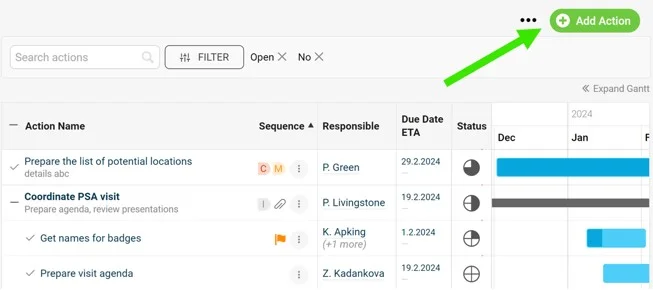
Create the action directly from the meeting document, as shown below.
Link an action list to the meeting
-
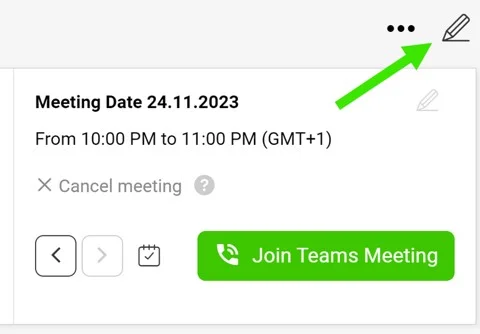
Open the edit screen. Go to the meeting document edit screen via the pencil icon in the upper right corner.
-
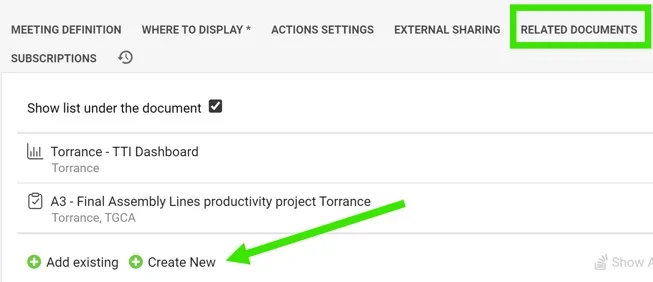
Go to Related Documents. Scroll down to the Related Documents tab.
-
Add a document. Click the Add document button.
-
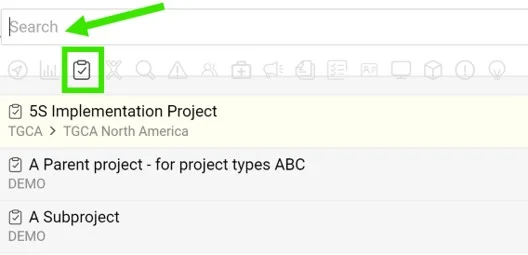
Select the document type. Select the Action lists icon as the document type.
-
Pick or create the action list. Select Existing if your action list has already been created and search for it by its title, or select Create new to get a new one.
-
Save. Save and go to the meeting document.
-
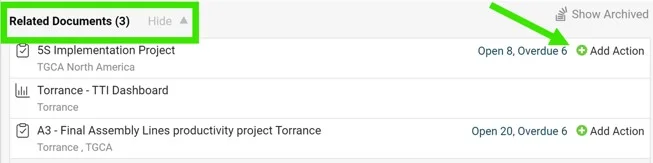
Find the linked action list. Your action list appears at the bottom as a Related Document.
-
Assign the tasks. When you assign a new task, you can either click the action list name to open the action list document, or click the Add Action button to assign the task directly from the meeting document. The new task is added to the action list document automatically.
Le module Réunions standardisées offre deux façons d’attribuer une tâche directement depuis une réunion : créer une action dans le document de la réunion standardisée, ou créer (ou reprendre) un plan d’action dans le module Plans d’action et le lier à votre réunion standardisée comme document lié.
Ajouter une action dans la réunion
Créez l’action directement depuis le document de la réunion, comme ci-dessous.
Lier un plan d’action à la réunion
-
Ouvrez l’écran de modification. Ouvrez l’écran de modification de la réunion avec le crayon en haut à droite.
-
Allez dans Documents liés. Faites défiler jusqu’à l’onglet Documents liés.
-
Ajoutez un document. Cliquez sur le bouton Ajouter un document.
-
Choisissez le type de document. Sélectionnez l’icône Plans d’action comme type de document.
-
Choisissez ou créez le plan d’action. Sélectionnez Existant si votre plan d’action existe déjà et recherchez-le par son titre, ou sélectionnez Créer pour en créer un.
-
Enregistrez. Enregistrez et revenez au document de la réunion.
-
Retrouvez le plan d’action lié. Votre plan d’action apparaît en bas, comme Document lié.
-
Attribuez les tâches. Pour attribuer une nouvelle tâche, cliquez sur le nom du plan d’action pour ouvrir le document, ou cliquez sur le bouton Ajouter une action pour attribuer la tâche directement depuis la réunion. La nouvelle tâche est ajoutée automatiquement au plan d’action.
Besoin d'aide supplémentaire ?
Écrivez-nous. Les jours ouvrés, nous répondons en général en moins d'une heure.