如何直接在会议中分配任务,以及如何将会议与行动清单关联
本文由英文机器翻译。 当前显示英文原文。
The Standardized Meetings module gives you two options for assigning a task directly from a meeting document: create a new action as part of the Standardized Meeting document, or create a new (or use an existing) action list in the Action Lists module and link it to your Standardized Meeting as a related document.
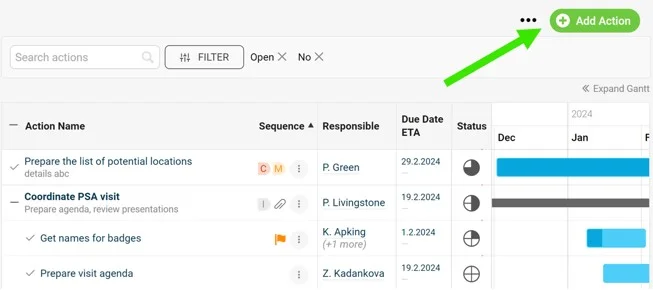
Add an action in the meeting
Create the action directly from the meeting document, as shown below.
Link an action list to the meeting
-
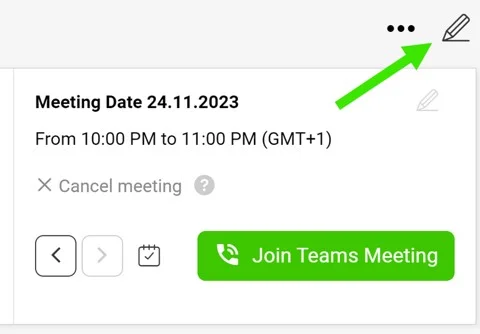
Open the edit screen. Go to the meeting document edit screen via the pencil icon in the upper right corner.
-
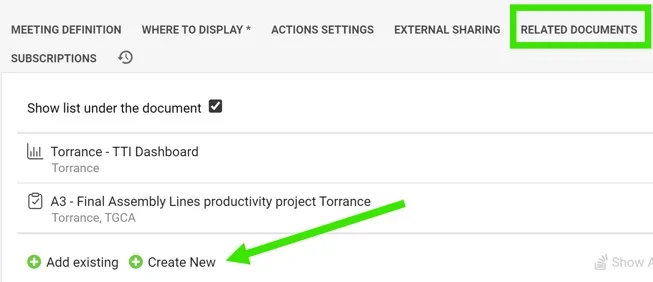
Go to Related Documents. Scroll down to the Related Documents tab.
-
Add a document. Click the Add document button.
-
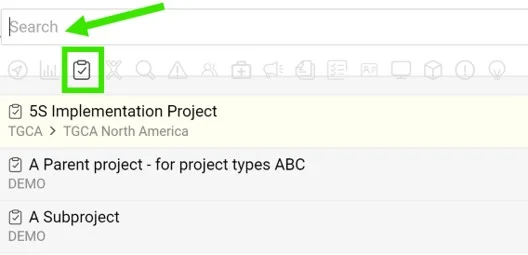
Select the document type. Select the Action lists icon as the document type.
-
Pick or create the action list. Select Existing if your action list has already been created and search for it by its title, or select Create new to get a new one.
-
Save. Save and go to the meeting document.
-
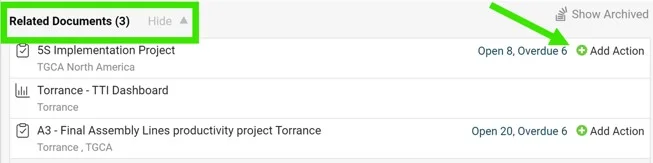
Find the linked action list. Your action list appears at the bottom as a Related Document.
-
Assign the tasks. When you assign a new task, you can either click the action list name to open the action list document, or click the Add Action button to assign the task directly from the meeting document. The new task is added to the action list document automatically.
在标准化会议模块中,有两种方式可以直接从会议文档分配任务:在标准化会议文档中新建行动;或者在 行动清单 模块中新建(或使用现有的)行动清单,并将其作为相关文档关联到标准化会议。
在会议中添加行动
直接在会议文档中创建行动,如下图所示。
将行动清单关联到会议
-
打开编辑界面。 通过右上角的铅笔图标进入会议文档编辑界面。
-
进入相关文档。 向下滚动到 相关文档 选项卡。
-
添加文档。 点击 添加文档 按钮。
-
选择文档类型。 选择 行动清单 图标作为文档类型。
-
选择或创建行动清单。 如果行动清单已创建,请选择 现有 并按标题搜索;如需新建,请选择 新建。
-
保存。 保存后返回会议文档。
-
找到关联的行动清单。 您的行动清单会作为 相关文档 显示在底部。
-
分配任务。 分配新任务时,可以点击行动清单名称打开该行动清单文档,也可以点击 添加行动 按钮直接在会议文档中分配任务。新任务会自动添加到行动清单文档中。
还需要帮助吗?
请给我们留言。工作日我们通常会在一小时内回复。