How to copy a widget, updates (slides) and missing topics from previous slides
You can copy a single widget or a full update (slide) in your report, not only within the same report but also to other reports.
Please note: to copy a full page (all topics), you have to copy either its widgets or its slides.
Copy a single widget
-
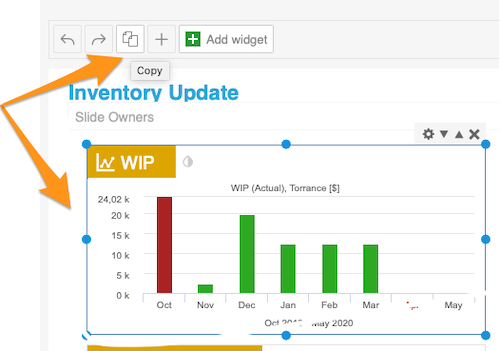
Select the widget. Click your widget: it gets a blue frame and settings options in its upper right corner.
-
Copy the widget. Click the Copy button (two pages icon) in the panel at the top, above the slide.
-
Paste the widget. Choose the slide where you want to copy the widget, click it and paste the widget with the plus (paste) button. Then click Save.

Copy an update (slide)
Copy the update
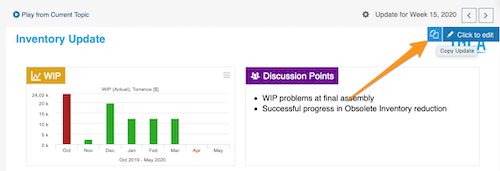
Click the slide you want to copy (a blue button appears in its upper right corner) and select Copy Update.
Then you can either create a topic for an existing period, or create a new update for a new period.
Paste it as a topic
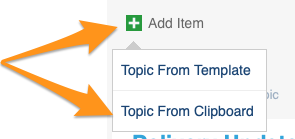
To create a topic (slide) for an existing period in the same or another report, click the green plus button Add item and paste your topic by choosing Topic From Clipboard.
Create a new update from the clipboard
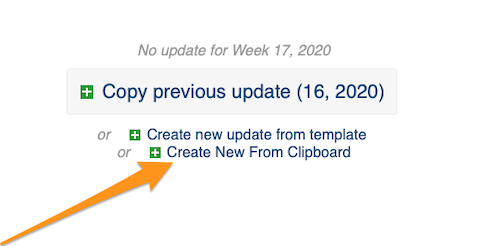
To create a new update for a new period, click the green plus button Create New From Clipboard.
Please note: if you are copying between two different reports in two open windows, refresh the page after each copy (otherwise you will keep copying the same slide).
Turn off automatic slide updates first
If your report is set to Create new slide updates automatically, you have to turn this option off before you copy your slides (in the report settings, on the Automation tab).

Still need help?
Write to us. We usually reply within an hour on business days.