Cómo copiar un widget, actualizaciones (diapositivas) y temas faltantes de diapositivas anteriores
Traducción automática del inglés. Se muestra el original en inglés.
You can copy a single widget or a full update (slide) in your report, not only within the same report but also to other reports.
Please note: to copy a full page (all topics), you have to copy either its widgets or its slides.
Copy a single widget
-
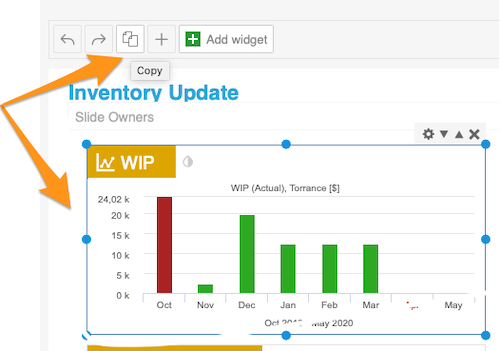
Select the widget. Click your widget: it gets a blue frame and settings options in its upper right corner.
-
Copy the widget. Click the Copy button (two pages icon) in the panel at the top, above the slide.
-
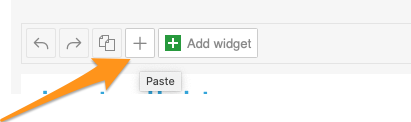
Paste the widget. Choose the slide where you want to copy the widget, click it and paste the widget with the plus (paste) button. Then click Save.
Copy an update (slide)
Copy the update
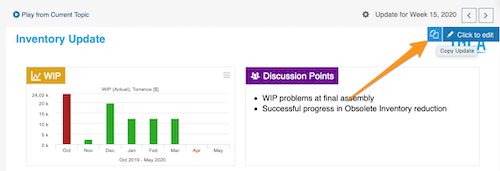
Click the slide you want to copy (a blue button appears in its upper right corner) and select Copy Update.
Then you can either create a topic for an existing period, or create a new update for a new period.
Paste it as a topic
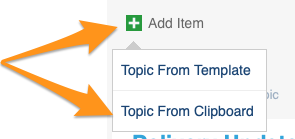
To create a topic (slide) for an existing period in the same or another report, click the green plus button Add item and paste your topic by choosing Topic From Clipboard.
Create a new update from the clipboard
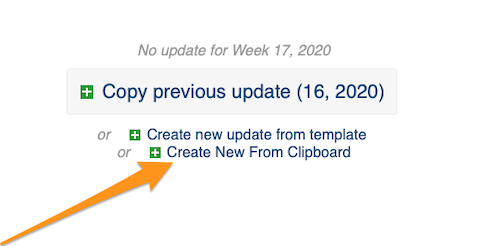
To create a new update for a new period, click the green plus button Create New From Clipboard.
Please note: if you are copying between two different reports in two open windows, refresh the page after each copy (otherwise you will keep copying the same slide).
Turn off automatic slide updates first
If your report is set to Create new slide updates automatically, you have to turn this option off before you copy your slides (in the report settings, on the Automation tab).

Puede copiar un widget o una actualización (diapositiva) completa de su informe, no solo dentro del mismo informe sino también a otros informes.
Tenga en cuenta: para copiar una página completa (todos los temas), debe copiar sus widgets o sus diapositivas.
Copiar un widget
-
Seleccione el widget. Haga clic en el widget: aparece con un marco azul y opciones de configuración en su esquina superior derecha.
-
Copie el widget. Haga clic en el botón Copiar (icono de dos páginas) en el panel superior, encima de la diapositiva.
-
Pegue el widget. Elija la diapositiva a la que quiere copiar el widget, haga clic en ella y pegue el widget con el botón del signo más (pegar). Luego haga clic en Guardar.
Copiar una actualización (diapositiva)
Copie la actualización
Haga clic en la diapositiva que quiere copiar (aparece un botón azul en su esquina superior derecha) y seleccione Copiar actualización.
Luego puede crear un tema para un período existente o crear una nueva actualización para un nuevo período.
Péguela como tema
Para crear un tema (diapositiva) para un período existente en el mismo informe o en otro, haga clic en el botón verde con el signo más Agregar elemento y pegue el tema eligiendo Tema desde el portapapeles.
Cree una nueva actualización desde el portapapeles
Para crear una nueva actualización para un nuevo período, haga clic en el botón verde con el signo más Crear nuevo desde el portapapeles.
Tenga en cuenta: si copia entre dos informes distintos abiertos en dos ventanas, actualice la página después de cada copia (de lo contrario, seguirá copiando la misma diapositiva).
Desactive primero la actualización automática de diapositivas
Si su informe tiene activada la opción Crear nuevas actualizaciones de diapositivas automáticamente, debe desactivarla antes de copiar las diapositivas (en la configuración del informe, pestaña Automatización).
¿Necesita más ayuda?
Escríbanos. En días laborables solemos responder en menos de una hora.