How to set up a skill level?
The system offers a default skill level, but you can set up your own skill levels according to your preferences. (Video guide: learn about skill levels – 1:10 to 6:52)
Create skill levels
-
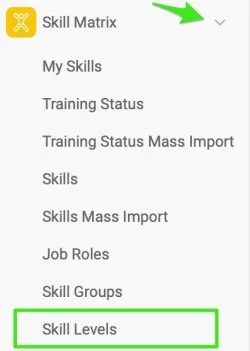
Open the skill levels. Click the Skill Matrix module and select Skill Levels from the submenu.
-
Add new skill levels. Click the Create New button, complete the basic settings and add the skill level(s).

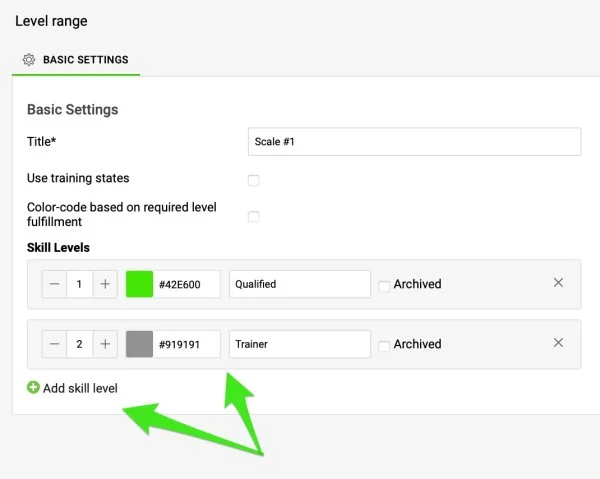
You have three options to define your skill levels and visualize them in the skill matrix.
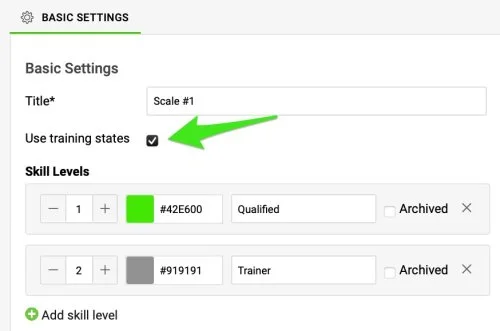
Option 1: Use training states
Add levels and colors
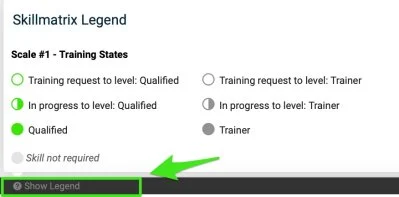
When you tick Use training states, you can add skill levels and colors of your choice. These skill levels, such as “Trainer” or “Qualified”, appear in the skill matrix legend and influence the color scheme of your matrix.
The numerical values of these levels are not displayed anywhere. Instead, you set the hierarchy by the order of the skill levels themselves, which you can change by drag and drop if necessary.
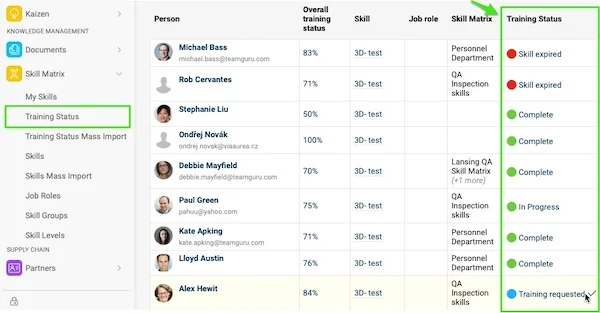
Training request and in progress
Each level automatically includes two sub-levels, Training Request and In Progress, which are useful for monitoring and managing training requests.
Select the completion status
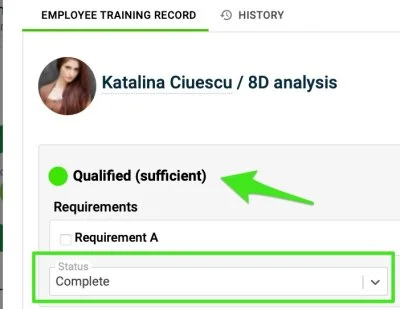
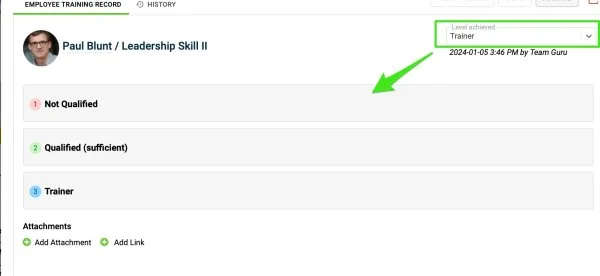
When you open an employee’s training card, you find the sufficient skill level and can select the completion status.
Option 2: Color-code by required level
Number and order the levels
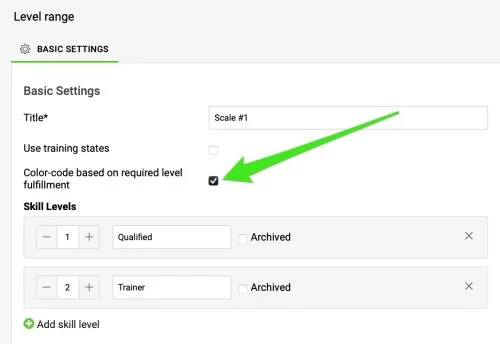
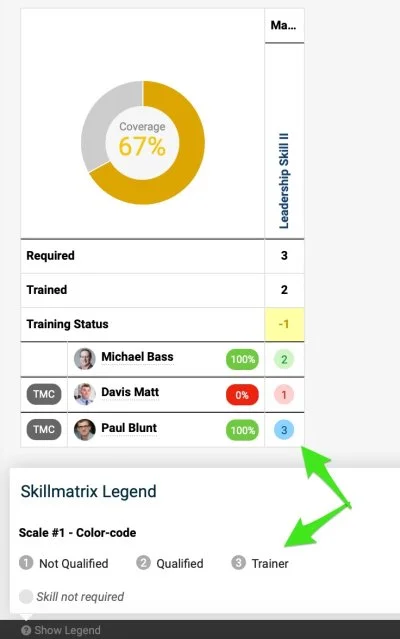
When you select Color-code based on required level fulfillment, you can enter numbers, define skill levels and arrange their hierarchy. The system automatically assigns color codes (red, green, blue) to show skill fulfillment. At a glance, you see whether an employee has reached the sufficient level (green), fallen short of it (red) or surpassed the required level (blue).
Option 3: Combination
Choose numbers, levels and colors
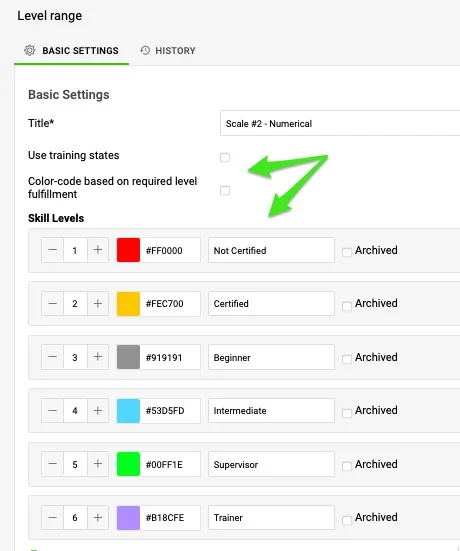
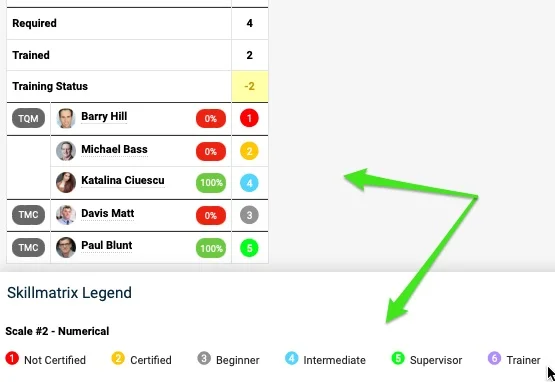
If you leave the boxes unticked, you can enter numbers, define skill levels and choose colors according to your preferences.
Check the sufficient level
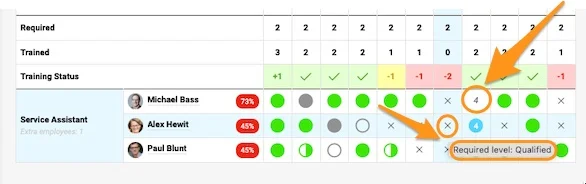
In the skill matrix, however, you won’t see immediately whether a level is sufficient, unless you check the Sufficient number or hover over each cell.
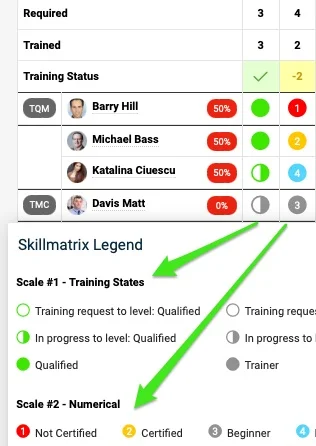
Different levels in one matrix
If different skill levels are used for the skills in your skill matrix, you can see these differences.
Still need help?
Write to us. We usually reply within an hour on business days.