¿Cómo configurar un nivel de habilidad?
Traducción automática del inglés. Se muestra el original en inglés.
The system offers a default skill level, but you can set up your own skill levels according to your preferences. (Video guide: learn about skill levels – 1:10 to 6:52)
Create skill levels
-
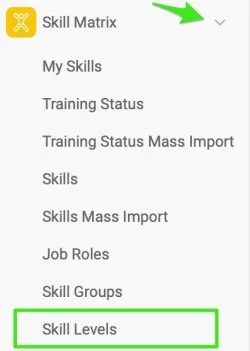
Open the skill levels. Click the Skill Matrix module and select Skill Levels from the submenu.
-
Add new skill levels. Click the Create New button, complete the basic settings and add the skill level(s).

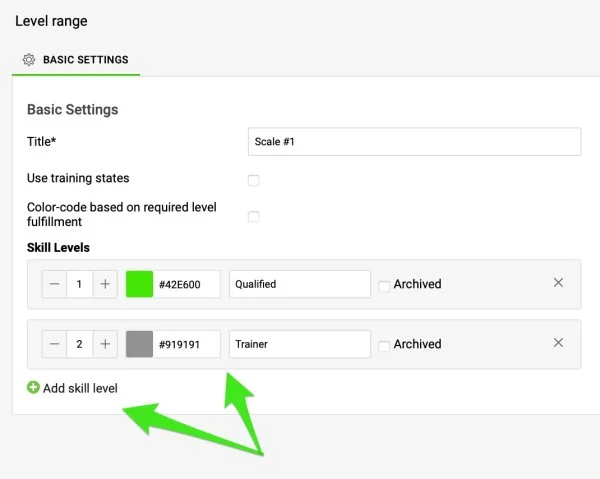
You have three options to define your skill levels and visualize them in the skill matrix.
Option 1: Use training states
Add levels and colors
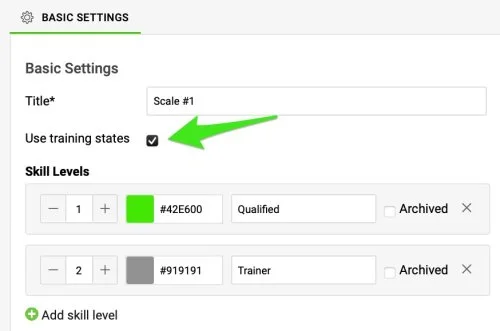
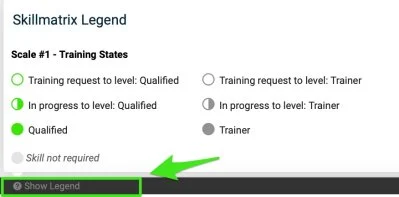
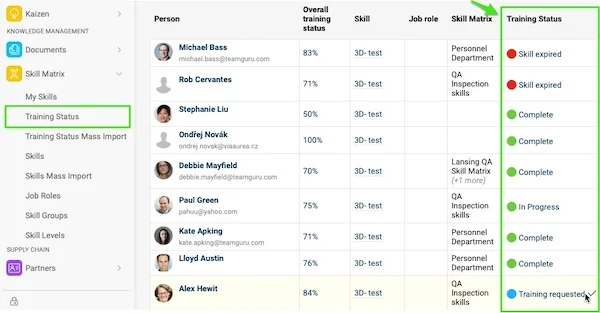
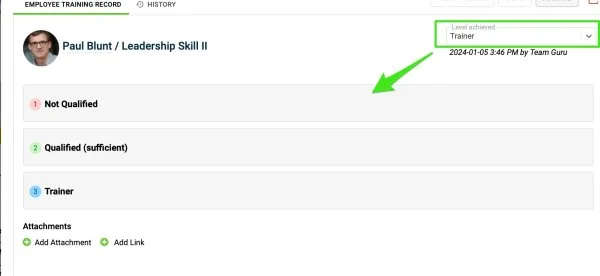
When you tick Use training states, you can add skill levels and colors of your choice. These skill levels, such as “Trainer” or “Qualified”, appear in the skill matrix legend and influence the color scheme of your matrix.
The numerical values of these levels are not displayed anywhere. Instead, you set the hierarchy by the order of the skill levels themselves, which you can change by drag and drop if necessary.
Training request and in progress
Each level automatically includes two sub-levels, Training Request and In Progress, which are useful for monitoring and managing training requests.
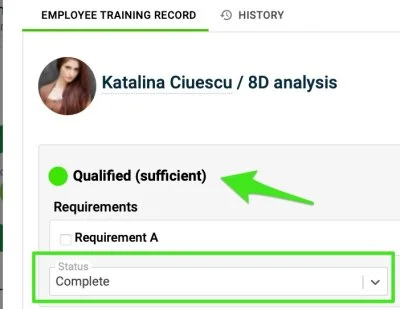
Select the completion status
When you open an employee’s training card, you find the sufficient skill level and can select the completion status.
Option 2: Color-code by required level
Number and order the levels
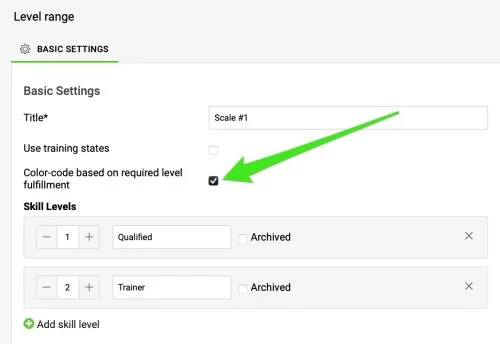
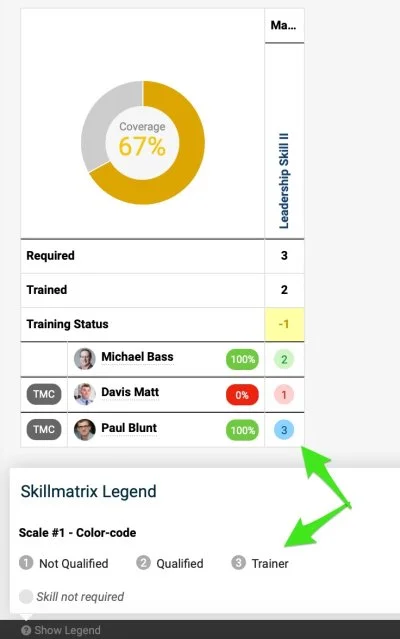
When you select Color-code based on required level fulfillment, you can enter numbers, define skill levels and arrange their hierarchy. The system automatically assigns color codes (red, green, blue) to show skill fulfillment. At a glance, you see whether an employee has reached the sufficient level (green), fallen short of it (red) or surpassed the required level (blue).
Option 3: Combination
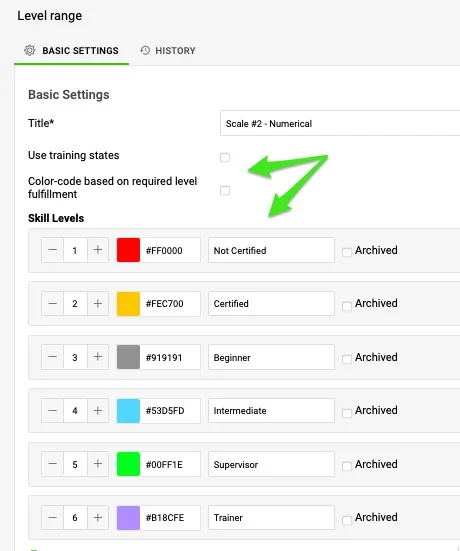
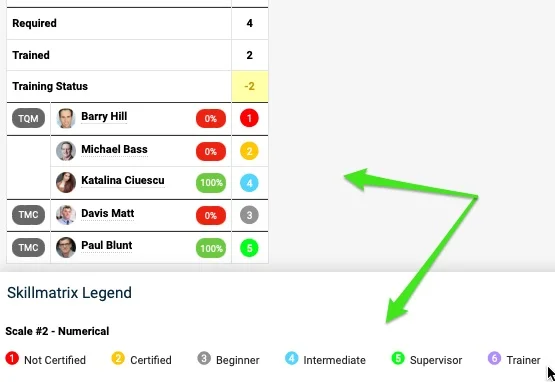
Choose numbers, levels and colors
If you leave the boxes unticked, you can enter numbers, define skill levels and choose colors according to your preferences.
Check the sufficient level
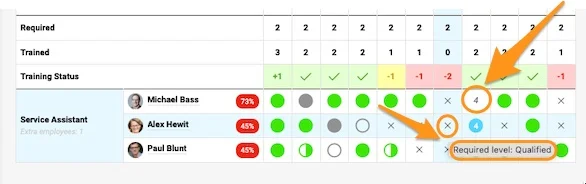
In the skill matrix, however, you won’t see immediately whether a level is sufficient, unless you check the Sufficient number or hover over each cell.
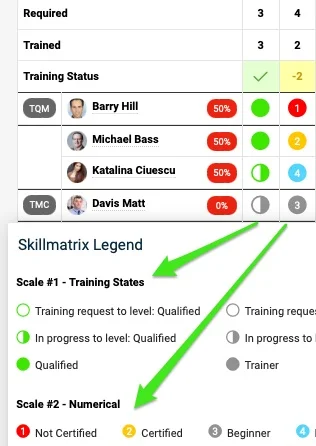
Different levels in one matrix
If different skill levels are used for the skills in your skill matrix, you can see these differences.
El sistema ofrece un nivel de habilidad predeterminado, pero puede configurar sus propios niveles de habilidad según sus preferencias. (Video: niveles de habilidad, del 1:10 al 6:52)
Crear niveles de habilidad
-
Abra los niveles de habilidad. Haga clic en el módulo Matriz de habilidades y seleccione Niveles de habilidad en el submenú.
-
Agregue niveles de habilidad. Haga clic en el botón Crear nuevo, complete la configuración básica y agregue los niveles de habilidad.
Tiene tres opciones para definir sus niveles de habilidad y visualizarlos en la matriz de habilidades.
Opción 1: usar estados de capacitación
Agregar niveles y colores
Al marcar Usar estados de capacitación, puede agregar los niveles de habilidad y colores que quiera. Estos niveles, como “Instructor” o “Calificado”, aparecen en la leyenda de la matriz de habilidades y determinan los colores de la matriz.
Los valores numéricos de estos niveles no se muestran en ningún lugar. La jerarquía la define el propio orden de los niveles, que puede cambiar arrastrando y soltando si es necesario.
Solicitud de capacitación y en curso
Cada nivel incluye automáticamente dos subniveles, Solicitud de capacitación y En curso, útiles para seguir y gestionar las solicitudes de capacitación.
Seleccionar el estado de cumplimiento
Al abrir la ficha de capacitación de un empleado, encuentra el nivel de habilidad suficiente y puede seleccionar el estado de cumplimiento.
Opción 2: código de colores según el nivel requerido
Numerar y ordenar los niveles
Al seleccionar Código de colores según el cumplimiento del nivel requerido, puede ingresar números, definir niveles de habilidad y ordenar su jerarquía. El sistema asigna automáticamente códigos de color (rojo, verde, azul) para mostrar el cumplimiento. De un vistazo ve si un empleado alcanzó el nivel suficiente (verde), no llegó a él (rojo) o superó el nivel requerido (azul).
Opción 3: combinación
Elegir números, niveles y colores
Si deja las casillas sin marcar, puede ingresar números, definir niveles de habilidad y elegir los colores que prefiera.
Comprobar el nivel suficiente
Sin embargo, en la matriz de habilidades no verá de inmediato si un nivel es suficiente, salvo que consulte el Número suficiente o pase el cursor sobre cada celda.
Distintos niveles en una matriz
Si las habilidades de su matriz usan distintos niveles de habilidad, puede ver esas diferencias.
¿Necesita más ayuda?
Escríbanos. En días laborables solemos responder en menos de una hora.