批量录入数据
本文由英文机器翻译。 当前显示英文原文。
Learn how to enter data in bulk easily, in two different ways.
Enter data directly in the metric dashboard
-
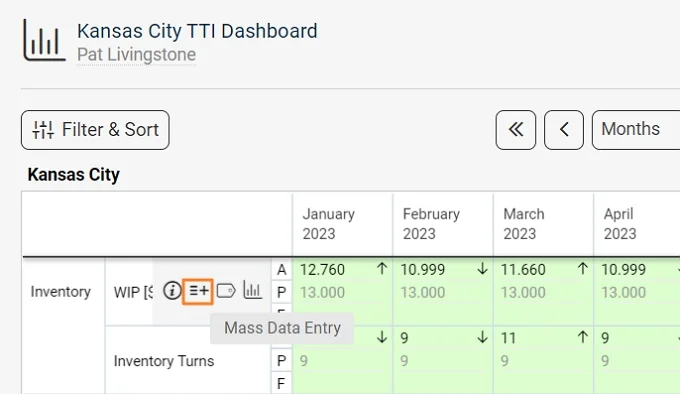
Open the mass data entry. Hover the cursor over the metric’s name until the options appear and select the Mass Data Entry icon.
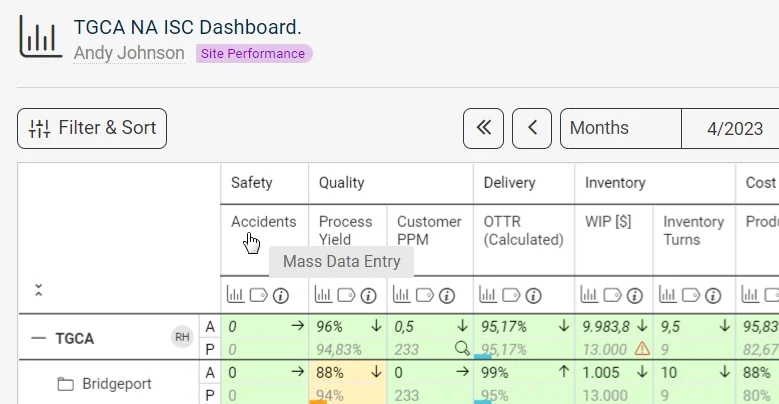
Alternatively, click the metric’s name.
-
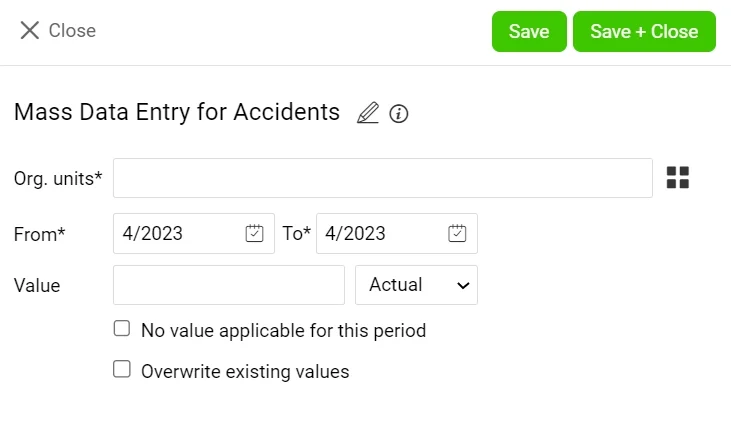
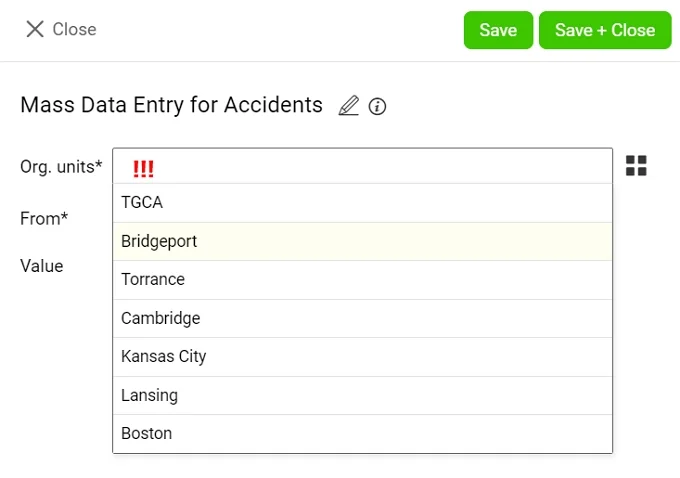
Choose the org. units, dates and values. Select only the org. units you want to enter data for, and make sure you select the correct dates and values (such as actual, plan etc.). Otherwise, you might overwrite already existing data.
Use the Metric Dashboards submenu
-
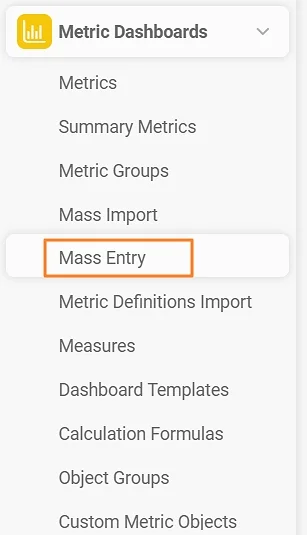
Open the mass entry. Go to the Metric Dashboards module and select Mass Entry from its submenu. With this option, the same value is entered for all org. units across the organization, so it is rarely used.
-
Create a mass data entry template. Click the green plus button to add a new mass data entry template.

-
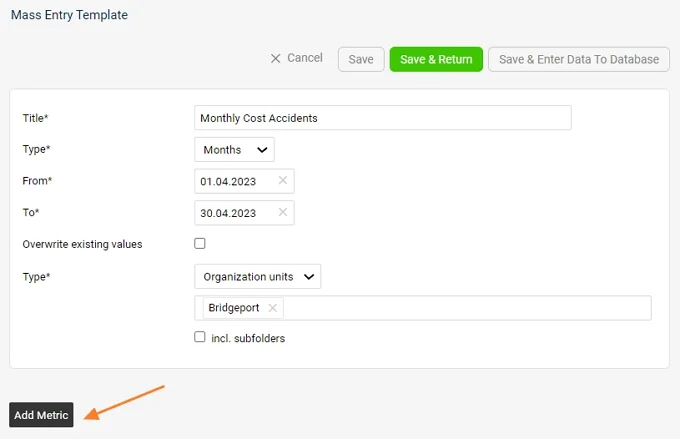
Add a metric. Complete all the details and click the Add Metric button.
-
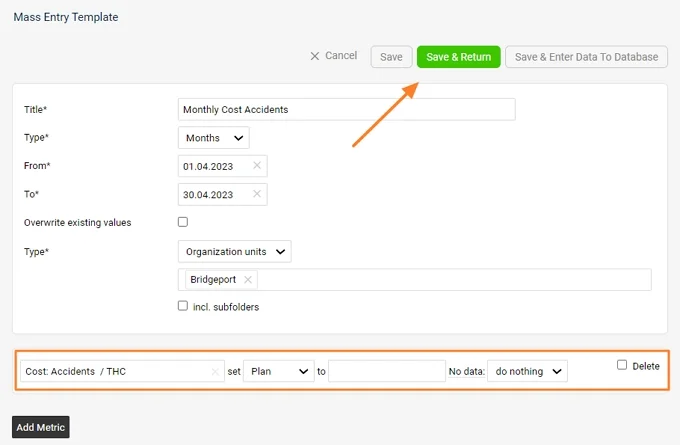
Save the values. Complete the metric’s details and click one of the Save buttons, according to your preference.
了解两种轻松批量录入数据的方法。
直接在指标仪表板中录入数据
-
打开批量数据录入。 将光标悬停在指标名称上,待选项出现后,选择 批量数据录入 图标。
也可以直接点击指标名称。
-
选择组织单元、日期和数值。 只选择需要录入数据的组织单元,并确保选择正确的日期和数值(如实际值、计划值等),否则可能会覆盖已有数据。
使用指标仪表板子菜单
-
打开批量录入。 进入 指标仪表板 模块,从子菜单中选择 批量录入。此方式会为整个组织的所有组织单元录入相同的数值,因此很少使用。
-
创建批量数据录入模板。 点击绿色加号按钮,添加新的批量数据录入模板。
-
添加指标。 填写所有详细信息,然后点击 添加指标 按钮。
-
保存数值。 填写指标详细信息,然后根据需要点击其中一个 保存 按钮。
还需要帮助吗?
请给我们留言。工作日我们通常会在一小时内回复。