Ingreso masivo de datos
Traducción automática del inglés. Se muestra el original en inglés.
Learn how to enter data in bulk easily, in two different ways.
Enter data directly in the metric dashboard
-
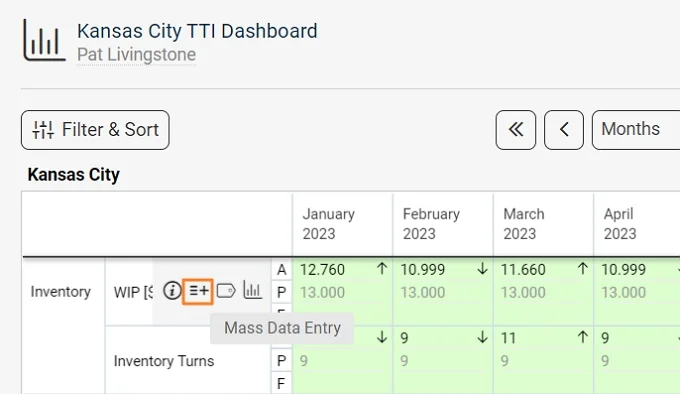
Open the mass data entry. Hover the cursor over the metric’s name until the options appear and select the Mass Data Entry icon.
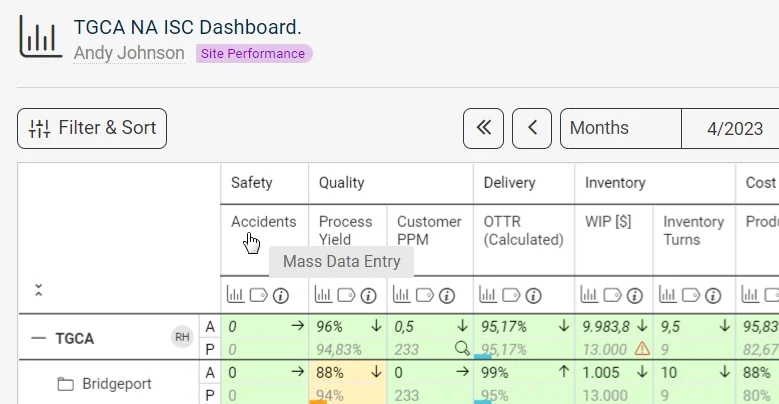
Alternatively, click the metric’s name.
-
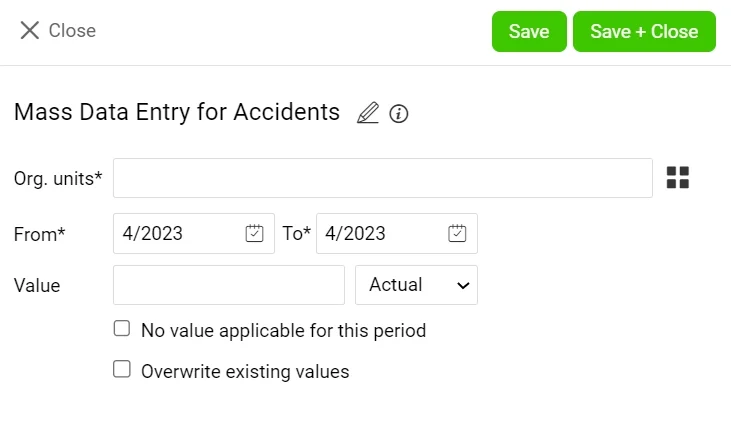
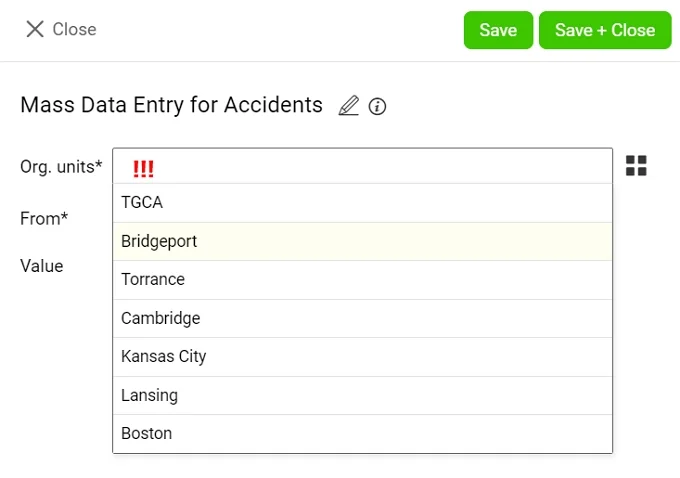
Choose the org. units, dates and values. Select only the org. units you want to enter data for, and make sure you select the correct dates and values (such as actual, plan etc.). Otherwise, you might overwrite already existing data.
Use the Metric Dashboards submenu
-
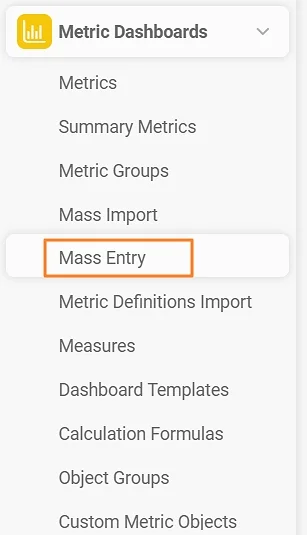
Open the mass entry. Go to the Metric Dashboards module and select Mass Entry from its submenu. With this option, the same value is entered for all org. units across the organization, so it is rarely used.
-
Create a mass data entry template. Click the green plus button to add a new mass data entry template.

-
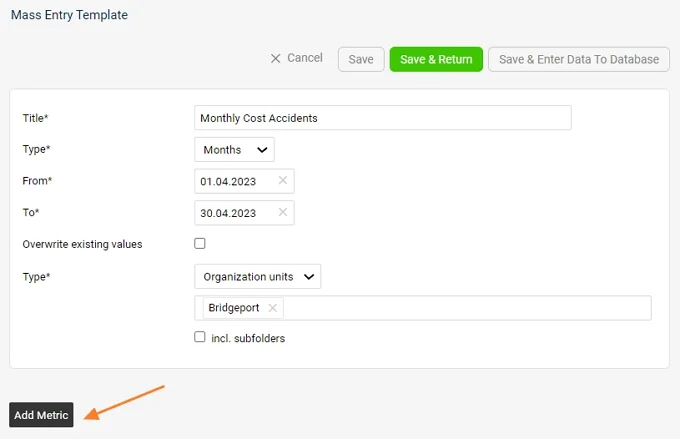
Add a metric. Complete all the details and click the Add Metric button.
-
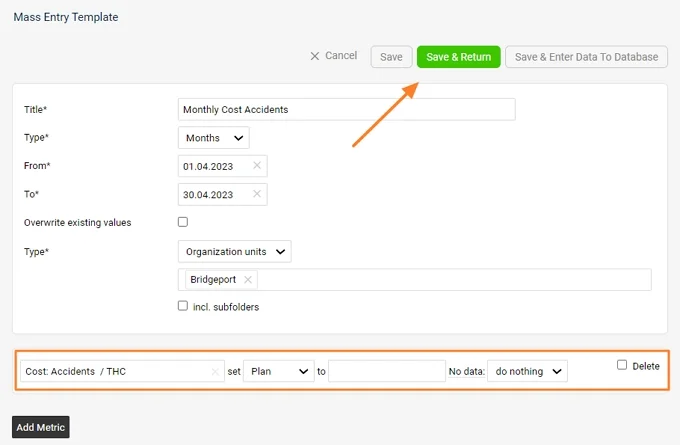
Save the values. Complete the metric’s details and click one of the Save buttons, according to your preference.
Aprenda a ingresar datos en bloque fácilmente, de dos formas distintas.
Ingresar datos directamente en el dashboard de KPI
-
Abra el ingreso masivo de datos. Pase el cursor sobre el nombre de la métrica hasta que aparezcan las opciones y seleccione el icono Ingreso masivo de datos.
También puede hacer clic en el nombre de la métrica.
-
Elija las unidades organizativas, las fechas y los valores. Seleccione solo las unidades organizativas para las que quiere ingresar datos y asegúrese de elegir las fechas y los valores correctos (real, plan, etc.). De lo contrario, podría sobrescribir datos existentes.
Usar el submenú de Dashboards de KPI
-
Abra el ingreso masivo. Vaya al módulo Dashboards de KPI y seleccione Ingreso masivo en su submenú. Con esta opción se ingresa el mismo valor para todas las unidades organizativas de la empresa, por eso se usa poco.
-
Cree una plantilla de ingreso masivo de datos. Haga clic en el botón verde con el signo más para agregar una plantilla de ingreso masivo de datos.
-
Agregue una métrica. Complete todos los detalles y haga clic en el botón Agregar métrica.
-
Guarde los valores. Complete los detalles de la métrica y haga clic en el botón Guardar que prefiera.
¿Necesita más ayuda?
Escríbanos. En días laborables solemos responder en menos de una hora.