安全警报阶段工作流
本文由英文机器翻译。 当前显示英文原文。
Define how Safety Alerts (SA) move through your workflow with customizable stages. Assign responsibilities, guide alerts through approvals and keep every step on track. Set up your own list of SA stages and select it directly in the document to match your process and make sure nothing gets overlooked.
Create a list of SA stages
Open the stage lists
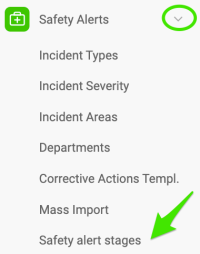
Go to the Safety Alerts module and select Safety alert stages from the submenu.
Only users with sufficient rights can add SA stages.
Create or edit a list
To create a new list, click the green plus button Create New. To modify an existing list, click the edit pencil.

Define the list settings
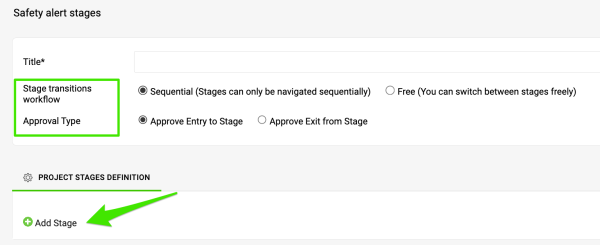
Enter a Title for your list and choose the Stage transitions workflow and the Approval Type. Then click Add Stage to add a stage to your list.
Set up the stage
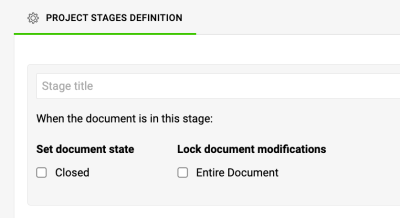
Enter the stage title. You can choose whether this stage marks the document as Closed. You can also lock modifications of the document once it reaches this stage (except for actions).
Assign an approval process
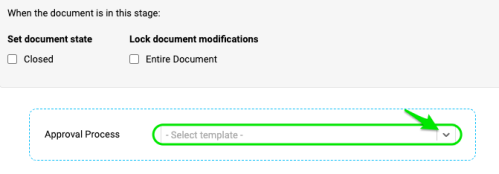
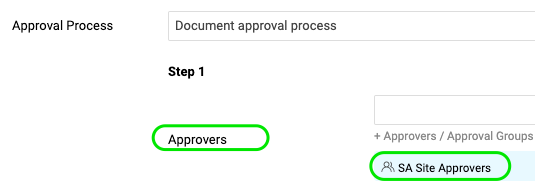
Select an Approval Process for this stage from your existing templates. Sufficient rights are required to create a new one. Then fill in the remaining fields, such as the approvers and whom to inform, and add any other stages you need. Once your template is complete, click Save.
Set up an SA document with stages
Open the document settings
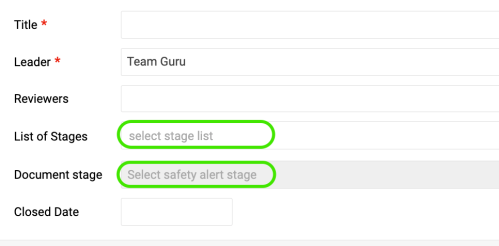
Open the settings of your SA document by clicking the edit pencil.

Select the list and the stage
Select your List of Stages and the Document stage.
Check the stage indicator
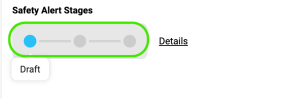
Once you Save your changes, the stage indicator appears in the document header.
Move the document through the stages
Free and sequential workflows

With the Free workflow, you can switch between stages freely in the edit settings of your document.
Open the stage details
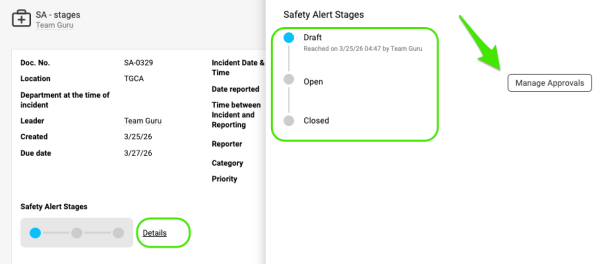
With the Sequential workflow, click the Details button when you are ready to advance to the next stage or to submit for approval. There you can move through the steps, view the workflow timestamps and manage your approvals.
Submit for approval
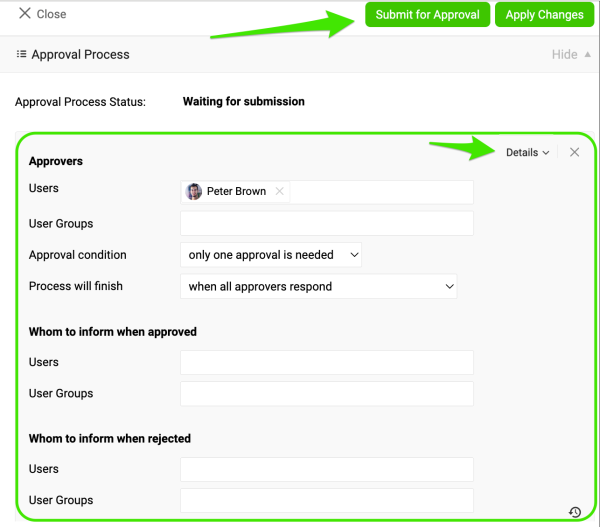
After you click the Manage Approvals button, you can define your approvers, set the approval conditions and adjust other settings, if they were not already included in the approval process assigned to the template stages.
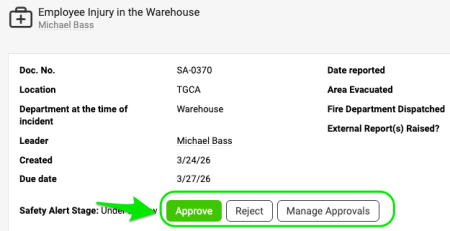
When you are ready, click Apply Changes and then Submit for Approval. The approvers, who must be active system users, receive an email with the approval request. The included link takes the approver directly to the document, where they can approve or reject it. Everyone listed in the “whom to inform” fields receives an email notification about the decision.
Additional notes
Find documents awaiting approval
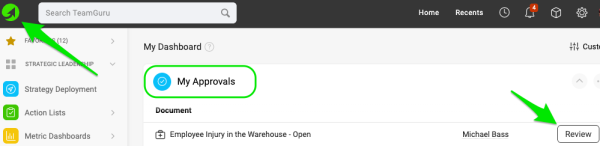
Approvers can also find all documents waiting for their approval on the My Dashboard page.
Set up approvers by location
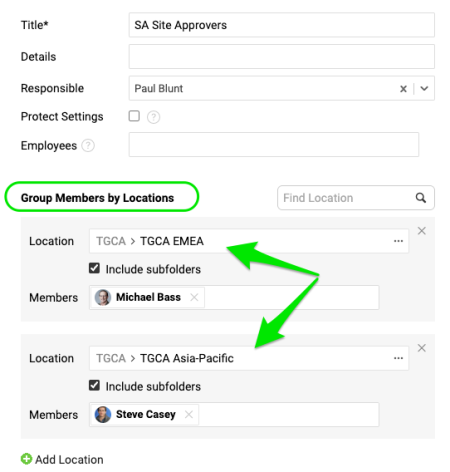
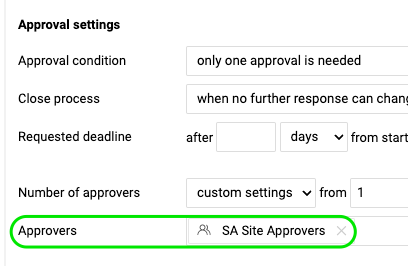
You can set up approvers by location with the User Groups feature (sufficient rights are required) and select the group in your approval template. When the approval process is applied to a stage, the users in that group are automatically included as approvers.
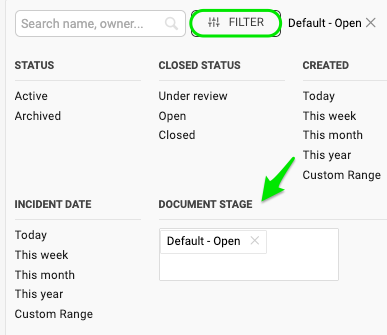
Filter documents by stage
In the document list, you can filter and view your documents by Document stage.
If you need a new list of SA stages, a new user group or a new approval process, please contact your system administrator or support@teamguru.com.
通过可自定义的阶段,定义安全警报(SA)在工作流中的流转方式。分配职责,引导警报完成审批,让每一步都按计划推进。设置您自己的SA阶段列表,并直接在文档中选择,使其符合您的流程,确保不遗漏任何环节。
创建SA阶段列表
打开阶段列表
进入安全警报模块,在子菜单中选择安全警报阶段。
只有拥有相应权限的用户才能添加SA阶段。
创建或编辑列表
要新建列表,请点击绿色加号按钮新建。要修改现有列表,请点击编辑铅笔图标。
定义列表设置
输入列表的标题,选择阶段转换工作流和审批类型。然后点击添加阶段,向列表中添加阶段。
设置阶段
输入阶段标题。您可以选择该阶段是否将文档标记为已关闭。还可以在文档进入此阶段后锁定对文档的修改(行动除外)。
分配审批流程
从现有模板中为此阶段选择审批流程。新建审批流程需要相应权限。然后填写其余字段,例如审批人和通知对象,并添加所需的其他阶段。模板完成后,点击保存。
设置带阶段的SA文档
打开文档设置
点击编辑铅笔图标,打开SA文档的设置。
选择列表和阶段
选择阶段列表和文档阶段。
查看阶段指示标记
保存更改后,文档表头中会显示阶段指示标记。
推进文档阶段
自由和顺序工作流
使用自由工作流时,您可以在文档的编辑设置中自由切换阶段。
打开阶段详细信息
使用顺序工作流时,准备进入下一阶段或提交审批时,请点击详细信息按钮。您可以在其中逐步推进、查看工作流时间戳并管理审批。
提交审批
点击管理审批按钮后,如果分配给模板阶段的审批流程中尚未包含相关设置,您可以指定审批人、设置审批条件并调整其他设置。
准备就绪后,点击应用更改,然后点击提交审批。审批人(必须是系统中的活跃用户)会收到包含审批请求的电子邮件。点击其中的链接即可直接进入文档,进行批准或拒绝。“通知对象”字段中列出的所有人员都会收到有关审批结果的电子邮件通知。
补充说明
查找等待审批的文档
审批人还可以在我的仪表板页面上找到所有等待其审批的文档。
按地点设置审批人
您可以使用用户组功能按地点设置审批人(需要相应权限),然后在审批模板中选择该用户组。将审批流程应用于某个阶段时,该组中的用户会自动成为审批人。
按阶段筛选文档
在文档列表中,您可以按文档阶段筛选和查看文档。
如果需要新的SA阶段列表、新的用户组或新的审批流程,请联系系统管理员或support@teamguru.com。
还需要帮助吗?
请给我们留言。工作日我们通常会在一小时内回复。