Etapy alertov BOZP a ich postup
Strojový preklad z angličtiny. Zobrazený je anglický originál.
Define how Safety Alerts (SA) move through your workflow with customizable stages. Assign responsibilities, guide alerts through approvals and keep every step on track. Set up your own list of SA stages and select it directly in the document to match your process and make sure nothing gets overlooked.
Create a list of SA stages
Open the stage lists
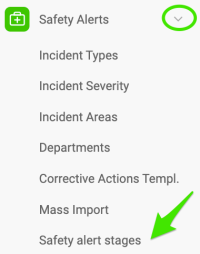
Go to the Safety Alerts module and select Safety alert stages from the submenu.
Only users with sufficient rights can add SA stages.
Create or edit a list
To create a new list, click the green plus button Create New. To modify an existing list, click the edit pencil.

Define the list settings
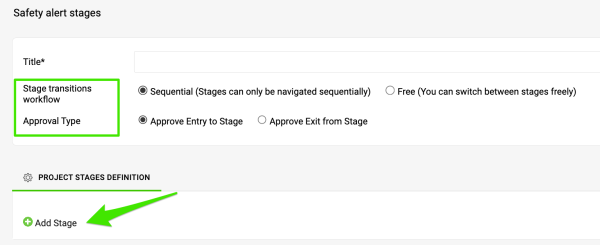
Enter a Title for your list and choose the Stage transitions workflow and the Approval Type. Then click Add Stage to add a stage to your list.
Set up the stage
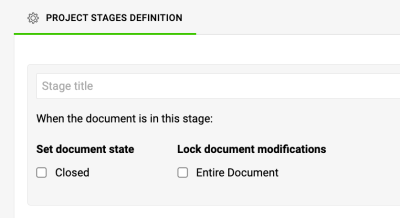
Enter the stage title. You can choose whether this stage marks the document as Closed. You can also lock modifications of the document once it reaches this stage (except for actions).
Assign an approval process
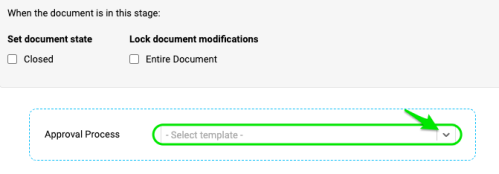
Select an Approval Process for this stage from your existing templates. Sufficient rights are required to create a new one. Then fill in the remaining fields, such as the approvers and whom to inform, and add any other stages you need. Once your template is complete, click Save.
Set up an SA document with stages
Open the document settings
Open the settings of your SA document by clicking the edit pencil.

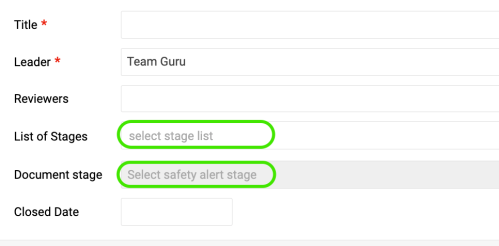
Select the list and the stage
Select your List of Stages and the Document stage.
Check the stage indicator
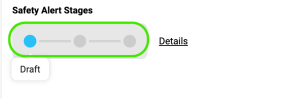
Once you Save your changes, the stage indicator appears in the document header.
Move the document through the stages
Free and sequential workflows

With the Free workflow, you can switch between stages freely in the edit settings of your document.
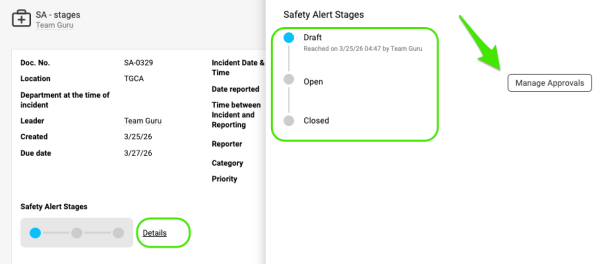
Open the stage details
With the Sequential workflow, click the Details button when you are ready to advance to the next stage or to submit for approval. There you can move through the steps, view the workflow timestamps and manage your approvals.
Submit for approval
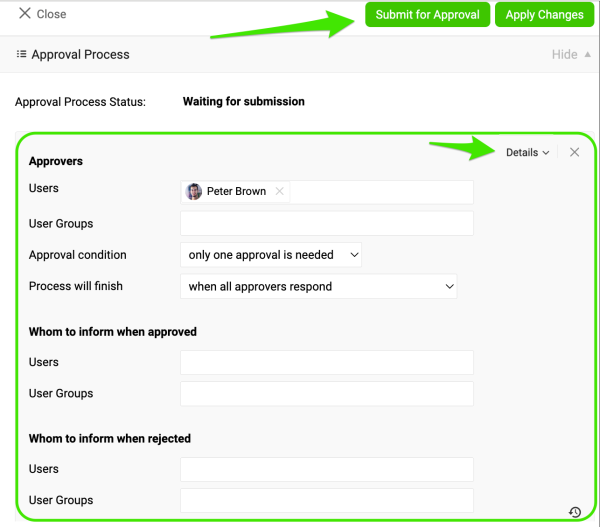
After you click the Manage Approvals button, you can define your approvers, set the approval conditions and adjust other settings, if they were not already included in the approval process assigned to the template stages.
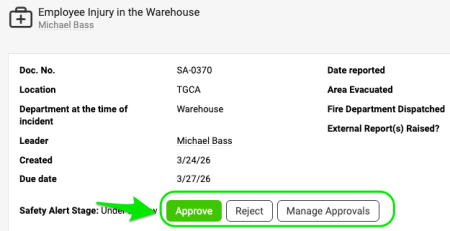
When you are ready, click Apply Changes and then Submit for Approval. The approvers, who must be active system users, receive an email with the approval request. The included link takes the approver directly to the document, where they can approve or reject it. Everyone listed in the “whom to inform” fields receives an email notification about the decision.
Additional notes
Find documents awaiting approval
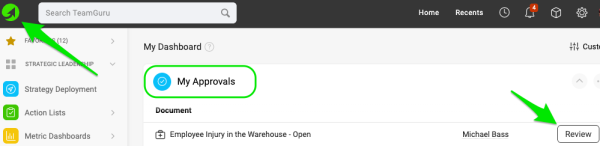
Approvers can also find all documents waiting for their approval on the My Dashboard page.
Set up approvers by location
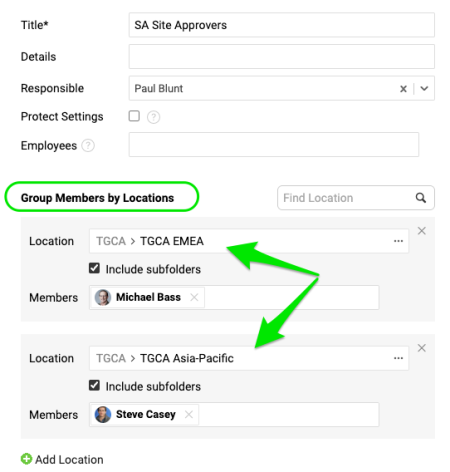
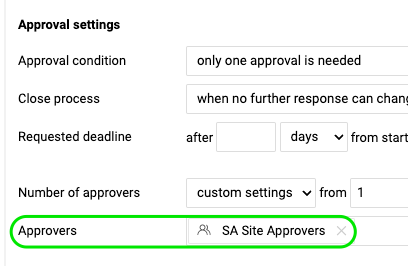
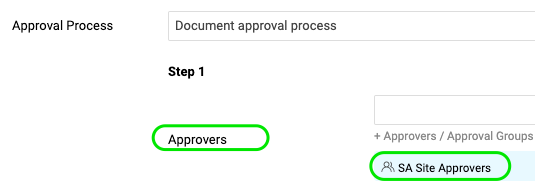
You can set up approvers by location with the User Groups feature (sufficient rights are required) and select the group in your approval template. When the approval process is applied to a stage, the users in that group are automatically included as approvers.
Filter documents by stage
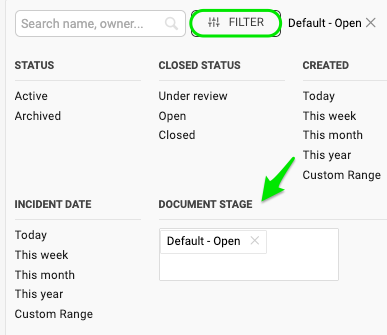
In the document list, you can filter and view your documents by Document stage.
If you need a new list of SA stages, a new user group or a new approval process, please contact your system administrator or support@teamguru.com.
Pomocou prispôsobiteľných etáp určte, ako alerty BOZP prechádzajú vaším procesom. Prideľte zodpovednosti, veďte alerty cez schvaľovanie a majte každý krok pod kontrolou. Nastavte si vlastný zoznam etáp alertov BOZP a vyberte ho priamo v dokumente, aby zodpovedal vášmu procesu a nič sa neprehliadlo.
Vytvorte zoznam etáp alertov BOZP
Otvorte zoznamy etáp
Prejdite do modulu Alerty BOZP a v podmenu vyberte Etapy alertov BOZP.
Etapy alertov BOZP môžu pridávať len používatelia s dostatočnými oprávneniami.
Vytvorte alebo upravte zoznam
Nový zoznam vytvoríte kliknutím na zelené tlačidlo s plusom Vytvoriť nový. Ak chcete upraviť existujúci zoznam, kliknite na ceruzku na úpravu.
Nastavte zoznam
Zadajte Názov zoznamu a zvoľte Postup prechodu medzi etapami a Typ schvaľovania. Potom kliknutím na Pridať etapu pridajte do zoznamu etapu.
Nastavte etapu
Zadajte názov etapy. Môžete zvoliť, či táto etapa označí dokument ako Uzavretý. Po dosiahnutí tejto etapy môžete tiež uzamknúť úpravy dokumentu (okrem akcií).
Priraďte schvaľovací proces
Pre túto etapu vyberte Schvaľovací proces z existujúcich šablón. Na vytvorenie nového potrebujete dostatočné oprávnenia. Potom vyplňte zvyšné polia, napríklad schvaľovateľov a koho informovať, a pridajte ďalšie potrebné etapy. Keď je šablóna hotová, kliknite na Uložiť.
Nastavte dokument alertu BOZP s etapami
Otvorte nastavenia dokumentu
Nastavenia dokumentu alertu BOZP otvoríte kliknutím na ceruzku na úpravu.
Vyberte zoznam a etapu
Vyberte Zoznam etáp a Etapu dokumentu.
Skontrolujte indikátor etapy
Keď zmeny uložíte, v hlavičke dokumentu sa zobrazí indikátor etapy.
Posúvajte dokument cez etapy
Voľný a postupný priebeh
Pri Voľnom priebehu môžete medzi etapami ľubovoľne prepínať v nastaveniach úprav dokumentu.
Otvorte podrobnosti etapy
Pri Postupnom priebehu kliknite na tlačidlo Podrobnosti, keď ste pripravení prejsť do ďalšej etapy alebo odoslať dokument na schválenie. Tam môžete prechádzať jednotlivými krokmi, zobraziť časové značky priebehu a spravovať schválenia.
Odošlite na schválenie
Po kliknutí na tlačidlo Spravovať schválenia môžete určiť schvaľovateľov, nastaviť podmienky schválenia a upraviť ďalšie nastavenia, ak ešte nie sú súčasťou schvaľovacieho procesu priradeného k etapám šablóny.
Keď ste pripravení, kliknite na Použiť zmeny a potom na Odoslať na schválenie. Schvaľovatelia, ktorí musia byť aktívnymi používateľmi systému, dostanú e-mail so žiadosťou o schválenie. Odkaz v ňom zavedie schvaľovateľa priamo do dokumentu, kde ho môže schváliť alebo zamietnuť. Všetci uvedení v poliach „koho informovať“ dostanú o rozhodnutí upozornenie e-mailom.
Ďalšie poznámky
Nájdite dokumenty čakajúce na schválenie
Schvaľovatelia nájdu všetky dokumenty, ktoré čakajú na ich schválenie, aj na stránke Môj dashboard.
Nastavte schvaľovateľov podľa lokality
Schvaľovateľov môžete nastaviť podľa lokality pomocou funkcie Skupiny používateľov (potrebujete dostatočné oprávnenia) a skupinu potom vybrať v schvaľovacej šablóne. Keď sa schvaľovací proces použije na etapu, používatelia z tejto skupiny sa automaticky zaradia medzi schvaľovateľov.
Filtrujte dokumenty podľa etapy
V zozname dokumentov môžete dokumenty filtrovať a zobrazovať podľa Etapy dokumentu.
Ak potrebujete nový zoznam etáp alertov BOZP, novú skupinu používateľov alebo nový schvaľovací proces, obráťte sa na správcu systému alebo napíšte na support@teamguru.com.
Potrebujete ďalšiu pomoc?
Napíšte nám. V pracovné dni zvyčajne odpovedáme do hodiny.