如何使用战略计划和支柱视图
本文由英文机器翻译。 当前显示英文原文。
The same plan can be shown in three ways. Switch between them with the tabs above the main objective:
- X-matrix – the classic matrix with all links.
- Strategic Plan – a table that follows each 5-year goal down to its annual goals, priorities, projects and KPIs.
- Pillars – one box per pillar, with the goals, priorities and KPIs of that pillar under each other.
All three tabs show the same data. Change an item in one of them and it changes in the others.
Strategic Plan
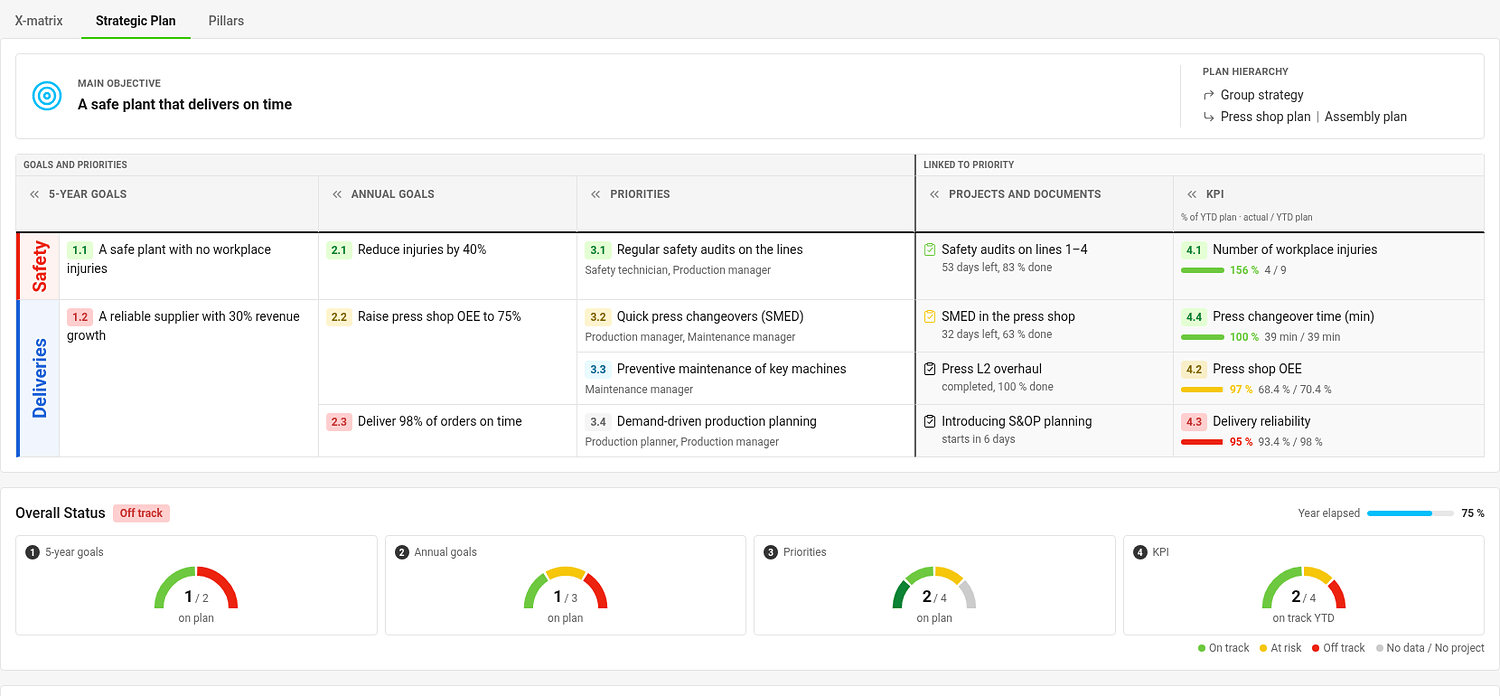
The table has one column for each list: 5-year goals, annual goals, priorities, Projects and documents and KPIs. A colored strip on the left names the pillar of each band of rows. Every goal starts a group of rows with the items that support it; an item linked under several parents appears under each of them.
Each cell shows the code, the title and the status of the item, the responsible people of goals and priorities, the linked projects of a priority and the YTD result of a KPI. Click « in a column header to narrow the column.
To edit the table, click Edit strategic plan. Click a title to rename it, use the + next to an item to add a follow-up item already linked under it, and the handle to change the order. Save with Done.
Pillars
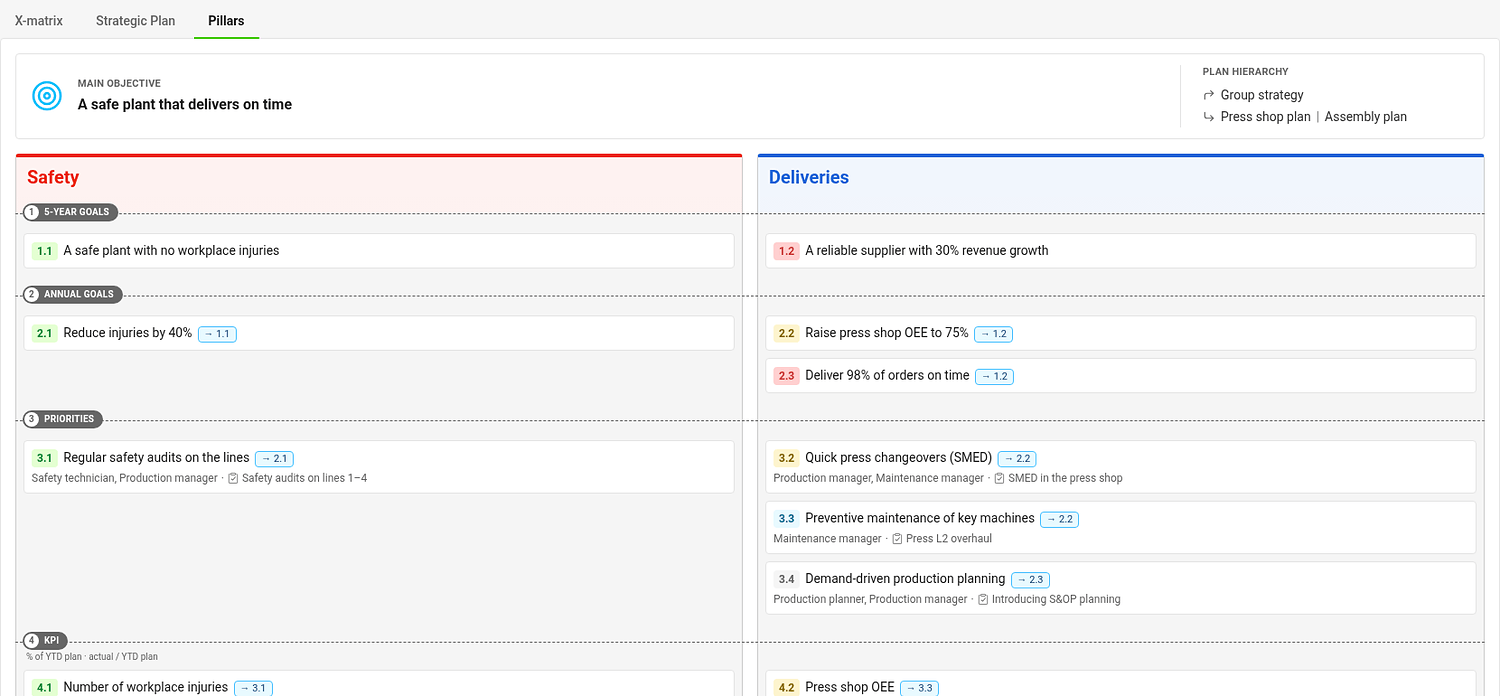
Pillars group your plan by theme, for example Safety, Quality, Growth and People. Each pillar is a box; the levels run across the boxes as rows. A card shows the code, the title, the item it supports (for example → 1.1), the people responsible and the first project.
- An item belongs to a pillar if it carries that pillar’s tag. A goal or priority without a pillar tag inherits the pillars of the items above it, and a KPI inherits from the priorities it measures.
- An item in more than one pillar appears in each of them.
- Items without any pillar are in the box Unassigned.
- If the plan does not use pillars, everything is in one box called All items. Pillars are optional.
Each pillar box is edited on its own – click Edit in its header, make your changes and click Done. Add pillar adds a pillar to the plan.
Choose the pillars of a plan
Pillars are tags of the type Pillars. Choose which ones a plan uses in Settings → Basic settings → Pillars; the order you choose is the order of the boxes. If you choose none, the plan uses the first tag of each 5-year goal.
Choose which tab opens first
In Settings → Basic settings → Default View pick X-matrix, Strategic Plan or Pillars. A link with ?view= in the address always opens the tab it names.
同一计划可以通过三种方式显示。使用主要目标上方的选项卡在它们之间切换:
- X-matrix:包含所有关联的经典矩阵。
- 战略计划:一张表格,从每个5年目标逐级向下展开到年度目标、优先事项、项目和KPI。
- 支柱:每个支柱一个框,框内依次列出该支柱的目标、优先事项和KPI。
三个选项卡显示的数据相同。在其中一个视图中修改条目,其他视图也会同步更改。
战略计划
表格中每个列表占一列:5年目标、年度目标、优先事项、项目和文档以及KPI。左侧的彩色条标明每组行所属的支柱。每个目标开启一组行,其中包含支持该目标的条目;关联到多个上级的条目会在每个上级下都显示。
每个单元格显示条目的编号、标题和状态,以及目标和优先事项的负责人、优先事项关联的项目和KPI的年初至今结果。点击列标题中的 « 可收窄该列。
要编辑表格,请点击编辑战略计划。点击标题可重命名,使用条目旁的 + 可添加一个已关联在其下的后续条目,拖动手柄可调整顺序。点击完成保存。
支柱
支柱按主题对计划进行分组,例如安全、质量、增长和人员。每个支柱是一个框;各层级以行的形式横跨各框。卡片显示编号、标题、所支持的条目(例如 → 1.1)、负责人以及第一个项目。
- 带有某个支柱标签的条目即属于该支柱。没有支柱标签的目标或优先事项会继承其上级条目的支柱,KPI则继承其所衡量的优先事项的支柱。
- 属于多个支柱的条目会在每个支柱中显示。
- 不属于任何支柱的条目位于未分配框中。
- 如果计划不使用支柱,所有条目都位于一个名为所有条目的框中。支柱是可选的。
每个支柱框单独编辑:点击框标题中的编辑,进行更改后点击完成。添加支柱可为计划添加支柱。
选择计划的支柱
支柱是支柱类型的标签。在设置 → 基本设置 → 支柱中选择计划使用哪些支柱;您选择的顺序即为各框的顺序。如果不选择任何支柱,计划将使用每个5年目标的第一个标签。
选择默认打开的选项卡
在设置 → 基本设置 → 默认视图中选择X-matrix、战略计划或支柱。地址中带有?view=的链接总是打开其指定的选项卡。
还需要帮助吗?
请给我们留言。工作日我们通常会在一小时内回复。