Ako pracovať so zobrazeniami Strategický plán a Piliere
Strojový preklad z angličtiny. Zobrazený je anglický originál.
The same plan can be shown in three ways. Switch between them with the tabs above the main objective:
- X-matrix – the classic matrix with all links.
- Strategic Plan – a table that follows each 5-year goal down to its annual goals, priorities, projects and KPIs.
- Pillars – one box per pillar, with the goals, priorities and KPIs of that pillar under each other.
All three tabs show the same data. Change an item in one of them and it changes in the others.
Strategic Plan
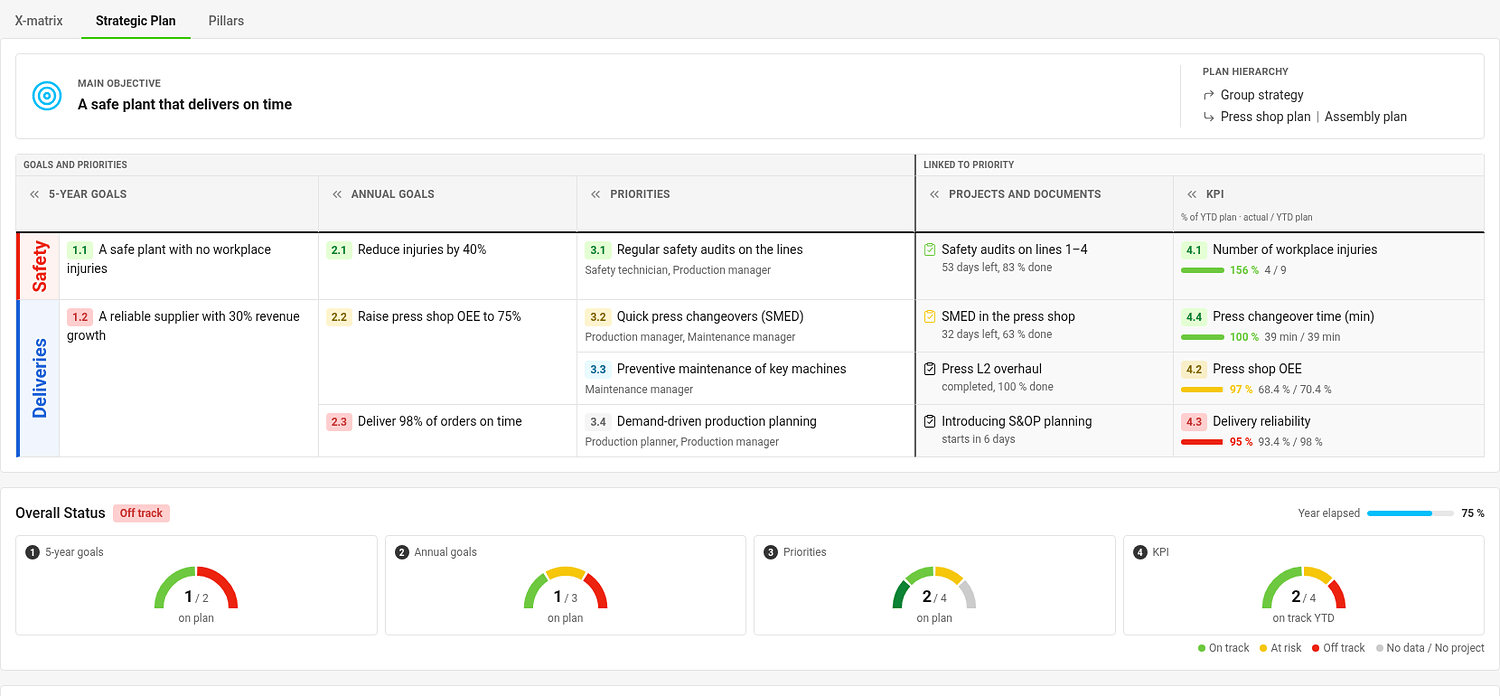
The table has one column for each list: 5-year goals, annual goals, priorities, Projects and documents and KPIs. A colored strip on the left names the pillar of each band of rows. Every goal starts a group of rows with the items that support it; an item linked under several parents appears under each of them.
Each cell shows the code, the title and the status of the item, the responsible people of goals and priorities, the linked projects of a priority and the YTD result of a KPI. Click « in a column header to narrow the column.
To edit the table, click Edit strategic plan. Click a title to rename it, use the + next to an item to add a follow-up item already linked under it, and the handle to change the order. Save with Done.
Pillars
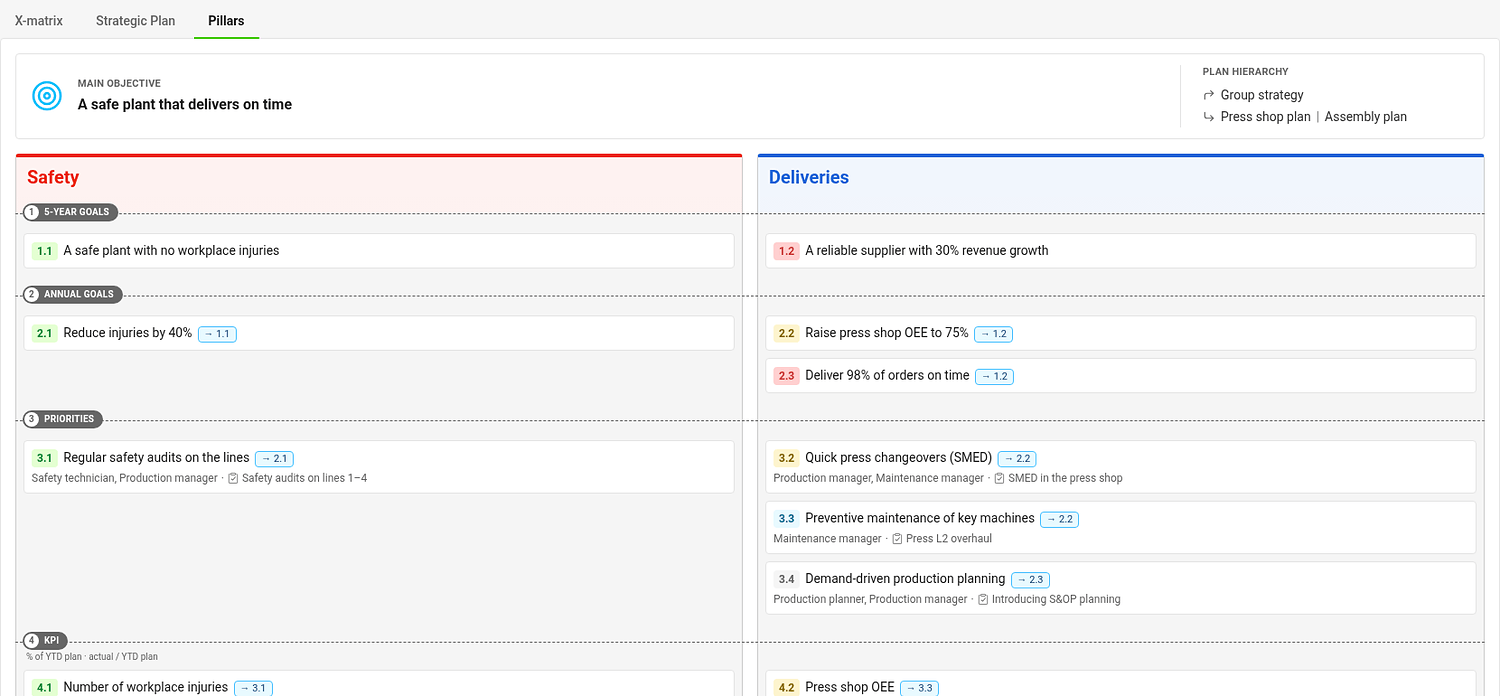
Pillars group your plan by theme, for example Safety, Quality, Growth and People. Each pillar is a box; the levels run across the boxes as rows. A card shows the code, the title, the item it supports (for example → 1.1), the people responsible and the first project.
- An item belongs to a pillar if it carries that pillar’s tag. A goal or priority without a pillar tag inherits the pillars of the items above it, and a KPI inherits from the priorities it measures.
- An item in more than one pillar appears in each of them.
- Items without any pillar are in the box Unassigned.
- If the plan does not use pillars, everything is in one box called All items. Pillars are optional.
Each pillar box is edited on its own – click Edit in its header, make your changes and click Done. Add pillar adds a pillar to the plan.
Choose the pillars of a plan
Pillars are tags of the type Pillars. Choose which ones a plan uses in Settings → Basic settings → Pillars; the order you choose is the order of the boxes. If you choose none, the plan uses the first tag of each 5-year goal.
Choose which tab opens first
In Settings → Basic settings → Default View pick X-matrix, Strategic Plan or Pillars. A link with ?view= in the address always opens the tab it names.
Ten istý plán môžete zobraziť troma spôsobmi. Prepínate medzi nimi kartami nad hlavným cieľom:
- X-matrix – klasická matica so všetkými prepojeniami.
- Strategický plán – tabuľka, ktorá sleduje každý 5-ročný cieľ až po jeho ročné ciele, priority, projekty a KPI.
- Piliere – jeden rámček pre každý pilier, v ktorom sú pod sebou ciele, priority a KPI daného piliera.
Všetky tri karty zobrazujú tie isté údaje. Keď položku zmeníte v jednej z nich, zmení sa aj v ostatných.
Strategický plán
Tabuľka má jeden stĺpec pre každý zoznam: 5-ročné ciele, ročné ciele, priority, Projekty a dokumenty a KPI. Farebný pruh vľavo uvádza pilier pre každý blok riadkov. Každý cieľ otvára skupinu riadkov s položkami, ktoré ho podporujú; položka prepojená pod viacerými nadradenými položkami sa zobrazí pod každou z nich.
Každá bunka zobrazuje kód, názov a stav položky, pri cieľoch a prioritách zodpovedné osoby, pri priorite prepojené projekty a pri KPI výsledok YTD. Kliknutím na « v hlavičke stĺpca stĺpec zúžite.
Ak chcete tabuľku upraviť, kliknite na Upraviť strategický plán. Kliknutím na názov ho premenujete, tlačidlom + vedľa položky pridáte nadväzujúcu položku, ktorá je pod ňou rovno prepojená, a úchytom zmeníte poradie. Uložte tlačidlom Hotovo.
Piliere
Piliere zoskupujú plán podľa tém, napríklad Bezpečnosť, Kvalita, Rast a Ľudia. Každý pilier je rámček; úrovne idú cez rámčeky ako riadky. Karta zobrazuje kód, názov, položku, ktorú podporuje (napríklad → 1.1), zodpovedné osoby a prvý projekt.
- Položka patrí do piliera, ak má štítok tohto piliera. Cieľ alebo priorita bez štítku piliera preberá piliere položiek nad ňou a KPI preberá piliere priorít, ktoré meria.
- Položka vo viacerých pilieroch sa zobrazí v každom z nich.
- Položky bez piliera sú v rámčeku Nepriradené.
- Ak plán piliere nepoužíva, všetko je v jednom rámčeku s názvom Všetky položky. Piliere sú nepovinné.
Každý rámček piliera sa upravuje samostatne – kliknite na Upraviť v jeho hlavičke, vykonajte zmeny a kliknite na Hotovo. Tlačidlom Pridať pilier pridáte do plánu pilier.
Vyberte piliere plánu
Piliere sú štítky typu Piliere. Ktoré z nich plán používa, zvolíte v Nastavenia → Základné nastavenia → Piliere; poradie, ktoré zvolíte, je zároveň poradím rámčekov. Ak nezvolíte žiadny, plán použije prvý štítok každého 5-ročného cieľa.
Vyberte, ktorá karta sa otvorí ako prvá
V Nastavenia → Základné nastavenia → Predvolené zobrazenie zvoľte X-matrix, Strategický plán alebo Piliere. Odkaz s ?view= v adrese vždy otvorí kartu, ktorú uvádza.
Potrebujete ďalšiu pomoc?
Napíšte nám. V pracovné dni zvyčajne odpovedáme do hodiny.