How to inform an internal or external supplier of a newly created 8D report
Your suppliers can update the analysis steps and corrective actions online, giving you instant progress information. To have the system notify your suppliers, internal or external, automatically, follow the steps below:
-
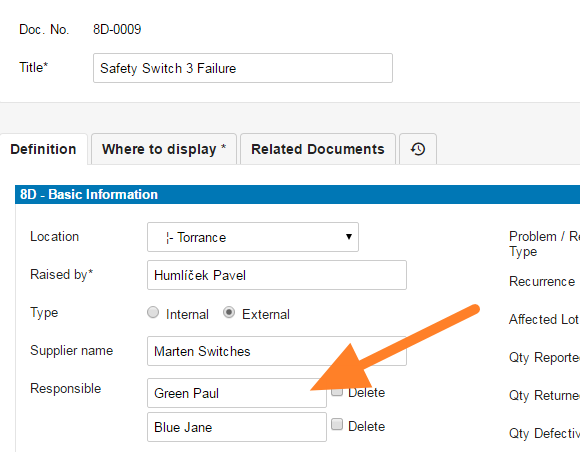
Choose the supplier. When creating an 8D report, choose a supplier with a contact person’s email address. That person is set up as an 8D partner with access to your instance for 8D reports.
-
Create a missing supplier. If the supplier or the contact person is not in the system, you have to create them first. See How to create a new supplier and his login details.
-
Fill in all the details.
-
Save the report. Click Save and View.
-
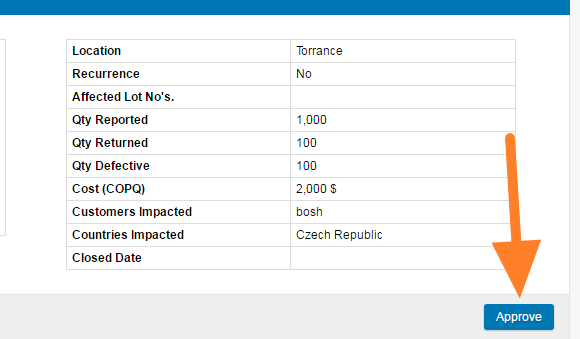
Approve the first step. Confirm the first step of your 8D, which contains the details about the issue, by clicking the Approve button.
-
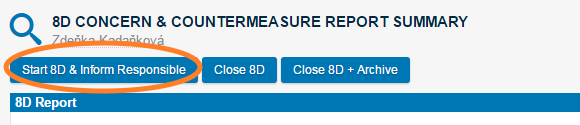
Start the 8D. Once the description data is approved and you are ready to inform your supplier about the new 8D report, click Start 8D & Inform Responsible.
-
The responsible people are notified. The responsible people receive an email notification about the new 8D report.
Still need help?
Write to us. We usually reply within an hour on business days.