Is it possible to move a task from one action list to another?
Yes, it is. You can move either a single task or a task including its subtasks in one step.
Move a task
-
Open the task. Click the name of the task you want to move, or click the three dots next to it and select Edit Action.

-
Find the Action Location section. Go to the Action Location section on the right.
-
Choose the target action list. Choose the action list you want to move the task to and, if applicable, the relevant main task.
Please note that if you are moving a main task and want it to stay a main task, leave the Main task field empty. The Main task option stays grayed out.
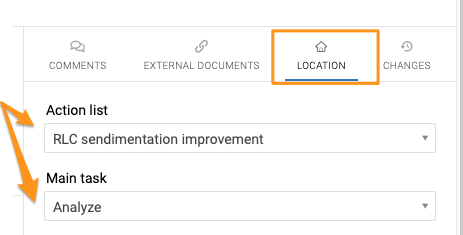
-
Save. Save the task.
-
Check the result. Go to the new action list and check the result: the task has been moved, including its subtask(s).
Move all actions at once
You can also move all actions at once. Click the three-dot ellipsis above your actions and select Move All Actions. Select the action list and click the Move All Actions button.
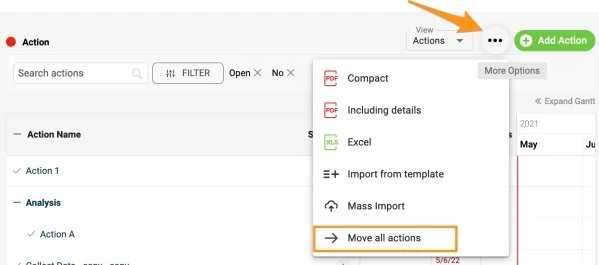
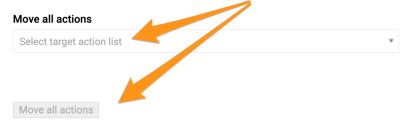
Note: If you need to show one action in multiple documents, see how to share one action in multiple documents (related actions).
Still need help?
Write to us. We usually reply within an hour on business days.