可以将任务从一个行动清单移到另一个行动清单吗?
本文由英文机器翻译。 当前显示英文原文。
Yes, it is. You can move either a single task or a task including its subtasks in one step.
Move a task
-
Open the task. Click the name of the task you want to move, or click the three dots next to it and select Edit Action.

-
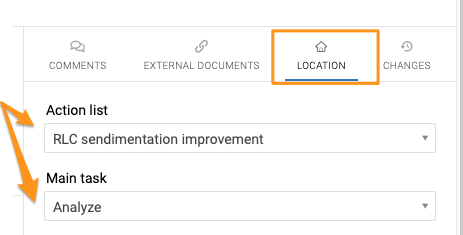
Find the Action Location section. Go to the Action Location section on the right.
-
Choose the target action list. Choose the action list you want to move the task to and, if applicable, the relevant main task.
Please note that if you are moving a main task and want it to stay a main task, leave the Main task field empty. The Main task option stays grayed out.
-
Save. Save the task.
-
Check the result. Go to the new action list and check the result: the task has been moved, including its subtask(s).
Move all actions at once
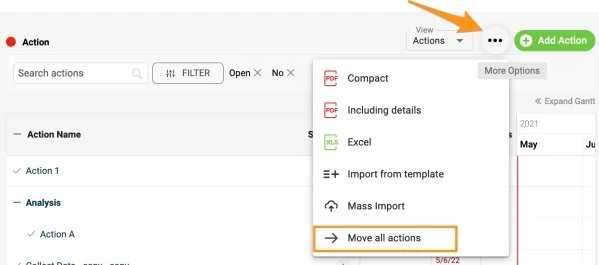
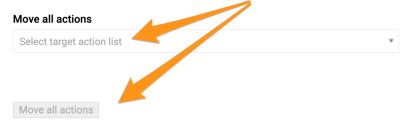
You can also move all actions at once. Click the three-dot ellipsis above your actions and select Move All Actions. Select the action list and click the Move All Actions button.
Note: If you need to show one action in multiple documents, see how to share one action in multiple documents (related actions).
可以。您可以一步移动单个任务,也可以连同其子任务一起移动。
移动任务
-
打开任务。 点击要移动的任务名称,或点击任务旁的三个点并选择 编辑行动。
-
找到行动位置部分。 进入右侧的 行动位置 部分。
-
选择目标行动清单。 选择要将任务移入的行动清单,如适用,再选择相应的主任务。
请注意,如果移动的是主任务且希望它仍为主任务,请将 主任务 字段留空。主任务 选项会保持灰显。
-
保存。 保存任务。
-
查看结果。 打开新的行动清单查看结果:任务及其子任务都已移入。
一次移动所有行动
您也可以一次移动所有行动。点击行动上方的三点菜单,选择 移动所有行动。选择目标行动清单,然后点击 移动所有行动 按钮。
注意:如果需要在多个文档中显示同一项行动,请参阅如何在多个文档中共享同一项行动(关联行动)。
还需要帮助吗?
请给我们留言。工作日我们通常会在一小时内回复。