Manage Your User Groups
User groups help you assign tasks to specific employees in TeamGuru more easily and quickly. A user group is live: any change you make to it is automatically applied everywhere the group is used.
You can learn how to create a new user group here.
Please note that you need a sufficient role to create or manage user groups. If you don’t have one, please contact your system administrator or our support team.
You can assign a user group either directly in the user’s account or under User Groups in the system settings.
In the user’s account
Assign a group to the user
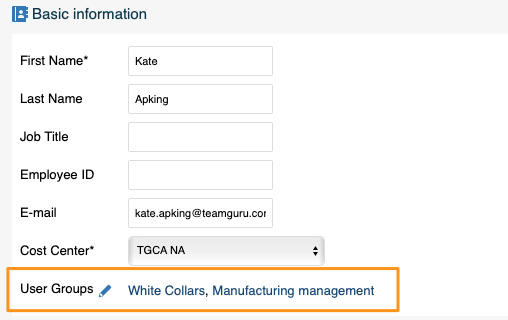
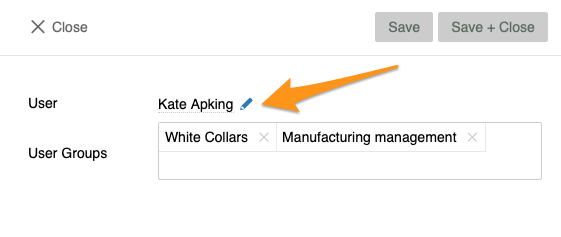
Click the user’s edit pencil and choose a user group from the already created groups in the submenu. You can also see right away which groups the user belongs to.
In the system settings
Open the user groups
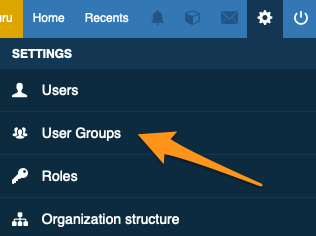
In the system settings in the upper right corner, click User Groups.
Create a new group
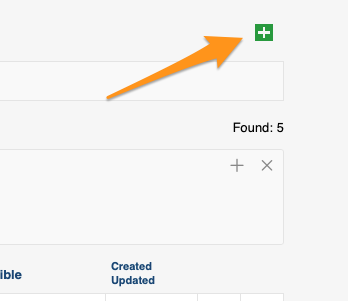
Create a new group by clicking the green plus icon.
View by groups or by users
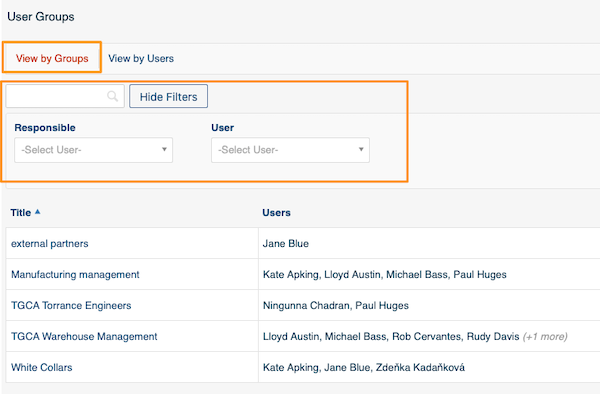
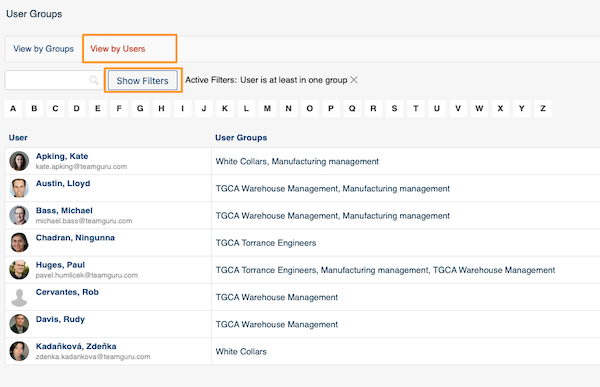
Switch between View by Groups and View by Users. For your convenience, you can use the advanced search filters.
Open a user’s account
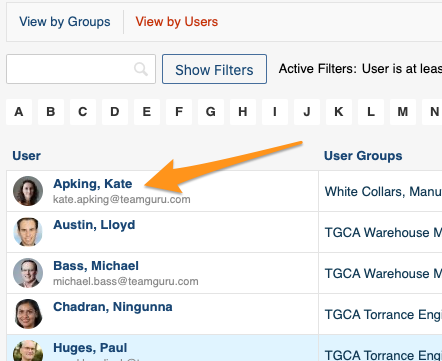
When you click a specific user, you can go directly to the user’s account from here using the edit pencil.
Still need help?
Write to us. We usually reply within an hour on business days.