管理用户组
本文由英文机器翻译。 当前显示英文原文。
User groups help you assign tasks to specific employees in TeamGuru more easily and quickly. A user group is live: any change you make to it is automatically applied everywhere the group is used.
You can learn how to create a new user group here.
Please note that you need a sufficient role to create or manage user groups. If you don’t have one, please contact your system administrator or our support team.
You can assign a user group either directly in the user’s account or under User Groups in the system settings.
In the user’s account
Assign a group to the user
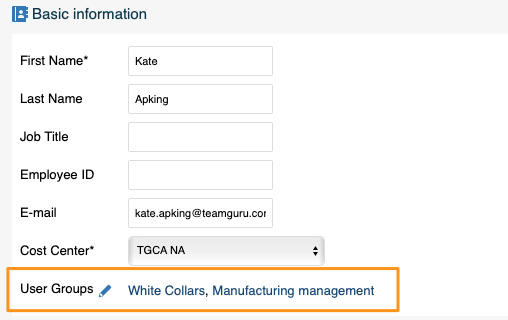
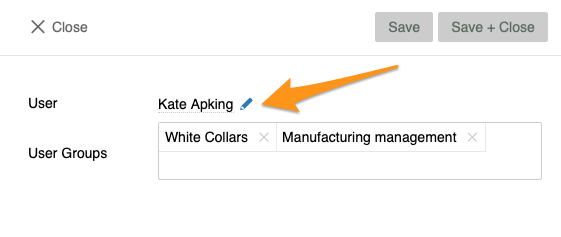
Click the user’s edit pencil and choose a user group from the already created groups in the submenu. You can also see right away which groups the user belongs to.
In the system settings
Open the user groups
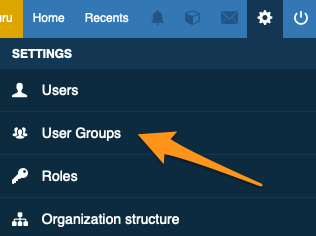
In the system settings in the upper right corner, click User Groups.
Create a new group
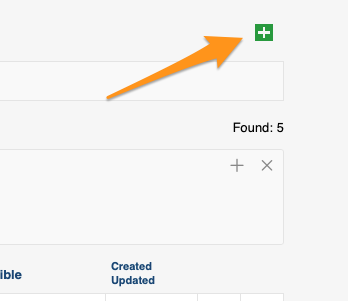
Create a new group by clicking the green plus icon.
View by groups or by users
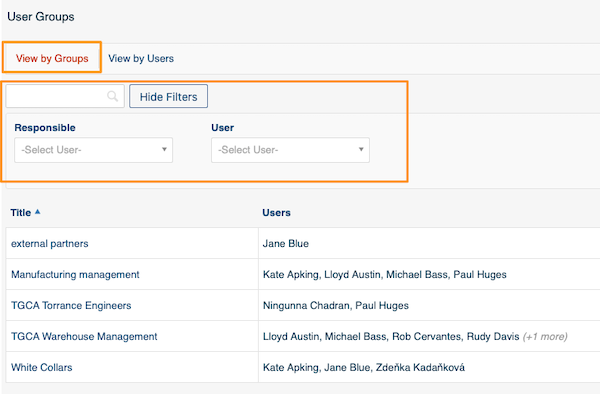
Switch between View by Groups and View by Users. For your convenience, you can use the advanced search filters.
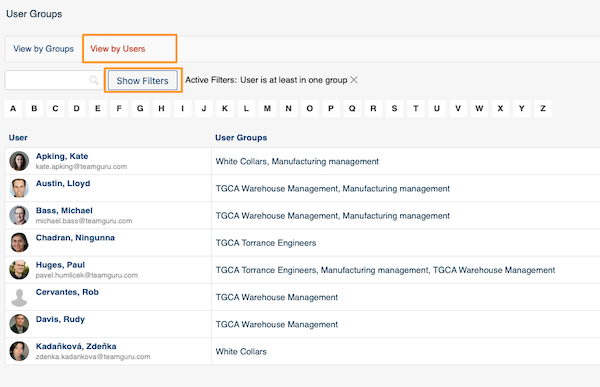
Open a user’s account
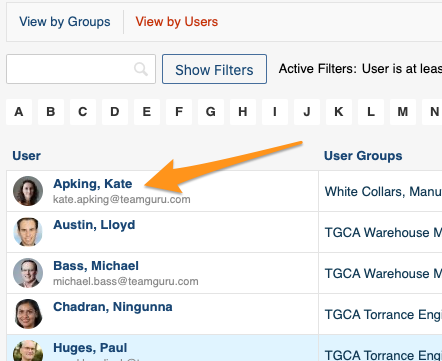
When you click a specific user, you can go directly to the user’s account from here using the edit pencil.
用户组可以帮助您在TeamGuru中更快捷地将任务分配给特定员工。用户组是实时生效的:您对它所做的任何更改都会自动应用到所有使用该用户组的地方。
您可以在这里了解如何创建新用户组。
请注意,创建或管理用户组需要具备相应的角色。如果您没有该角色,请联系系统管理员或我们的支持团队。
您可以直接在用户账户中分配用户组,也可以在系统设置的用户组中分配。
在用户账户中
为用户分配用户组
点击该用户的编辑铅笔图标,然后在子菜单中从已创建的用户组中选择。您还可以立即看到该用户属于哪些用户组。
在系统设置中
打开用户组
在右上角的系统设置中,点击用户组。
创建新用户组
点击绿色加号图标即可创建新用户组。
按用户组或按用户查看
在按用户组查看和按用户查看之间切换。您还可以使用高级搜索筛选,查找更方便。
打开用户账户
点击某个用户后,您可以通过编辑铅笔图标从这里直接进入该用户的账户。
还需要帮助吗?
请给我们留言。工作日我们通常会在一小时内回复。