Managing user rights - who can access what? User roles.
Users (internal or external) can view or edit documents depending on their role setup in TeamGuru. Only administrators can change the role.
Internal users (employees)
-
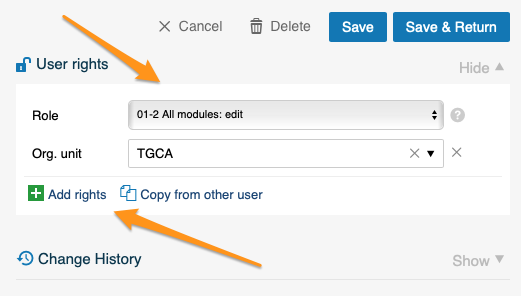
Set the rights per organization unit. User rights can be set up individually in the user’s profile for each part of your organization (document) structure. For example, a user can be given the rights to view documents at the site level and to edit documents at the department level.
-
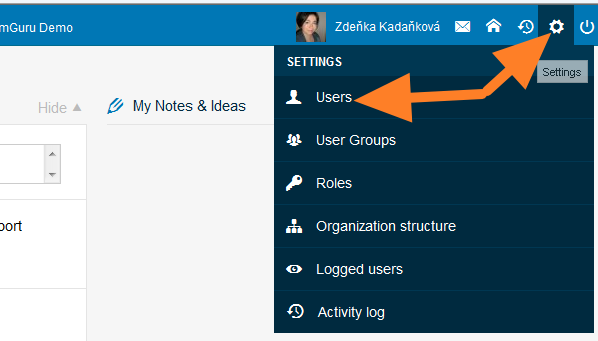
Use the predefined roles. To simplify the administration of individual user rights, there are predefined system roles (sets of rights for one or multiple modules).
-
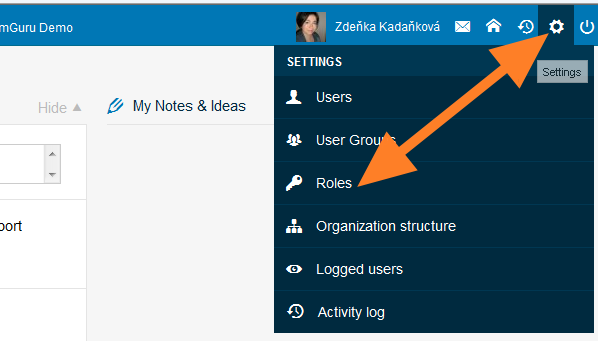
Open the list of roles. To see all roles, go to Settings > Roles.
-
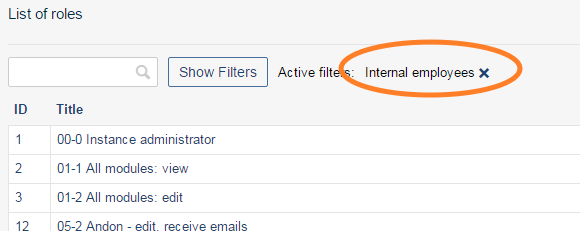
Filter the internal roles. Select Internal employees in the filter.
-
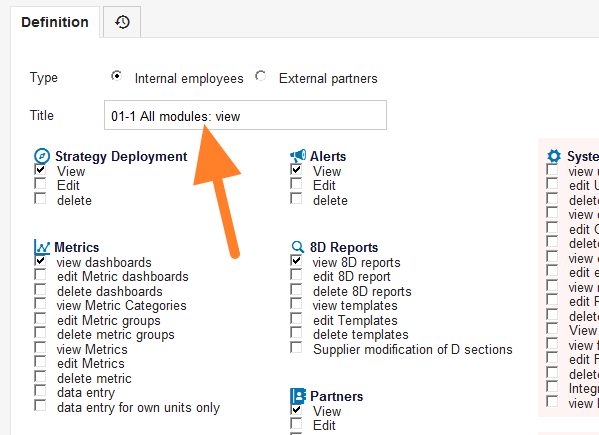
Review the rights of a role. Each role defines the user rights: the user can act according to the ticked boxes. For example, the role named “All modules - view” gives the user the right to view documents only.
External users (suppliers / customers)
- Share documents with external partners. Your external partners can get system access as well. They can view or edit the documents you shared with them using the external sharing functionality (see How to share the document with an external partner).
- Give the contact person system access. Your contact person needs to have system access (see How to create a new partner contact and their access) with the user role in their profile.
Create a new internal or external role
-
Open the roles. Go to Settings > Roles.
-
Add a role. Click Add role.

-
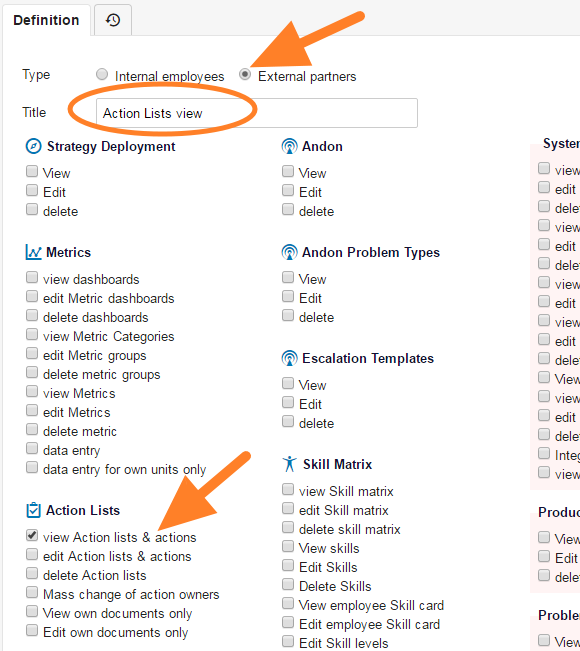
Define the role. Enter the role name, choose Internal employees or External partners in the Type section and tick each right you want to include.
-
Save the role. Click Save & Return.
-
Assign the role to users. You can now give the new role to users in their profiles.
Still need help?
Write to us. We usually reply within an hour on business days.