How to create a new partner contact and access
The Partners module helps you manage information about your external partners (customers and suppliers – see How to create a new partner’s card). You can create accounts for your contact people and share your TeamGuru documents and data with them.
Give partners access to 8D Reports
The most common external user right is 8D partner (see how to create a new supplier and their login details), which is used for the 8D Reports module. Your supplier can then access your 8D Report document and update its sections online. Learn more about 8D Reports.
Share other documents
You can share any other document with your partner using the External Sharing function (see how to share a document with an external partner) and a predefined external user role (see user roles).
Please watch our video tutorial How to create a new external partner & share documents and the other tutorials designed for suppliers.
Create a contact person account
-
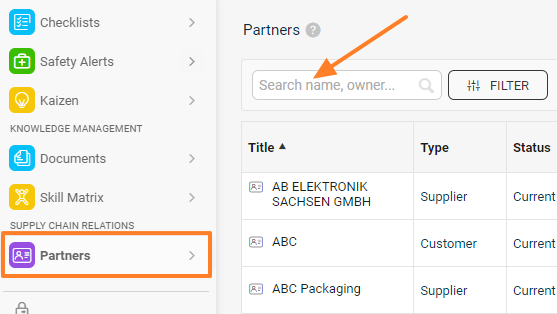
Find the partner. Go to Partners and search for the existing partner.
-
Create the partner if needed. If the partner does not exist in the system yet, create a new partner by clicking the Create New icon in the upper right corner.
-
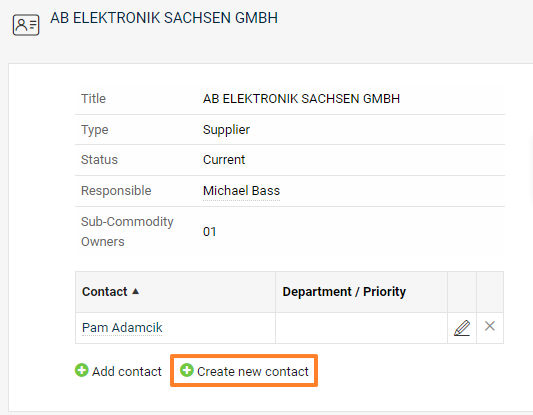
Open the partner’s card. Click the partner’s name to see the details of the partner’s card.
-
Create a new contact. Click Create new contact.
-
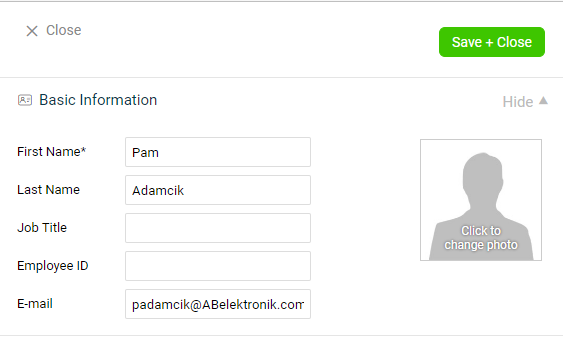
Enter the contact details. Enter the basic contact details: first name, last name and email.
-
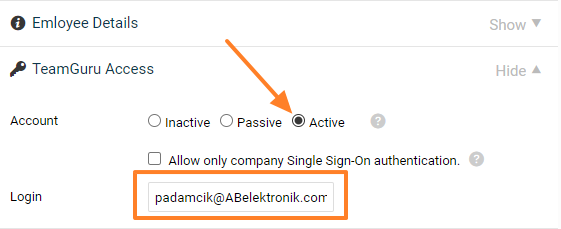
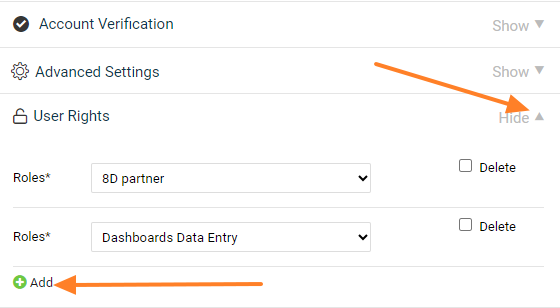
Set up the access. If the contact person needs to access a specific TeamGuru document shared with them, choose the Active account type and set up the Login and User Rights. A role contains a specific list of rights that the person has in the system, e.g. 8D partner.
-
Save the contact. Click the Save + Close button in the upper right corner.
-
The contact sets a password. Your contact person receives an email with a link to set up their password in the system.
Still need help?
Write to us. We usually reply within an hour on business days.