How to share the document with an external partner
TeamGuru enables you to share any of your documents with your external partners. Sharing a document online with an external partner takes three steps: create the partner’s card, create an account for the partner’s contact person, and share the document.
Prepare the partner
- Create the partner’s card. Create an external partner card: see How to create a new partner’s card.
- Create the contact person’s account. Create an account with system access for the external partner’s contact person: see How to create a new partner contact and access.
Share the document
-
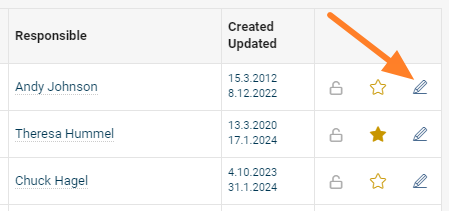
Open the document edit screen. Go to the document’s edit screen.
-
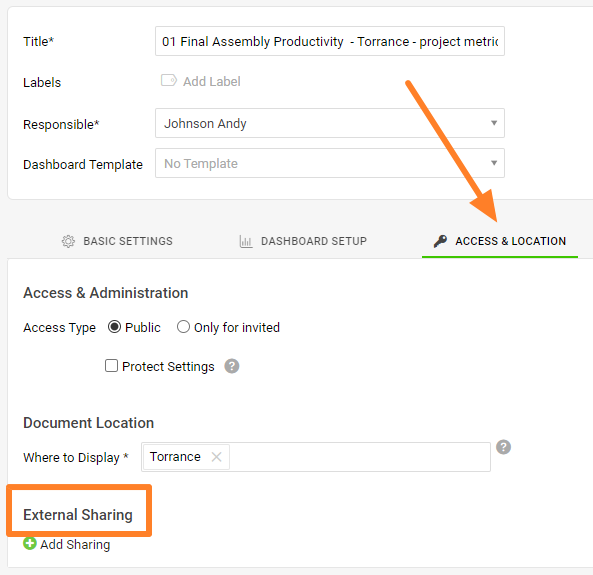
Go to External Sharing. Open the Access & Location tab, then the External Sharing section.
-
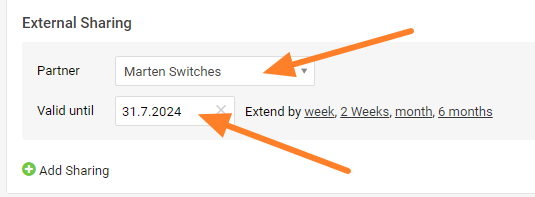
Add the sharing. Click the green plus button Add Sharing and search for the partner’s name in the directory. Set the Valid until date and confirm with the Save & View button in the top right corner.
-
Let your partner log in. The document is visible to your external partner once they log in to the system.
Still need help?
Write to us. We usually reply within an hour on business days.