Jak vytvořit nové RCCA a propojit ho s konkrétní metrikou
Strojový překlad z angličtiny. Zobrazen anglický originál.
You can create a root cause analysis (RCCA) report and link it to a particular metric dashboard.
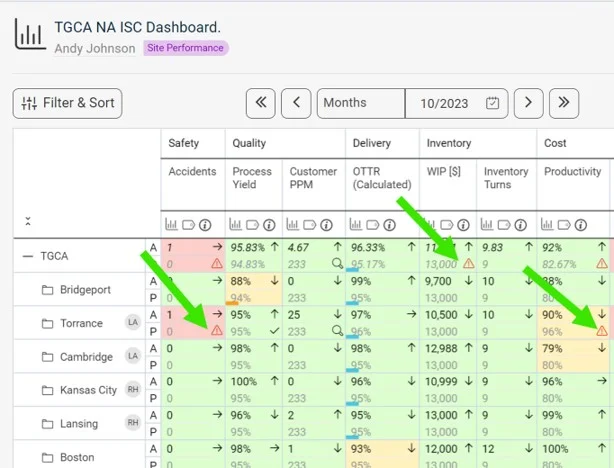
See the RCCA icon in the dashboard
Once the RCCA document is linked to a certain metric/unit combination, the RCCA icon is displayed in the dashboard, as shown below.
Create the RCCA document
-
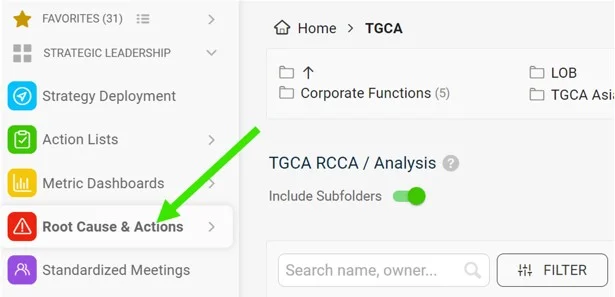
Open the Root Cause & Actions module. Go to the Root Cause & Actions module on the left-hand side of the screen.
-
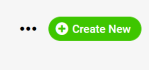
Click Create New. Click Create New on the right side of the screen.
-
Add a title and choose the type. Add a title and choose the type of RCCA.
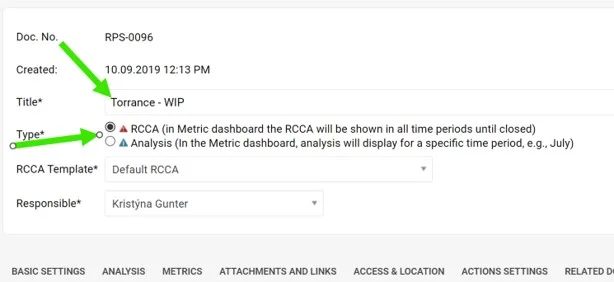
There are two types of RCCA. The only difference is how long the RCCA icon (a triangle) is displayed in the metric dashboard, if it is a metric-related RCCA document. The red RCCA (1st option) displays the red triangle icon in the dashboard the whole time until the RCCA document is closed. The blue RCCA (2nd option) displays the blue triangle icon in the metric dashboard only for the default period of the metric dashboard (e.g. in a weekly dashboard only for the week, in a monthly dashboard only for the month in which the RCCA document was created).
-
Select the RCCA template.
-
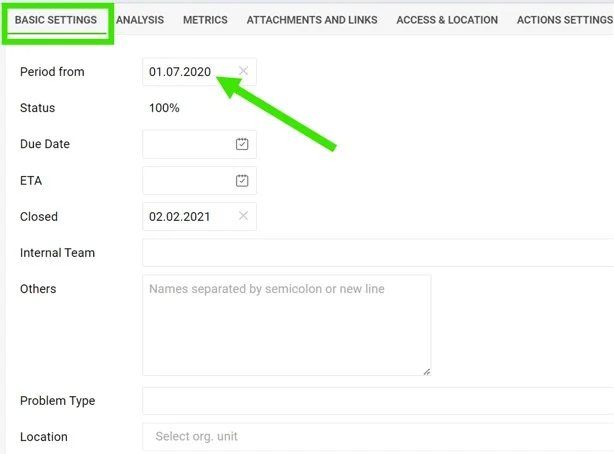
Fill in the details. Fill in the details under each of the tabs. In Basic Settings, it is important to fill in the Period from which the RCCA icon will be displayed in the metric dashboard (if the RCCA document is metric-related).
-
Fill in the analysis. The analysis and Pareto charts can be filled in on the 2nd tab, Analysis.
-
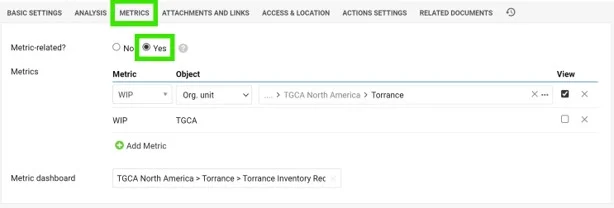
Link the metric. To link the RCCA document to a certain metric/unit combination, set it up under the 3rd tab, Metrics. Here you can also link a particular metric dashboard.
Video guide: creating a new RCCA
Můžete vytvořit report analýzy kořenových příčin (RCCA) a propojit ho s konkrétním metrikovým dashboardem.
Ikona RCCA v dashboardu
Jakmile dokument RCCA propojíte s určitou kombinací metriky a jednotky, zobrazí se v dashboardu ikona RCCA, jak vidíte níže.
Vytvořte dokument RCCA
-
Otevřete modul Analýza a náprava. V levé části obrazovky otevřete modul Analýza a náprava.
-
Klikněte na Vytvořit nový. Klikněte na Vytvořit nový v pravé části obrazovky.
-
Zadejte název a zvolte typ. Zadejte název a zvolte typ RCCA.
Existují dva typy RCCA. Liší se jen tím, jak dlouho se ikona RCCA (trojúhelník) zobrazuje v metrikovém dashboardu, pokud se dokument RCCA týká metriky. Červené RCCA (1. možnost) zobrazuje v dashboardu červený trojúhelník po celou dobu, dokud dokument RCCA neuzavřete. Modré RCCA (2. možnost) zobrazuje v metrikovém dashboardu modrý trojúhelník jen po výchozí období dashboardu (např. v týdenním dashboardu jen v daném týdnu, v měsíčním jen v měsíci, kdy byl dokument RCCA vytvořen).
-
Vyberte šablonu RCCA.
-
Vyplňte podrobnosti. Vyplňte podrobnosti na jednotlivých záložkách. V Základním nastavení je důležité vyplnit Období, od kterého se bude ikona RCCA zobrazovat v metrikovém dashboardu (pokud se dokument RCCA týká metriky).
-
Vyplňte analýzu. Analýzu a Paretovy grafy vyplníte na 2. záložce Analýza.
-
Propojte metriku. Propojení dokumentu RCCA s určitou kombinací metriky a jednotky nastavíte na 3. záložce Metriky. Zde můžete propojit i konkrétní metrikový dashboard.
Video návod: vytvoření nového RCCA
Potřebujete další pomoc?
Napište nám. V pracovní dny obvykle odpovídáme do hodiny.