Cómo crear un nuevo RCCA y vincularlo a un indicador
Traducción automática del inglés. Se muestra el original en inglés.
You can create a root cause analysis (RCCA) report and link it to a particular metric dashboard.
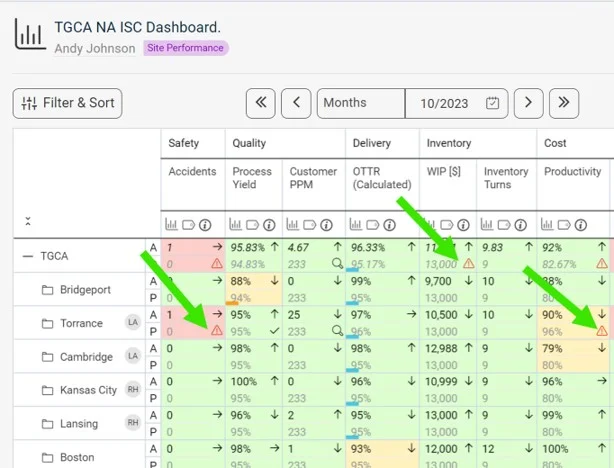
See the RCCA icon in the dashboard
Once the RCCA document is linked to a certain metric/unit combination, the RCCA icon is displayed in the dashboard, as shown below.
Create the RCCA document
-
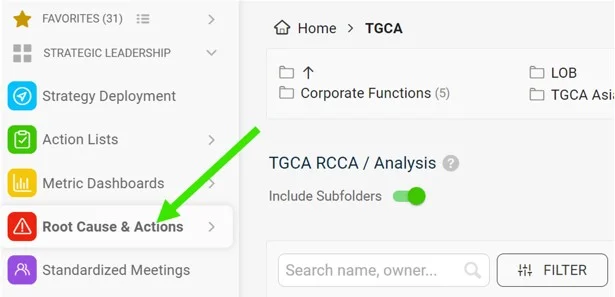
Open the Root Cause & Actions module. Go to the Root Cause & Actions module on the left-hand side of the screen.
-
Click Create New. Click Create New on the right side of the screen.
-
Add a title and choose the type. Add a title and choose the type of RCCA.
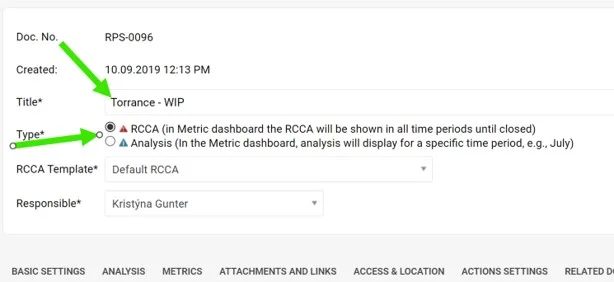
There are two types of RCCA. The only difference is how long the RCCA icon (a triangle) is displayed in the metric dashboard, if it is a metric-related RCCA document. The red RCCA (1st option) displays the red triangle icon in the dashboard the whole time until the RCCA document is closed. The blue RCCA (2nd option) displays the blue triangle icon in the metric dashboard only for the default period of the metric dashboard (e.g. in a weekly dashboard only for the week, in a monthly dashboard only for the month in which the RCCA document was created).
-
Select the RCCA template.
-
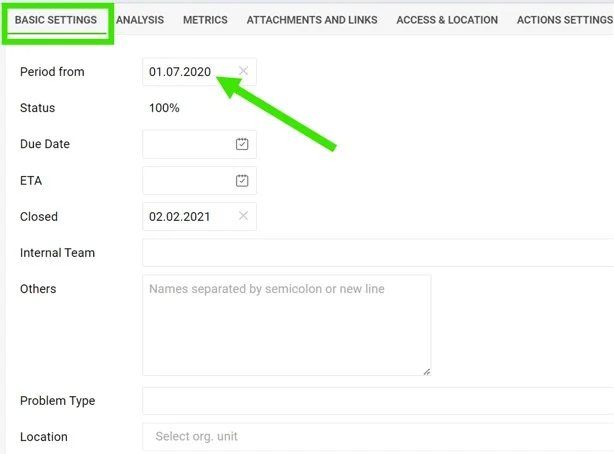
Fill in the details. Fill in the details under each of the tabs. In Basic Settings, it is important to fill in the Period from which the RCCA icon will be displayed in the metric dashboard (if the RCCA document is metric-related).
-
Fill in the analysis. The analysis and Pareto charts can be filled in on the 2nd tab, Analysis.
-
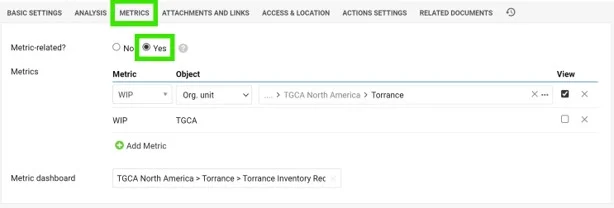
Link the metric. To link the RCCA document to a certain metric/unit combination, set it up under the 3rd tab, Metrics. Here you can also link a particular metric dashboard.
Video guide: creating a new RCCA
Puede crear un informe de análisis de causa raíz (RCCA) y vincularlo a un dashboard de KPI concreto.
Ver el ícono de RCCA en el dashboard
Cuando el documento RCCA está vinculado a una combinación de indicador y unidad, el ícono de RCCA aparece en el dashboard, como se muestra a continuación.
Crear el documento RCCA
-
Abra el módulo Causa raíz y acciones correctivas. Vaya al módulo Causa raíz y acciones correctivas, en el lado izquierdo de la pantalla.
-
Haga clic en Crear nuevo. Haga clic en Crear nuevo, en el lado derecho de la pantalla.
-
Escriba un título y elija el tipo. Escriba un título y elija el tipo de RCCA.
Hay dos tipos de RCCA. La única diferencia es cuánto tiempo se muestra el ícono de RCCA (un triángulo) en el dashboard de KPI, si el documento RCCA está vinculado a un indicador. El RCCA rojo (1.ª opción) muestra el triángulo rojo en el dashboard todo el tiempo, hasta que se cierra el documento RCCA. El RCCA azul (2.ª opción) muestra el triángulo azul en el dashboard de KPI solo durante el periodo predeterminado del dashboard (por ejemplo, en un dashboard semanal solo durante la semana, y en uno mensual solo durante el mes en que se creó el documento RCCA).
-
Elija la plantilla de RCCA.
-
Complete los detalles. Complete los detalles de cada pestaña. En Configuración básica es importante indicar el Periodo a partir del cual se mostrará el ícono de RCCA en el dashboard de KPI (si el documento RCCA está vinculado a un indicador).
-
Complete el análisis. El análisis y los diagramas de Pareto se completan en la 2.ª pestaña, Análisis.
-
Vincule el indicador. Para vincular el documento RCCA a una combinación de indicador y unidad, configúrelo en la 3.ª pestaña, Indicadores. Aquí también puede vincular un dashboard de KPI concreto.
Video: cómo crear un nuevo RCCA
¿Necesita más ayuda?
Escríbanos. En días laborables solemos responder en menos de una hora.