Configurer des indicateurs de synthèse pour les projets
Traduction automatique de l'anglais. Original en anglais affiché.
If you collect metric data for your projects and use automatic dashboards, you can also summarize this data. You can set up fully automated summary metrics: newly created projects are then automatically added not only to the dashboard but also to the overall total.
Summary metric calculations can be based on the project type. You set them up once, and the summary metrics are automatically updated according to your modifications.
Watch the video guide, or follow the text instructions below.
Before you set up summary metrics for A3 projects, complete the preparatory steps in the first two parts below.
Part 1 – Set up your A3 project with a project type
Select the project type
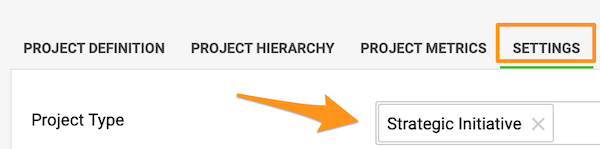
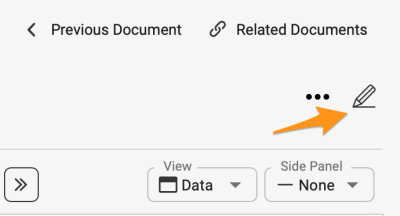
Go to the action list’s settings by clicking the edit pencil, scroll down to the Settings tab and choose a Project type from the submenu. You can select from the project types already created in the system.

If you need to create a new project and your role is not sufficient to do that, please contact us or your system administrator for assistance.
Part 2 – Set up automatic metric dashboards
-
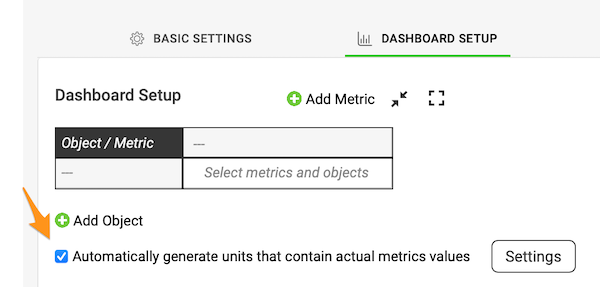
Open the Dashboard Setup tab. Go to the metric dashboard settings and scroll down to the Dashboard Setup tab.
-
Turn on automatic generation. Tick the Automatically generate units containing actual metric values box.
-
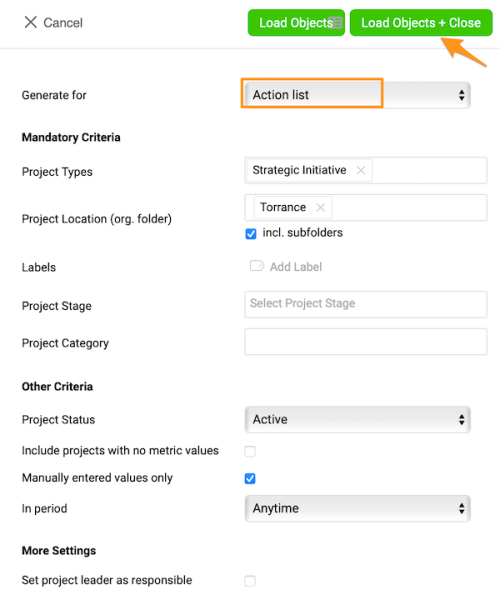
Select the project types. Select Action List and the project types from the submenu, and make the other selections based on your preference.
-
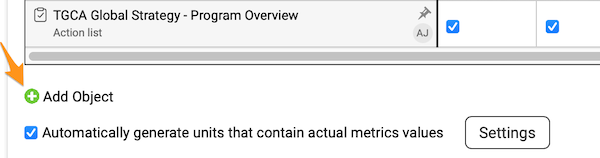
Add and pin your org. unit. To see the total for your org. unit in the dashboard, you also need to add your org. unit and pin it in the metric dashboard settings. Click the green plus button to add the org. unit from the org. structure.
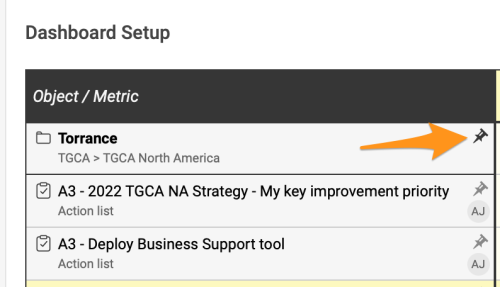
Pin your org. unit to the dashboard by clicking the pin icon.
From now on, any time a new project with the same project type(s) and other selections is created in the system, it is automatically added to your dashboard.
Part 3 – Set up summary metrics for your projects
-
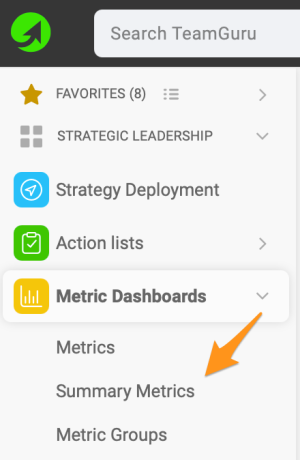
Open the summary metrics. In the Metric Dashboards module, select Summary metrics from the submenu.
-
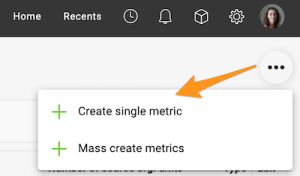
Create a single metric. Click the three black dots in the upper right corner and select Create single metric.
-
Complete the main settings. Complete the main settings definition (see how to create summary metrics).
-
Select the projects by project type. Under Action lists, choose Select based on Project Type and Org. Structure and choose the project type from the options in the submenu. You can also choose a specific org. unit in which the projects are located, and whether to include subfolders and archived items.
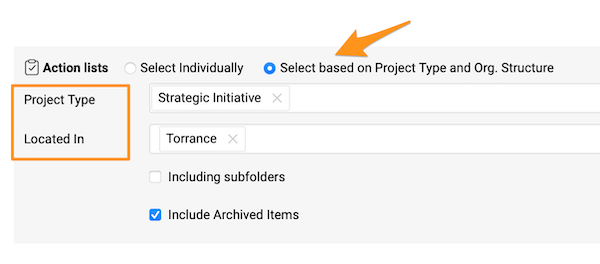
If you do not specify any location, the summary metric includes all projects with that project type created in the system across your whole company.
See the automatic updates
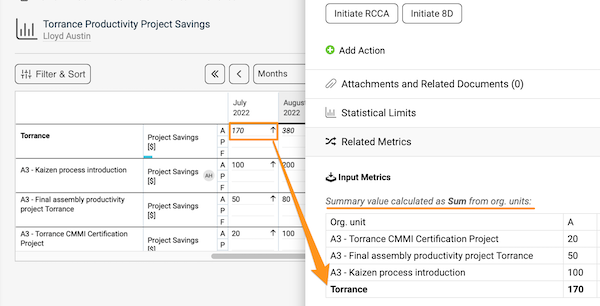
Once you complete all the steps above, whenever a new project is created with the specific project type and other settings, it is added to the metric dashboard automatically, and the summary metrics are updated automatically too.
Si vous collectez des données d’indicateurs pour vos projets et utilisez des tableaux de bord automatiques, vous pouvez aussi consolider ces données. Vous pouvez configurer des indicateurs de synthèse entièrement automatisés : chaque nouveau projet est alors ajouté automatiquement non seulement au tableau de bord, mais aussi au total général.
Le calcul des indicateurs de synthèse peut reposer sur le type de projet. Vous le configurez une fois, puis les indicateurs de synthèse se mettent à jour automatiquement selon vos modifications.
Regardez le tutoriel vidéo ou suivez les instructions écrites ci-dessous.
Avant de configurer des indicateurs de synthèse pour vos projets A3, effectuez les étapes préparatoires des deux premières parties ci-dessous.
Partie 1 : affecter un type de projet à votre projet A3
Choisir le type de projet
Ouvrez les paramètres du plan d’action en cliquant sur le crayon de modification, descendez jusqu’à l’onglet Paramètres et choisissez un Type de projet dans le sous-menu. Vous pouvez choisir parmi les types de projet déjà créés dans le système.
Si vous devez créer un nouveau projet et que votre rôle ne le permet pas, contactez-nous ou contactez votre administrateur système.
Partie 2 : configurer des tableaux de bord KPI automatiques
-
Ouvrez l’onglet Configuration du tableau de bord. Accédez aux paramètres du tableau de bord KPI et descendez jusqu’à l’onglet Configuration du tableau de bord.
-
Activez la génération automatique. Cochez la case Générer automatiquement les unités contenant des valeurs réelles d’indicateur.
-
Choisissez les types de projet. Sélectionnez Plan d’action et les types de projet dans le sous-menu, puis faites les autres choix selon vos préférences.
-
Ajoutez et épinglez votre unité org. Pour voir le total de votre unité org. dans le tableau de bord, vous devez aussi l’ajouter et l’épingler dans les paramètres du tableau de bord KPI. Cliquez sur le bouton vert « + » pour ajouter l’unité org. depuis la structure organisationnelle.
Épinglez votre unité org. au tableau de bord en cliquant sur l’icône d’épingle.
Désormais, chaque nouveau projet créé dans le système avec le ou les mêmes types de projet et les mêmes autres critères est ajouté automatiquement à votre tableau de bord.
Partie 3 : configurer les indicateurs de synthèse de vos projets
-
Ouvrez les indicateurs de synthèse. Dans le module Tableaux de bord KPI, choisissez Indicateurs de synthèse dans le sous-menu.
-
Créez un indicateur unique. Cliquez sur les trois points noirs en haut à droite et choisissez Créer un indicateur unique.
-
Renseignez les paramètres principaux. Complétez la définition des paramètres principaux (voir créer des indicateurs de synthèse).
-
Sélectionnez les projets par type. Sous Plans d’action, choisissez Sélection selon le type de projet et la structure org., puis le type de projet parmi les options du sous-menu. Vous pouvez aussi choisir l’unité org. où se trouvent les projets, et décider d’inclure ou non les sous-dossiers et les éléments archivés.
Si vous n’indiquez aucun emplacement, l’indicateur de synthèse inclut tous les projets de ce type créés dans le système, dans toute votre entreprise.
Voir les mises à jour automatiques
Une fois toutes ces étapes effectuées, chaque nouveau projet créé avec ce type de projet et ces autres critères est ajouté automatiquement au tableau de bord KPI, et les indicateurs de synthèse se mettent à jour automatiquement eux aussi.
Besoin d'aide supplémentaire ?
Écrivez-nous. Les jours ouvrés, nous répondons en général en moins d'une heure.