Ako nastaviť súhrnné metriky pre projekty
Strojový preklad z angličtiny. Zobrazený je anglický originál.
If you collect metric data for your projects and use automatic dashboards, you can also summarize this data. You can set up fully automated summary metrics: newly created projects are then automatically added not only to the dashboard but also to the overall total.
Summary metric calculations can be based on the project type. You set them up once, and the summary metrics are automatically updated according to your modifications.
Watch the video guide, or follow the text instructions below.
Before you set up summary metrics for A3 projects, complete the preparatory steps in the first two parts below.
Part 1 – Set up your A3 project with a project type
Select the project type
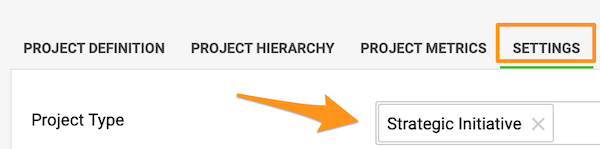
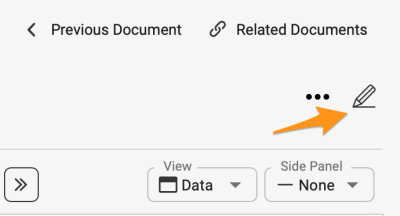
Go to the action list’s settings by clicking the edit pencil, scroll down to the Settings tab and choose a Project type from the submenu. You can select from the project types already created in the system.

If you need to create a new project and your role is not sufficient to do that, please contact us or your system administrator for assistance.
Part 2 – Set up automatic metric dashboards
-
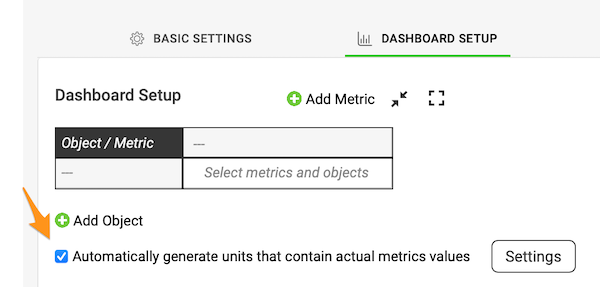
Open the Dashboard Setup tab. Go to the metric dashboard settings and scroll down to the Dashboard Setup tab.
-
Turn on automatic generation. Tick the Automatically generate units containing actual metric values box.
-
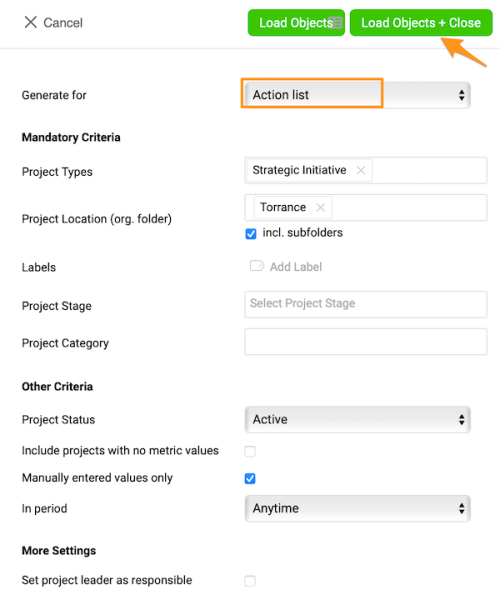
Select the project types. Select Action List and the project types from the submenu, and make the other selections based on your preference.
-
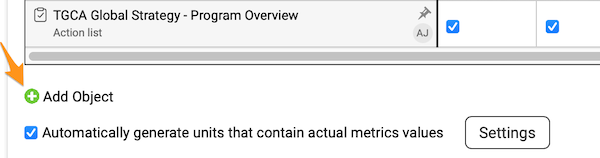
Add and pin your org. unit. To see the total for your org. unit in the dashboard, you also need to add your org. unit and pin it in the metric dashboard settings. Click the green plus button to add the org. unit from the org. structure.
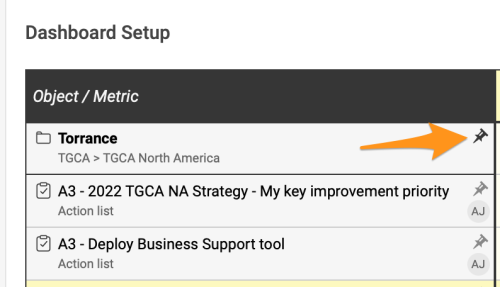
Pin your org. unit to the dashboard by clicking the pin icon.
From now on, any time a new project with the same project type(s) and other selections is created in the system, it is automatically added to your dashboard.
Part 3 – Set up summary metrics for your projects
-
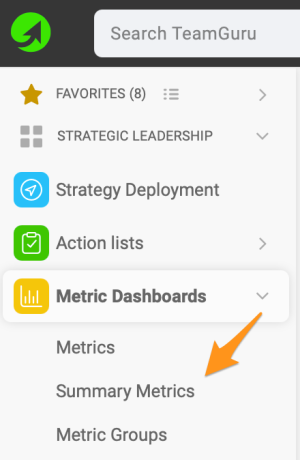
Open the summary metrics. In the Metric Dashboards module, select Summary metrics from the submenu.
-
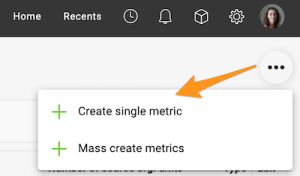
Create a single metric. Click the three black dots in the upper right corner and select Create single metric.
-
Complete the main settings. Complete the main settings definition (see how to create summary metrics).
-
Select the projects by project type. Under Action lists, choose Select based on Project Type and Org. Structure and choose the project type from the options in the submenu. You can also choose a specific org. unit in which the projects are located, and whether to include subfolders and archived items.
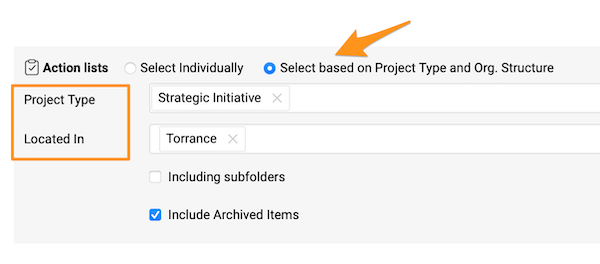
If you do not specify any location, the summary metric includes all projects with that project type created in the system across your whole company.
See the automatic updates
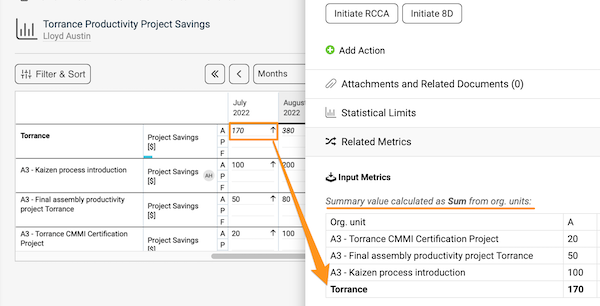
Once you complete all the steps above, whenever a new project is created with the specific project type and other settings, it is added to the metric dashboard automatically, and the summary metrics are updated automatically too.
Ak zbierate údaje metrík pre projekty a používate automatické dashboardy, môžete tieto údaje aj sčítať. Súhrnné metriky sa dajú nastaviť úplne automaticky: novo vytvorené projekty sa potom automaticky pridajú nielen do dashboardu, ale aj do celkového súčtu.
Výpočet súhrnných metrík môže vychádzať z typu projektu. Nastavíte ho raz a súhrnné metriky sa podľa vašich zmien aktualizujú automaticky.
Pozrite si video návod alebo postupujte podľa textu nižšie.
Skôr než nastavíte súhrnné metriky pre projekty A3, urobte prípravné kroky z prvých dvoch častí nižšie.
1. časť – Nastavenie typu projektu pre projekt A3
Zvoľte typ projektu
Do nastavení akčného zoznamu prejdete kliknutím na ceruzku na úpravu. Posuňte sa nižšie na kartu Nastavenia a v podmenu zvoľte Typ projektu. Vyberať môžete z typov projektov, ktoré už v systéme existujú.
Ak potrebujete vytvoriť nový projekt a vaša rola na to nestačí, obráťte sa na nás alebo na administrátora systému.
2. časť – Nastavenie automatických KPI dashboardov
-
Otvorte kartu Nastavenie dashboardu. Prejdite do nastavení KPI dashboardu a posuňte sa nižšie na kartu Nastavenie dashboardu.
-
Zapnite automatické generovanie. Začiarknite pole Automaticky generovať jednotky so skutočnými hodnotami metriky.
-
Zvoľte typy projektov. V podmenu zvoľte Akčný zoznam a typy projektov a ďalšie možnosti nastavte podľa svojich potrieb.
-
Pridajte a pripnite org. jednotku. Aby ste v dashboarde videli súčet za svoju org. jednotku, musíte ju v nastaveniach KPI dashboardu aj pridať a pripnúť. Kliknutím na zelené tlačidlo plus pridáte org. jednotku z organizačnej štruktúry.
Org. jednotku pripnete do dashboardu kliknutím na ikonu špendlíka.
Odteraz sa každý nový projekt s rovnakým typom projektu (typmi) a ostatnými nastaveniami, ktorý v systéme vznikne, automaticky pridá do vášho dashboardu.
3. časť – Nastavenie súhrnných metrík pre projekty
-
Otvorte súhrnné metriky. V module KPI dashboardy zvoľte v podmenu Súhrnné metriky.
-
Vytvorte jednu metriku. Kliknite na tri čierne bodky v pravom hornom rohu a zvoľte Vytvoriť jednu metriku.
-
Vyplňte hlavné nastavenia. Vyplňte hlavné nastavenia (pozrite ako vytvoriť súhrnné metriky).
-
Vyberte projekty podľa typu projektu. V časti Akčné zoznamy zvoľte Vybrať podľa typu projektu a org. štruktúry a v podmenu vyberte typ projektu. Môžete zvoliť aj konkrétnu org. jednotku, v ktorej sú projekty umiestnené, a či zahrnúť podpriečinky a archivované položky.
Ak nezadáte žiadne umiestnenie, súhrnná metrika zahrnie všetky projekty s daným typom projektu vytvorené v systéme v celej vašej firme.
Automatické aktualizácie
Keď dokončíte všetky kroky vyššie, každý nový projekt s daným typom projektu a ostatnými nastaveniami sa automaticky pridá do KPI dashboardu a automaticky sa aktualizujú aj súhrnné metriky.
Potrebujete ďalšiu pomoc?
Napíšte nám. V pracovné dni zvyčajne odpovedáme do hodiny.