如何为项目设置汇总指标
本文由英文机器翻译。 当前显示英文原文。
If you collect metric data for your projects and use automatic dashboards, you can also summarize this data. You can set up fully automated summary metrics: newly created projects are then automatically added not only to the dashboard but also to the overall total.
Summary metric calculations can be based on the project type. You set them up once, and the summary metrics are automatically updated according to your modifications.
Watch the video guide, or follow the text instructions below.
Before you set up summary metrics for A3 projects, complete the preparatory steps in the first two parts below.
Part 1 – Set up your A3 project with a project type
Select the project type
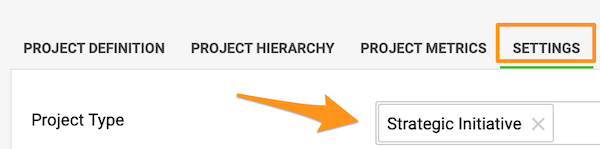
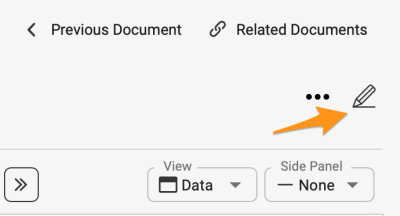
Go to the action list’s settings by clicking the edit pencil, scroll down to the Settings tab and choose a Project type from the submenu. You can select from the project types already created in the system.

If you need to create a new project and your role is not sufficient to do that, please contact us or your system administrator for assistance.
Part 2 – Set up automatic metric dashboards
-
Open the Dashboard Setup tab. Go to the metric dashboard settings and scroll down to the Dashboard Setup tab.
-
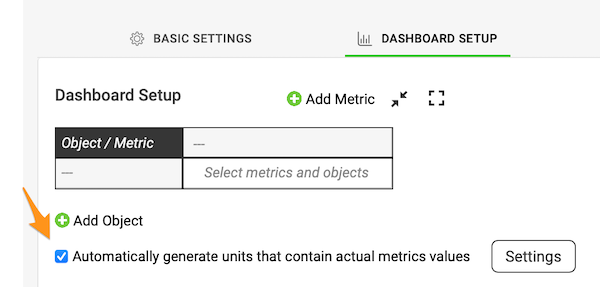
Turn on automatic generation. Tick the Automatically generate units containing actual metric values box.
-
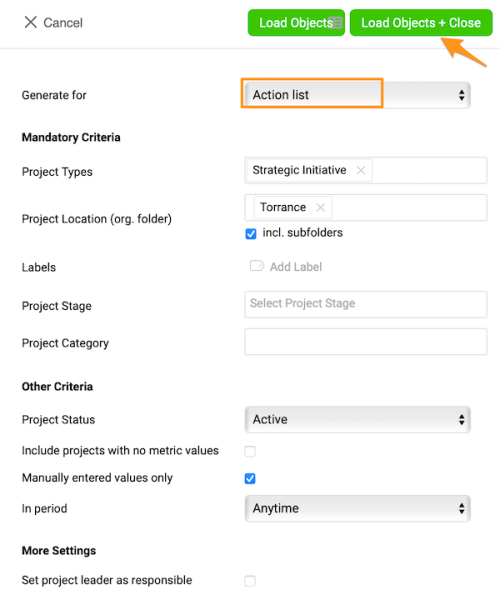
Select the project types. Select Action List and the project types from the submenu, and make the other selections based on your preference.
-
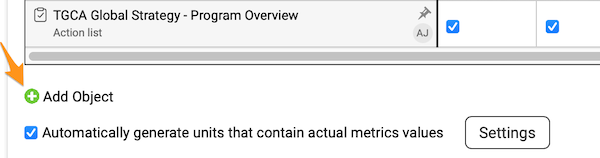
Add and pin your org. unit. To see the total for your org. unit in the dashboard, you also need to add your org. unit and pin it in the metric dashboard settings. Click the green plus button to add the org. unit from the org. structure.
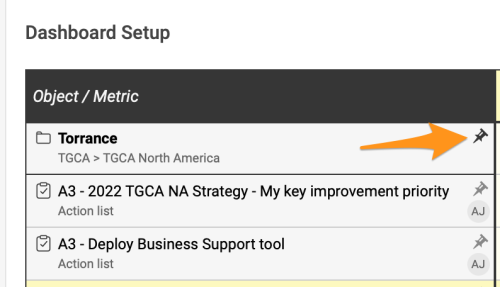
Pin your org. unit to the dashboard by clicking the pin icon.
From now on, any time a new project with the same project type(s) and other selections is created in the system, it is automatically added to your dashboard.
Part 3 – Set up summary metrics for your projects
-
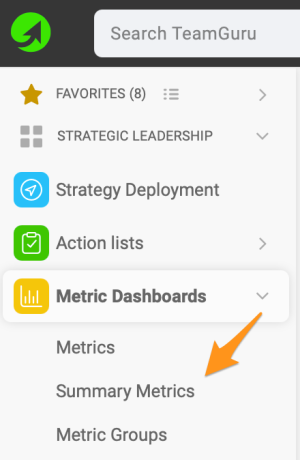
Open the summary metrics. In the Metric Dashboards module, select Summary metrics from the submenu.
-
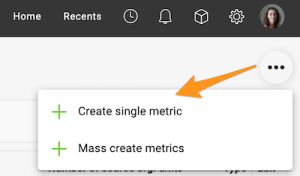
Create a single metric. Click the three black dots in the upper right corner and select Create single metric.
-
Complete the main settings. Complete the main settings definition (see how to create summary metrics).
-
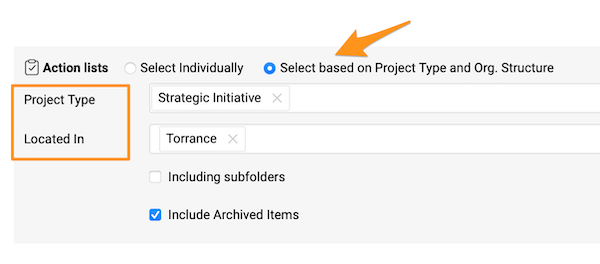
Select the projects by project type. Under Action lists, choose Select based on Project Type and Org. Structure and choose the project type from the options in the submenu. You can also choose a specific org. unit in which the projects are located, and whether to include subfolders and archived items.
If you do not specify any location, the summary metric includes all projects with that project type created in the system across your whole company.
See the automatic updates
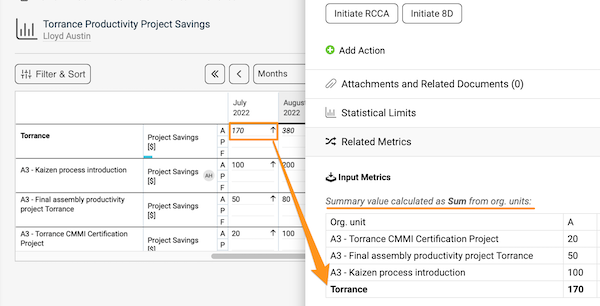
Once you complete all the steps above, whenever a new project is created with the specific project type and other settings, it is added to the metric dashboard automatically, and the summary metrics are updated automatically too.
如果您为项目收集指标数据并使用自动仪表板,还可以对这些数据进行汇总。您可以设置完全自动化的汇总指标:新建的项目不仅会自动添加到仪表板中,还会自动计入总计。
汇总指标的计算可以基于项目类型。只需设置一次,汇总指标就会根据您的修改自动更新。
观看视频指南,或按照下方的文字说明操作。
为A3项目设置汇总指标之前,请先完成下面前两部分中的准备步骤。
第1部分:为A3项目设置项目类型
选择项目类型
点击 编辑铅笔 进入行动清单的设置,向下滚动到 设置 选项卡,从子菜单中选择 项目类型。可以从系统中已创建的项目类型中选择。
如果您需要新建项目,但您的角色权限不足,请联系我们或系统管理员协助。
第2部分:设置自动指标仪表板
-
打开仪表板配置选项卡。 进入指标仪表板设置,向下滚动到 仪表板配置 选项卡。
-
开启自动生成。 勾选 自动生成包含实际指标值的单元 复选框。
-
选择项目类型。 从子菜单中选择 行动清单 和项目类型,并按需完成其他选择。
-
添加并固定组织单元。 要在仪表板中查看组织单元的总计,还需要在指标仪表板设置中添加并固定该组织单元。点击绿色加号按钮,从组织结构中添加组织单元。
点击图钉图标,将组织单元固定到仪表板。
此后,每当系统中新建具有相同项目类型和其他选择条件的项目时,该项目都会自动添加到仪表板中。
第3部分:为项目设置汇总指标
-
打开汇总指标。 在 指标仪表板 模块中,从子菜单中选择 汇总指标。
-
创建单个指标。 点击右上角的三个黑点,选择 创建单个指标。
-
完成主要设置。 完成主要设置的定义(参见如何创建汇总指标)。
-
按项目类型选择项目。 在 行动清单 下,选择 根据项目类型和组织结构选择,并从子菜单的选项中选择项目类型。还可以选择项目所在的特定组织单元,以及是否包含子文件夹和已归档项目。
如果未指定任何位置,汇总指标将包含全公司系统中创建的所有该类型项目。
查看自动更新
完成上述所有步骤后,每当新建具有特定项目类型和其他设置的项目时,该项目都会自动添加到指标仪表板中,汇总指标也会自动更新。
还需要帮助吗?
请给我们留言。工作日我们通常会在一小时内回复。