So richten Sie Summenkennzahlen für Projekte ein
Maschinelle Übersetzung aus dem Englischen. Englisches Original wird angezeigt.
If you collect metric data for your projects and use automatic dashboards, you can also summarize this data. You can set up fully automated summary metrics: newly created projects are then automatically added not only to the dashboard but also to the overall total.
Summary metric calculations can be based on the project type. You set them up once, and the summary metrics are automatically updated according to your modifications.
Watch the video guide, or follow the text instructions below.
Before you set up summary metrics for A3 projects, complete the preparatory steps in the first two parts below.
Part 1 – Set up your A3 project with a project type
Select the project type
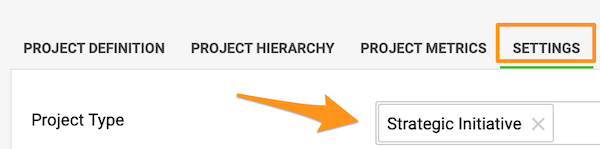
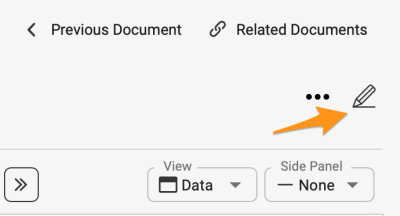
Go to the action list’s settings by clicking the edit pencil, scroll down to the Settings tab and choose a Project type from the submenu. You can select from the project types already created in the system.

If you need to create a new project and your role is not sufficient to do that, please contact us or your system administrator for assistance.
Part 2 – Set up automatic metric dashboards
-
Open the Dashboard Setup tab. Go to the metric dashboard settings and scroll down to the Dashboard Setup tab.
-
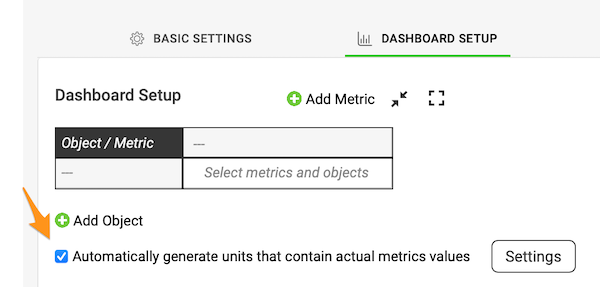
Turn on automatic generation. Tick the Automatically generate units containing actual metric values box.
-
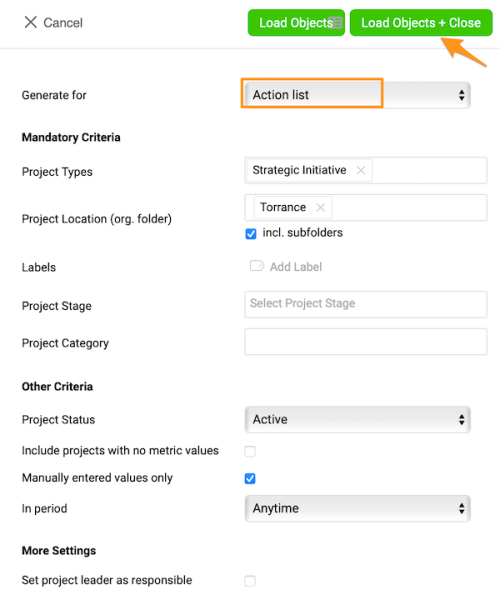
Select the project types. Select Action List and the project types from the submenu, and make the other selections based on your preference.
-
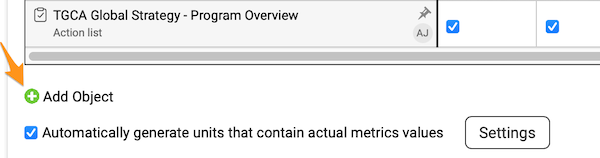
Add and pin your org. unit. To see the total for your org. unit in the dashboard, you also need to add your org. unit and pin it in the metric dashboard settings. Click the green plus button to add the org. unit from the org. structure.
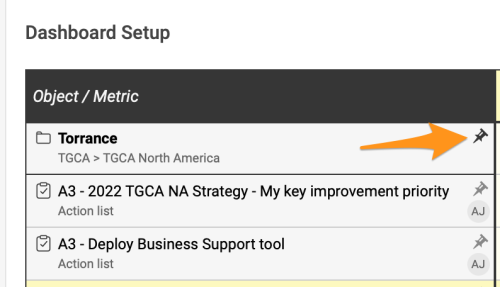
Pin your org. unit to the dashboard by clicking the pin icon.
From now on, any time a new project with the same project type(s) and other selections is created in the system, it is automatically added to your dashboard.
Part 3 – Set up summary metrics for your projects
-
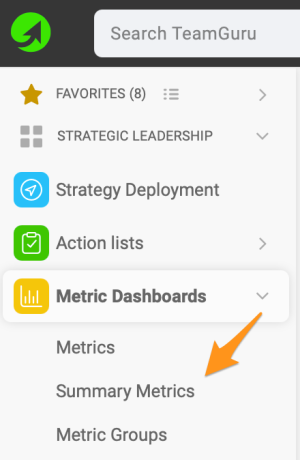
Open the summary metrics. In the Metric Dashboards module, select Summary metrics from the submenu.
-
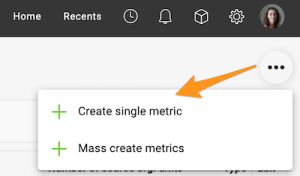
Create a single metric. Click the three black dots in the upper right corner and select Create single metric.
-
Complete the main settings. Complete the main settings definition (see how to create summary metrics).
-
Select the projects by project type. Under Action lists, choose Select based on Project Type and Org. Structure and choose the project type from the options in the submenu. You can also choose a specific org. unit in which the projects are located, and whether to include subfolders and archived items.
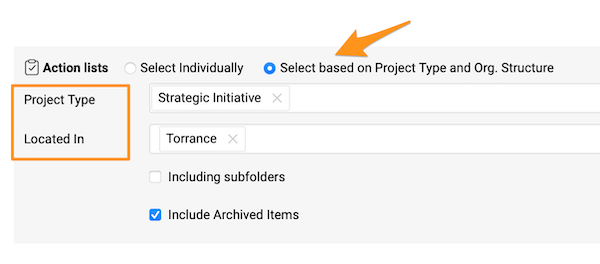
If you do not specify any location, the summary metric includes all projects with that project type created in the system across your whole company.
See the automatic updates
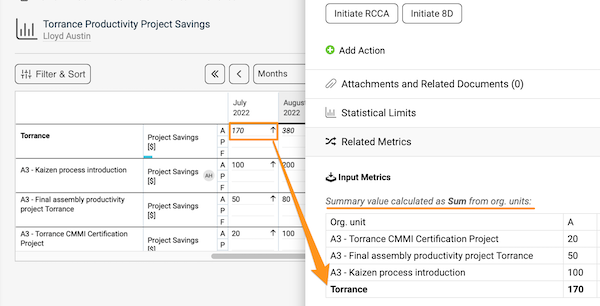
Once you complete all the steps above, whenever a new project is created with the specific project type and other settings, it is added to the metric dashboard automatically, and the summary metrics are updated automatically too.
Wenn Sie Kennzahlendaten für Ihre Projekte erfassen und automatische Dashboards verwenden, können Sie diese Daten auch zusammenfassen. Summenkennzahlen lassen sich vollständig automatisieren: Neu angelegte Projekte werden dann nicht nur automatisch ins Dashboard, sondern auch in die Gesamtsumme übernommen.
Die Berechnung der Summenkennzahlen kann auf dem Projekttyp beruhen. Sie richten sie einmal ein, danach werden die Summenkennzahlen entsprechend Ihren Änderungen automatisch aktualisiert.
Sehen Sie sich die Video-Anleitung an oder folgen Sie der Textanleitung unten.
Bevor Sie Summenkennzahlen für A3-Projekte einrichten, erledigen Sie die vorbereitenden Schritte aus den ersten beiden Teilen unten.
Teil 1 – A3-Projekt mit einem Projekttyp einrichten
Projekttyp auswählen
Öffnen Sie die Einstellungen der Maßnahmenliste über das Bearbeiten-Stiftsymbol, scrollen Sie nach unten zur Registerkarte Einstellungen und wählen Sie im Untermenü einen Projekttyp. Zur Auswahl stehen die Projekttypen, die bereits im System angelegt sind.
Wenn Sie ein neues Projekt anlegen müssen und Ihre Rolle dafür nicht ausreicht, wenden Sie sich an uns oder an Ihren Systemadministrator.
Teil 2 – Automatische KPI-Dashboards einrichten
-
Öffnen Sie die Registerkarte Dashboard-Aufbau. Öffnen Sie die Einstellungen des KPI-Dashboards und scrollen Sie nach unten zur Registerkarte Dashboard-Aufbau.
-
Aktivieren Sie die automatische Erstellung. Aktivieren Sie das Kontrollkästchen Einheiten mit Kennzahl-Istwerten automatisch erstellen.
-
Wählen Sie die Projekttypen. Wählen Sie im Untermenü Maßnahmenliste und die Projekttypen und treffen Sie die übrigen Einstellungen nach Bedarf.
-
Fügen Sie Ihre Organisationseinheit hinzu und heften Sie sie an. Damit das Dashboard die Summe für Ihre Organisationseinheit zeigt, müssen Sie die Organisationseinheit in den Einstellungen des KPI-Dashboards auch hinzufügen und anheften. Klicken Sie auf die grüne Plus-Schaltfläche, um die Organisationseinheit aus der Organisationsstruktur hinzuzufügen.
Heften Sie Ihre Organisationseinheit mit dem Pin-Symbol an das Dashboard an.
Ab jetzt wird jedes neue Projekt mit demselben Projekttyp (bzw. denselben Projekttypen) und denselben übrigen Einstellungen, das im System angelegt wird, automatisch in Ihr Dashboard übernommen.
Teil 3 – Summenkennzahlen für Ihre Projekte einrichten
-
Öffnen Sie die Summenkennzahlen. Wählen Sie im Modul KPI-Dashboards im Untermenü Summenkennzahlen.
-
Legen Sie eine Einzelkennzahl an. Klicken Sie oben rechts auf die drei schwarzen Punkte und wählen Sie Einzelkennzahl anlegen.
-
Füllen Sie die Haupteinstellungen aus. Legen Sie die Haupteinstellungen fest (siehe So legen Sie Summenkennzahlen an).
-
Wählen Sie die Projekte nach Projekttyp. Wählen Sie unter Maßnahmenlisten die Option Nach Projekttyp und Organisationsstruktur auswählen und im Untermenü den Projekttyp. Sie können auch eine bestimmte Organisationseinheit wählen, in der sich die Projekte befinden, und festlegen, ob Unterordner und archivierte Elemente einbezogen werden.
Wenn Sie keinen Ort angeben, umfasst die Summenkennzahl alle Projekte mit diesem Projekttyp, die im System im gesamten Unternehmen angelegt sind.
Die automatischen Aktualisierungen
Sobald Sie alle oben genannten Schritte erledigt haben, wird jedes neue Projekt mit dem jeweiligen Projekttyp und den übrigen Einstellungen automatisch ins KPI-Dashboard übernommen, und auch die Summenkennzahlen werden automatisch aktualisiert.
Brauchen Sie weitere Hilfe?
Schreiben Sie uns. An Werktagen antworten wir meist innerhalb einer Stunde.