Jak ustawić wskaźniki sumaryczne dla projektów
Tłumaczenie maszynowe z angielskiego. Wyświetlany jest oryginał po angielsku.
If you collect metric data for your projects and use automatic dashboards, you can also summarize this data. You can set up fully automated summary metrics: newly created projects are then automatically added not only to the dashboard but also to the overall total.
Summary metric calculations can be based on the project type. You set them up once, and the summary metrics are automatically updated according to your modifications.
Watch the video guide, or follow the text instructions below.
Before you set up summary metrics for A3 projects, complete the preparatory steps in the first two parts below.
Part 1 – Set up your A3 project with a project type
Select the project type
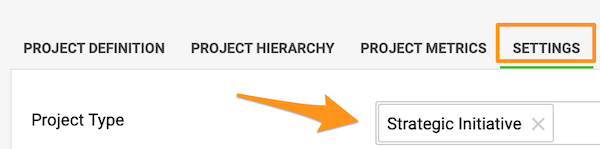
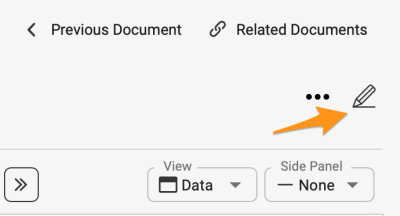
Go to the action list’s settings by clicking the edit pencil, scroll down to the Settings tab and choose a Project type from the submenu. You can select from the project types already created in the system.

If you need to create a new project and your role is not sufficient to do that, please contact us or your system administrator for assistance.
Part 2 – Set up automatic metric dashboards
-
Open the Dashboard Setup tab. Go to the metric dashboard settings and scroll down to the Dashboard Setup tab.
-
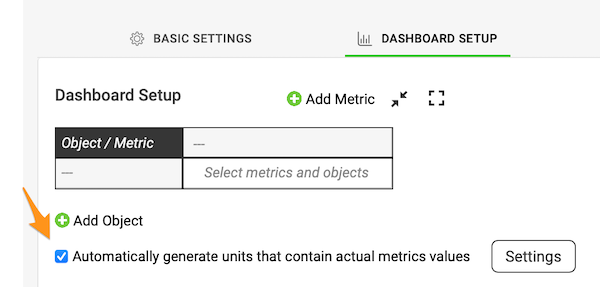
Turn on automatic generation. Tick the Automatically generate units containing actual metric values box.
-
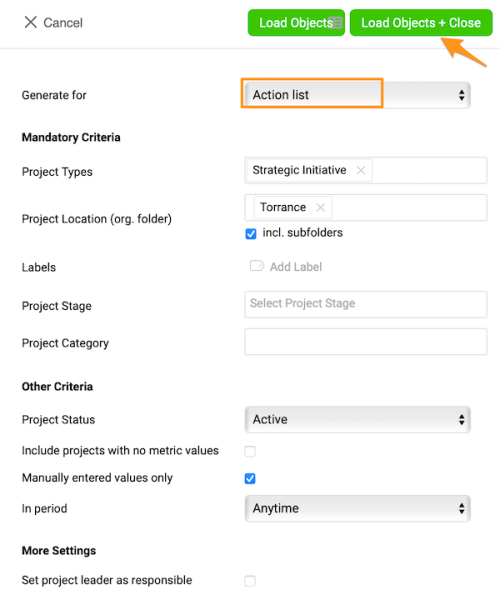
Select the project types. Select Action List and the project types from the submenu, and make the other selections based on your preference.
-
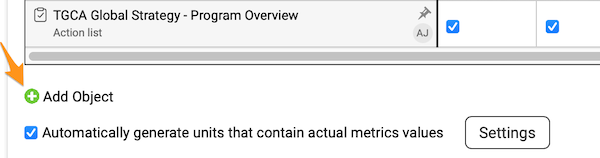
Add and pin your org. unit. To see the total for your org. unit in the dashboard, you also need to add your org. unit and pin it in the metric dashboard settings. Click the green plus button to add the org. unit from the org. structure.
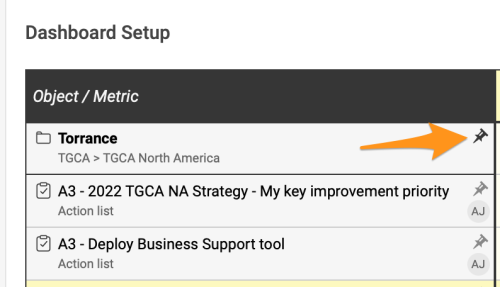
Pin your org. unit to the dashboard by clicking the pin icon.
From now on, any time a new project with the same project type(s) and other selections is created in the system, it is automatically added to your dashboard.
Part 3 – Set up summary metrics for your projects
-
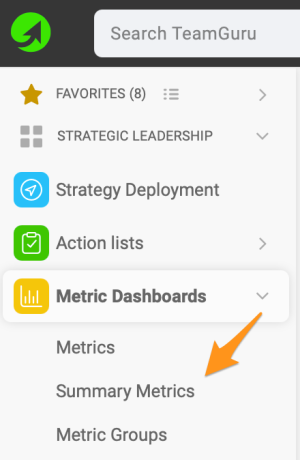
Open the summary metrics. In the Metric Dashboards module, select Summary metrics from the submenu.
-
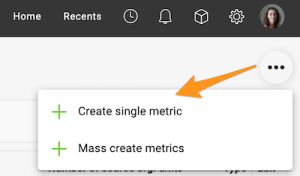
Create a single metric. Click the three black dots in the upper right corner and select Create single metric.
-
Complete the main settings. Complete the main settings definition (see how to create summary metrics).
-
Select the projects by project type. Under Action lists, choose Select based on Project Type and Org. Structure and choose the project type from the options in the submenu. You can also choose a specific org. unit in which the projects are located, and whether to include subfolders and archived items.
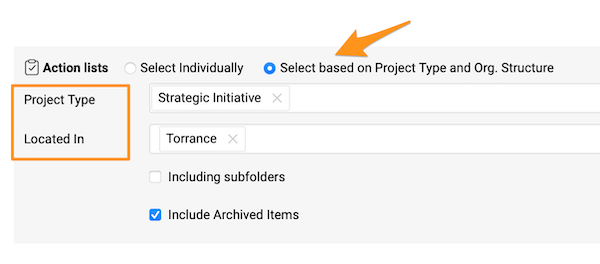
If you do not specify any location, the summary metric includes all projects with that project type created in the system across your whole company.
See the automatic updates
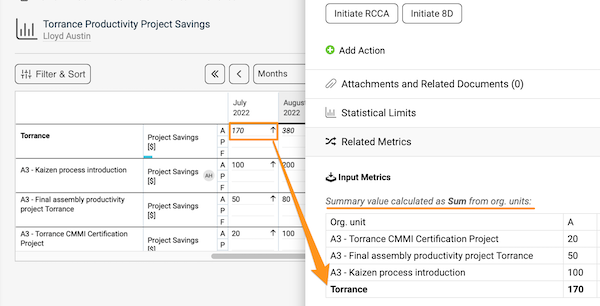
Once you complete all the steps above, whenever a new project is created with the specific project type and other settings, it is added to the metric dashboard automatically, and the summary metrics are updated automatically too.
Jeśli zbierasz dane wskaźników dla projektów i korzystasz z automatycznych dashboardów, możesz te dane także podsumować. Wskaźniki sumaryczne możesz ustawić w pełni automatycznie: nowo utworzone projekty trafiają wtedy nie tylko do dashboardu, ale i do łącznej sumy.
Obliczenia wskaźników sumarycznych mogą opierać się na typie projektu. Ustawiasz je raz, a wskaźniki sumaryczne aktualizują się automatycznie zgodnie z Twoimi zmianami.
Obejrzyj samouczek wideo albo skorzystaj z instrukcji tekstowej poniżej.
Zanim ustawisz wskaźniki sumaryczne dla projektów A3, wykonaj kroki przygotowawcze opisane w dwóch pierwszych częściach poniżej.
Część 1 – przypisz typ projektu do projektu A3
Wybierz typ projektu
Przejdź do ustawień listy działań, klikając ołówek edycji, przewiń w dół do karty Ustawienia i wybierz z podmenu Typ projektu. Możesz wybrać jeden z typów projektów już utworzonych w systemie.
Jeśli musisz utworzyć nowy projekt, a Twoja rola na to nie pozwala, skontaktuj się z nami lub z administratorem systemu.
Część 2 – skonfiguruj automatyczne dashboardy KPI
-
Otwórz kartę Konfiguracja dashboardu. Przejdź do ustawień dashboardu KPI i przewiń w dół do karty Konfiguracja dashboardu.
-
Włącz automatyczne generowanie. Zaznacz pole Automatycznie generuj jednostki zawierające rzeczywiste wartości wskaźników.
-
Wybierz typy projektów. Wybierz z podmenu Lista działań i typy projektów, a pozostałe opcje ustaw według potrzeb.
-
Dodaj i przypnij jednostkę organizacyjną. Aby zobaczyć w dashboardzie sumę dla swojej jednostki organizacyjnej, musisz też dodać tę jednostkę i przypiąć ją w ustawieniach dashboardu KPI. Kliknij zielony przycisk z plusem, aby dodać jednostkę ze struktury organizacyjnej.
Przypnij jednostkę organizacyjną do dashboardu, klikając ikonę pinezki.
Od teraz każdy nowy projekt utworzony w systemie z tym samym typem projektu (lub typami) i pozostałymi ustawieniami zostanie automatycznie dodany do dashboardu.
Część 3 – ustaw wskaźniki sumaryczne dla projektów
-
Otwórz wskaźniki sumaryczne. W module Dashboardy KPI wybierz z podmenu Wskaźniki sumaryczne.
-
Utwórz pojedynczy wskaźnik. Kliknij trzy czarne kropki w prawym górnym rogu i wybierz Utwórz pojedynczy wskaźnik.
-
Uzupełnij główne ustawienia. Zdefiniuj główne ustawienia (zobacz jak tworzyć wskaźniki sumaryczne).
-
Wybierz projekty według typu projektu. W sekcji Listy działań wybierz Wybierz na podstawie typu projektu i struktury organizacyjnej i wskaż typ projektu z opcji w podmenu. Możesz też wybrać konkretną jednostkę organizacyjną, w której znajdują się projekty, oraz zdecydować, czy uwzględnić podfoldery i elementy zarchiwizowane.
Jeśli nie określisz żadnej lokalizacji, wskaźnik sumaryczny obejmie wszystkie projekty tego typu utworzone w systemie w całej firmie.
Zobacz automatyczne aktualizacje
Po wykonaniu wszystkich powyższych kroków każdy nowy projekt utworzony z danym typem projektu i pozostałymi ustawieniami zostanie automatycznie dodany do dashboardu KPI, a wskaźniki sumaryczne również zaktualizują się automatycznie.
Potrzebujesz dalszej pomocy?
Napisz do nas. W dni robocze zwykle odpowiadamy w ciągu godziny.