Cómo configurar métricas resumen para proyectos
Traducción automática del inglés. Se muestra el original en inglés.
If you collect metric data for your projects and use automatic dashboards, you can also summarize this data. You can set up fully automated summary metrics: newly created projects are then automatically added not only to the dashboard but also to the overall total.
Summary metric calculations can be based on the project type. You set them up once, and the summary metrics are automatically updated according to your modifications.
Watch the video guide, or follow the text instructions below.
Before you set up summary metrics for A3 projects, complete the preparatory steps in the first two parts below.
Part 1 – Set up your A3 project with a project type
Select the project type
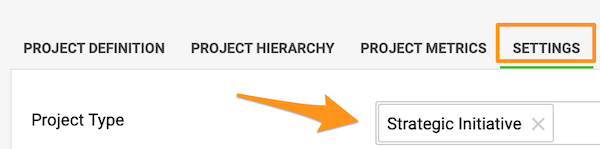
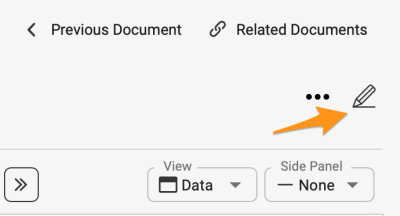
Go to the action list’s settings by clicking the edit pencil, scroll down to the Settings tab and choose a Project type from the submenu. You can select from the project types already created in the system.

If you need to create a new project and your role is not sufficient to do that, please contact us or your system administrator for assistance.
Part 2 – Set up automatic metric dashboards
-
Open the Dashboard Setup tab. Go to the metric dashboard settings and scroll down to the Dashboard Setup tab.
-
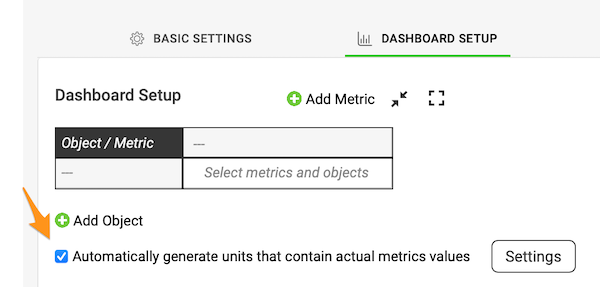
Turn on automatic generation. Tick the Automatically generate units containing actual metric values box.
-
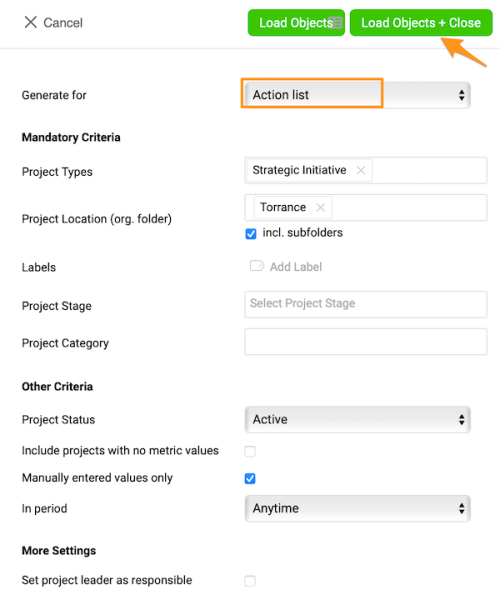
Select the project types. Select Action List and the project types from the submenu, and make the other selections based on your preference.
-
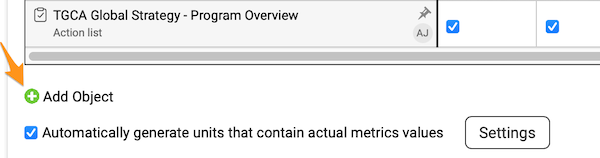
Add and pin your org. unit. To see the total for your org. unit in the dashboard, you also need to add your org. unit and pin it in the metric dashboard settings. Click the green plus button to add the org. unit from the org. structure.
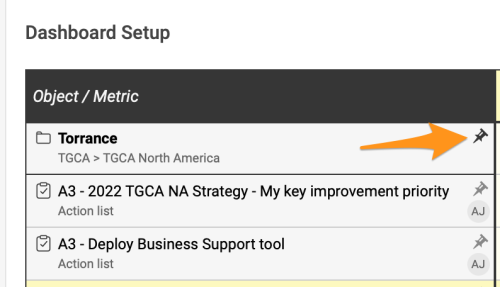
Pin your org. unit to the dashboard by clicking the pin icon.
From now on, any time a new project with the same project type(s) and other selections is created in the system, it is automatically added to your dashboard.
Part 3 – Set up summary metrics for your projects
-
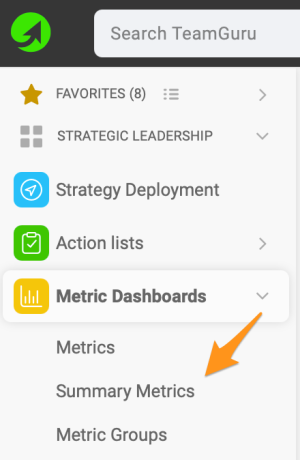
Open the summary metrics. In the Metric Dashboards module, select Summary metrics from the submenu.
-
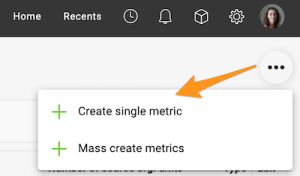
Create a single metric. Click the three black dots in the upper right corner and select Create single metric.
-
Complete the main settings. Complete the main settings definition (see how to create summary metrics).
-
Select the projects by project type. Under Action lists, choose Select based on Project Type and Org. Structure and choose the project type from the options in the submenu. You can also choose a specific org. unit in which the projects are located, and whether to include subfolders and archived items.
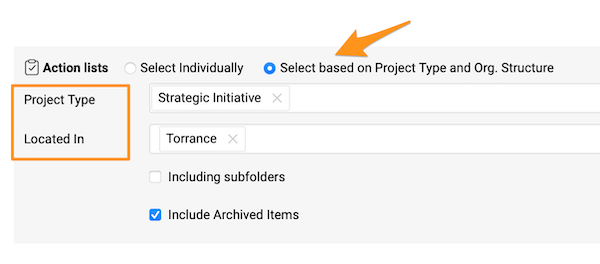
If you do not specify any location, the summary metric includes all projects with that project type created in the system across your whole company.
See the automatic updates
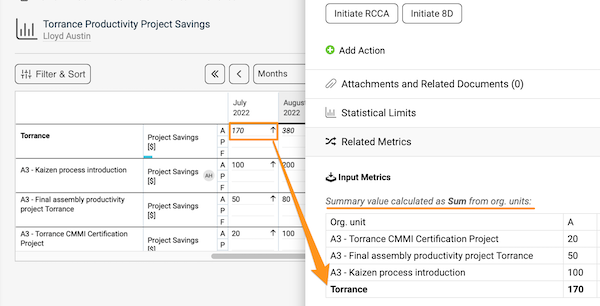
Once you complete all the steps above, whenever a new project is created with the specific project type and other settings, it is added to the metric dashboard automatically, and the summary metrics are updated automatically too.
Si recopila datos de métricas de sus proyectos y usa dashboards automáticos, también puede resumir esos datos. Puede configurar métricas resumen totalmente automáticas: los proyectos nuevos se agregan automáticamente no solo al dashboard, sino también al total general.
Los cálculos de las métricas resumen pueden basarse en el tipo de proyecto. Se configuran una sola vez y las métricas resumen se actualizan automáticamente según sus cambios.
Vea el video o siga las instrucciones escritas a continuación.
Antes de configurar métricas resumen para proyectos A3, complete los pasos preparatorios de las dos primeras partes.
Parte 1: asigne un tipo de proyecto a su proyecto A3
Seleccione el tipo de proyecto
Abra la configuración del plan de acción con el lápiz de edición, desplácese hasta la pestaña Configuración y elija un Tipo de proyecto en el submenú. Puede elegir entre los tipos de proyecto ya creados en el sistema.
Si necesita crear un nuevo proyecto y su rol no tiene permisos para hacerlo, contáctenos o comuníquese con su administrador del sistema.
Parte 2: configure dashboards de KPI automáticos
-
Abra la pestaña Configuración del dashboard. Vaya a la configuración del dashboard de KPI y desplácese hasta la pestaña Configuración del dashboard.
-
Active la generación automática. Marque la casilla Generar automáticamente las unidades con valores reales de métricas.
-
Seleccione los tipos de proyecto. Seleccione Plan de acción y los tipos de proyecto en el submenú, y complete las demás opciones a su gusto.
-
Agregue y fije su unidad organizativa. Para ver el total de su unidad organizativa en el dashboard, también debe agregarla y fijarla en la configuración del dashboard de KPI. Haga clic en el botón verde con el signo más para agregar la unidad organizativa desde la estructura organizativa.
Fije la unidad organizativa al dashboard haciendo clic en el icono de fijar.
A partir de ahora, cada vez que se cree en el sistema un proyecto con los mismos tipos de proyecto y demás opciones, se agregará automáticamente a su dashboard.
Parte 3: configure métricas resumen para sus proyectos
-
Abra las métricas resumen. En el módulo Dashboards de KPI, seleccione Métricas resumen en el submenú.
-
Cree una métrica individual. Haga clic en los tres puntos negros de la esquina superior derecha y seleccione Crear métrica individual.
-
Complete la configuración principal. Complete la definición de la configuración principal (consulte cómo crear métricas resumen).
-
Seleccione los proyectos por tipo de proyecto. En Planes de acción, elija Seleccionar según el tipo de proyecto y la estructura organizativa y elija el tipo de proyecto entre las opciones del submenú. También puede elegir una unidad organizativa concreta donde estén los proyectos, y si quiere incluir subcarpetas y elementos archivados.
Si no indica ninguna ubicación, la métrica resumen incluye todos los proyectos de ese tipo creados en el sistema en toda su empresa.
Vea las actualizaciones automáticas
Una vez completados todos los pasos anteriores, cada proyecto nuevo creado con ese tipo de proyecto y las demás opciones se agrega automáticamente al dashboard de KPI, y las métricas resumen también se actualizan automáticamente.
¿Necesita más ayuda?
Escríbanos. En días laborables solemos responder en menos de una hora.