How to log in with 2-Step Verification (MFA)
2-Step Verification (also known as two-factor authentication) adds an extra layer of security to your account. After you set it up once, you sign in to your account in two steps, using:
- your username and password, and
- a one-time passcode from your phone (your mobile authenticator app gives you a different code each time you sign in).
Video Guide (text instructions below)
One-time 2-Step Verification setup
-
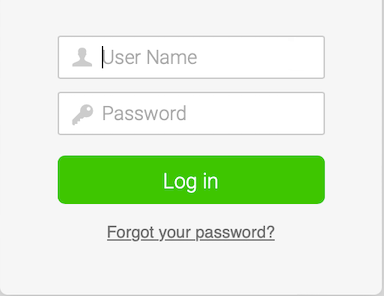
Log in. Enter your user name and password and click the Log in button.
-
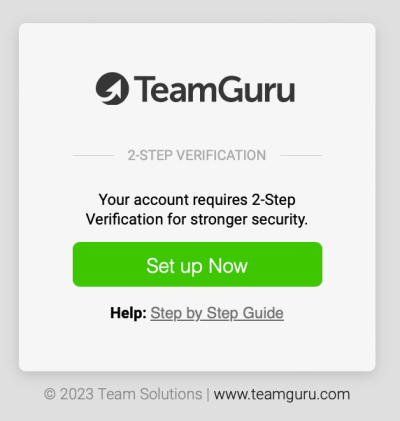
Start the setup. Click the Set up Now button.
Note: You can postpone the 2-Step Verification setup to your next login (two times only). If now is not a convenient time, click Postpone Setup.
-
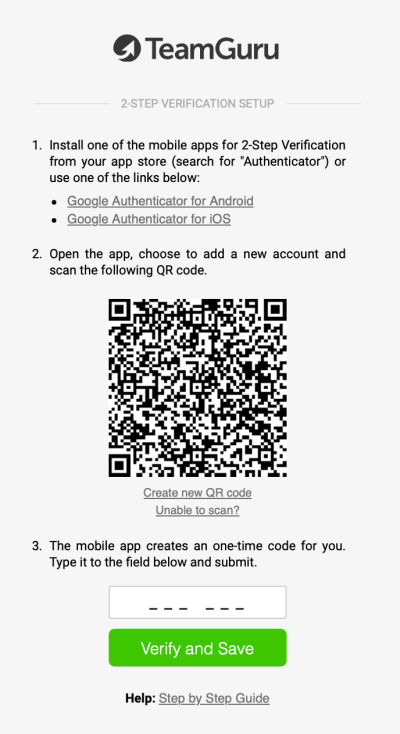
Follow the setup process. Go through the 2-Step Verification setup as described in the next steps.
-
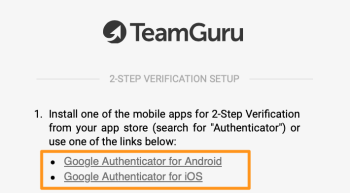
Install an authenticator app. Install one of the mobile apps for 2-Step Verification from your app store (search for “Authenticator”) or use one of these links:
- Google Authenticator for Android
- Google Authenticator for iOS
- Microsoft Authenticator for Android
- Microsoft Authenticator for iOS
-
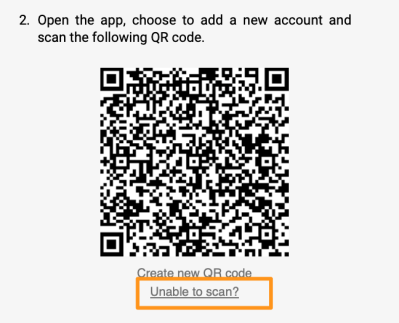
Scan the QR code. Open the app, choose to add a new account and scan the QR code.
If you are logging in on your mobile, click Unable to scan? and enter the code in your mobile app (use copy and paste).
-
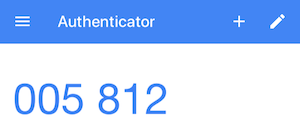
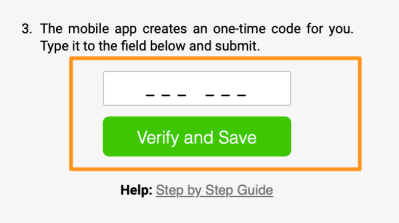
Verify the code. Type in the one-time code from your authenticator app and click the Verify and Save button.
Login after setting up 2-Step Verification
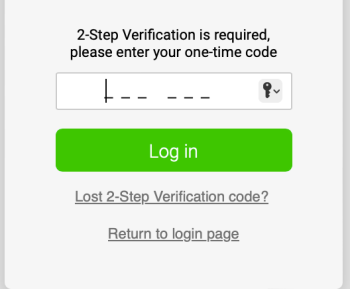
Log in with a one-time code
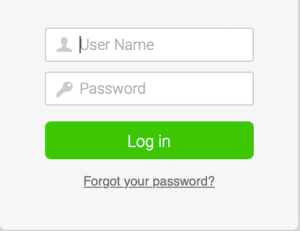
After you set up 2-Step Verification, you just enter your username, your password and a new one-time code from your authenticator mobile app at each login. The code keeps changing, so you need to use a new code whenever you log in.
Lost your 2-Step Verification code
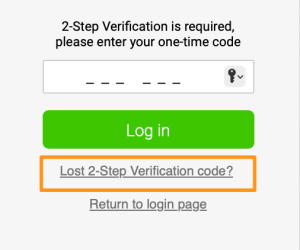
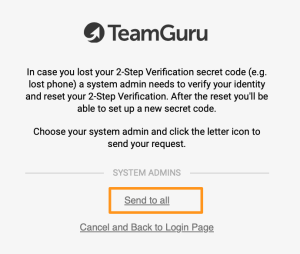
If you lose your 2-Step Verification code, click Lost 2-Step Verification code? and select a system administrator from the list, or click Send to all. Your system administrator receives a notification that your 2-Step Verification needs to be verified and reset.
If your company doesn’t require 2-Step Verification but you would like to set it up, see How to enable 2-Step Verification.
Still need help?
Write to us. We usually reply within an hour on business days.