如何使用两步验证(MFA)登录
本文由英文机器翻译。 当前显示英文原文。
2-Step Verification (also known as two-factor authentication) adds an extra layer of security to your account. After you set it up once, you sign in to your account in two steps, using:
- your username and password, and
- a one-time passcode from your phone (your mobile authenticator app gives you a different code each time you sign in).
Video Guide (text instructions below)
One-time 2-Step Verification setup
-
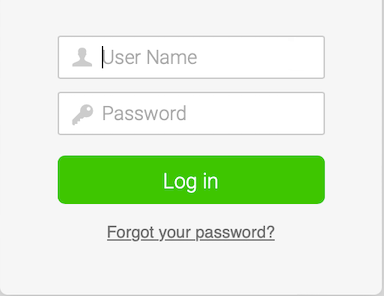
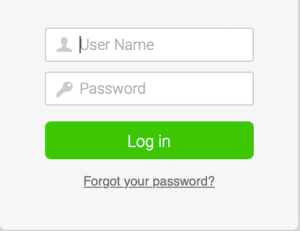
Log in. Enter your user name and password and click the Log in button.
-
Start the setup. Click the Set up Now button.
Note: You can postpone the 2-Step Verification setup to your next login (two times only). If now is not a convenient time, click Postpone Setup.

-
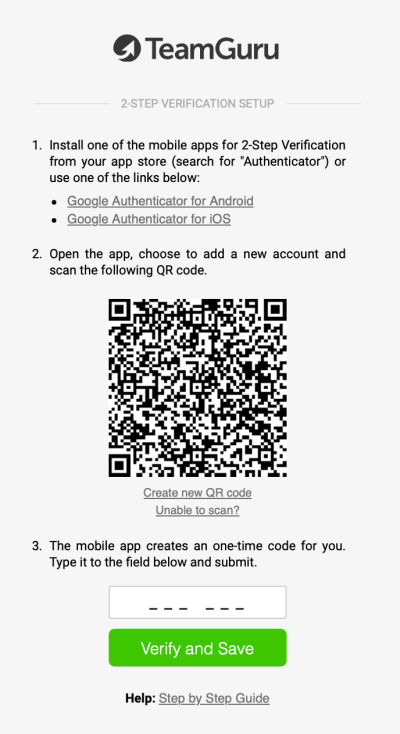
Follow the setup process. Go through the 2-Step Verification setup as described in the next steps.
-
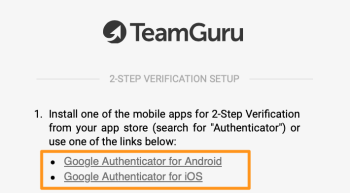
Install an authenticator app. Install one of the mobile apps for 2-Step Verification from your app store (search for “Authenticator”) or use one of these links:
- Google Authenticator for Android
- Google Authenticator for iOS
- Microsoft Authenticator for Android
- Microsoft Authenticator for iOS
-
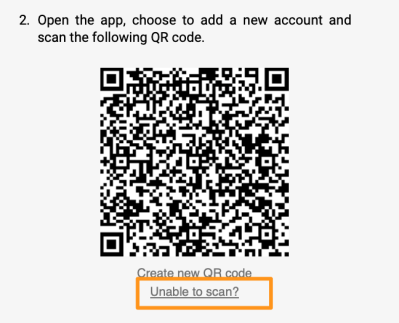
Scan the QR code. Open the app, choose to add a new account and scan the QR code.
If you are logging in on your mobile, click Unable to scan? and enter the code in your mobile app (use copy and paste).
-
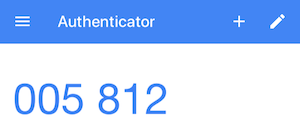
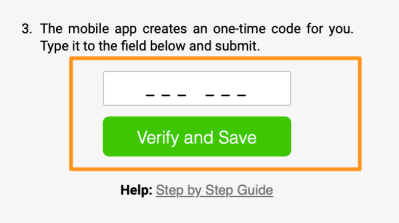
Verify the code. Type in the one-time code from your authenticator app and click the Verify and Save button.
Login after setting up 2-Step Verification
Log in with a one-time code
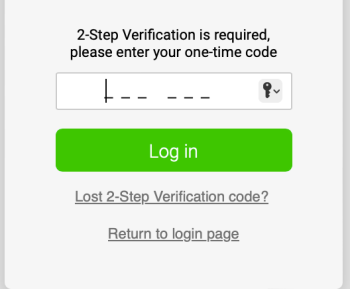
After you set up 2-Step Verification, you just enter your username, your password and a new one-time code from your authenticator mobile app at each login. The code keeps changing, so you need to use a new code whenever you log in.
Lost your 2-Step Verification code
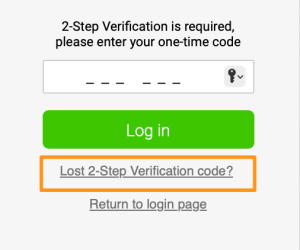
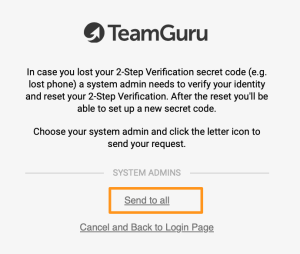
If you lose your 2-Step Verification code, click Lost 2-Step Verification code? and select a system administrator from the list, or click Send to all. Your system administrator receives a notification that your 2-Step Verification needs to be verified and reset.
If your company doesn’t require 2-Step Verification but you would like to set it up, see How to enable 2-Step Verification.
两步验证(也称双重身份验证)为您的账户增加了一层额外的安全保护。设置一次后,登录账户需要两步,分别使用:
- 您的用户名和密码,以及
- 手机上的一次性验证码(每次登录时,手机验证器应用都会提供不同的验证码)。
视频指南(文字说明见下方)
一次性设置两步验证
-
登录。 输入用户名和密码,然后点击 登录 按钮。
-
开始设置。 点击 立即设置 按钮。
注意: 两步验证的设置可以推迟到下次登录(仅限两次)。如果现在不方便,请点击 推迟设置。
-
按设置流程操作。 按照后续步骤完成两步验证设置。
-
安装验证器应用。 从应用商店安装一款用于两步验证的手机应用(搜索“Authenticator”),或使用以下链接:
- Google Authenticator(Android版)
- Google Authenticator(iOS版)
- Microsoft Authenticator(Android版)
- Microsoft Authenticator(iOS版)
-
扫描二维码。 打开应用,选择添加新账户,然后扫描二维码。
如果您在手机上登录,请点击 无法扫描? 并在手机应用中输入代码(使用复制粘贴)。
-
验证代码。 输入验证器应用中的一次性验证码,然后点击 验证并保存 按钮。
设置两步验证后登录
使用一次性验证码登录
设置两步验证后,每次登录只需输入用户名、密码和验证器应用中新的一次性验证码。验证码会不断变化,因此每次登录都需要使用新的验证码。
丢失两步验证码
如果丢失了两步验证码,请点击 丢失两步验证码?,然后从列表中选择一位系统管理员,或点击 发送给所有人。系统管理员会收到通知,需要核实并重置您的两步验证。
如果贵公司不要求两步验证,但您希望启用,请参阅如何启用两步验证。
还需要帮助吗?
请给我们留言。工作日我们通常会在一小时内回复。