Metric labels in Dashboards
You can set up a metric label directly in your dashboard if you want to use it only in that specific dashboard. You can also set up a metric label for specific org. units: it is then displayed in any dashboard where this metric and org. unit combination is used.
Add a label in a specific dashboard
Find the label icon
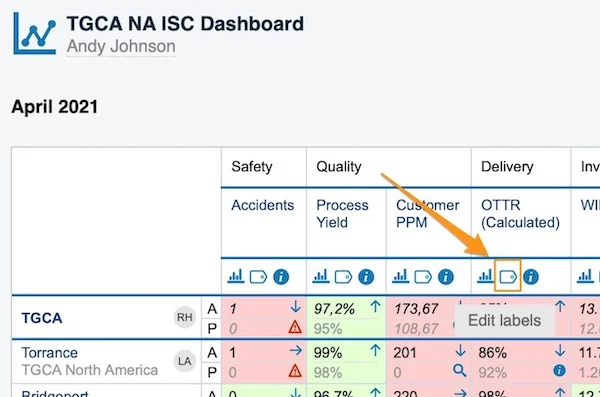
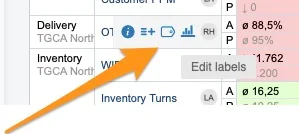
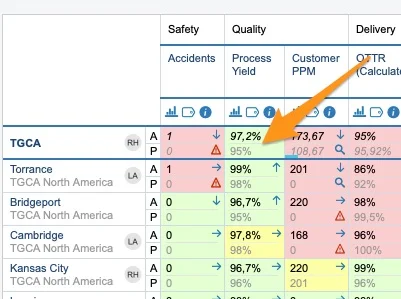
To set up a metric label only in a specific dashboard, click the metric’s label icon. There are two places to find the label icon.
In a dashboard with several org. units:
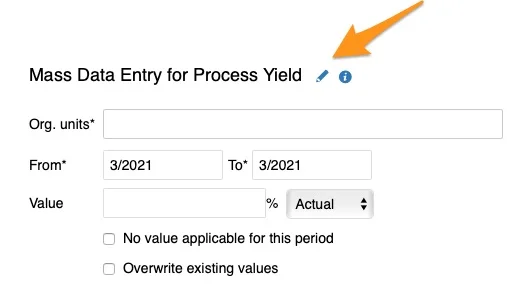
In a dashboard with one org. unit:
Add a label
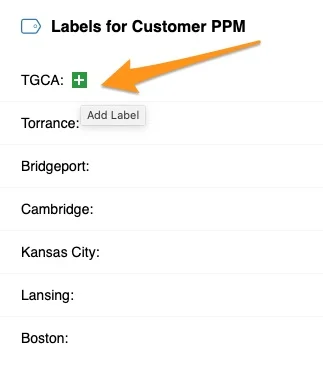
Once you click the label icon, click the green plus button to add a label.
Define the label
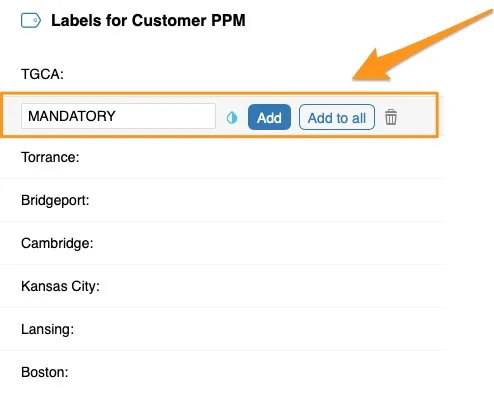
Define your label’s title and color, and whether to Add it only to a specific org. unit or Add to all units displayed in your dashboard.
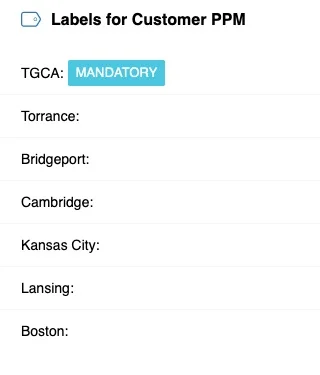
See the label in the dashboard
The label is displayed in your dashboard as a colored underline. When you hover over it, the label’s title is shown. The screenshots show two different dashboard views: with several org. units and with one org. unit.
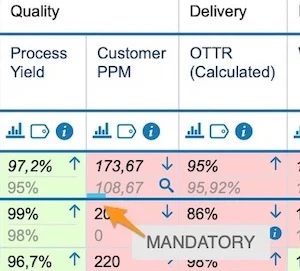
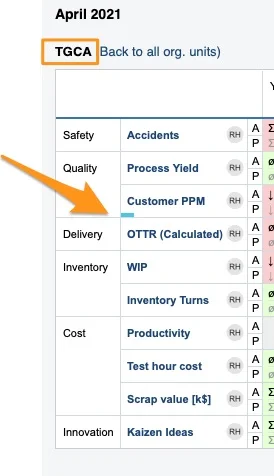
Add a label for a metric and org. unit combination
Open the metric settings
To set up a label for a metric and org. unit combination used in any dashboard, go to the metric’s settings.
You need a sufficient role to modify the metric’s settings. If you do not have it, please contact your system administrators or us at support@teamguru.com for assistance.
You can open the metric’s settings either through the Metric Dashboards module:
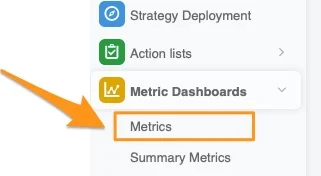
Or directly from your dashboard: click your metric and org. unit field, then the edit pencil in the upper right corner.
Add the org. units
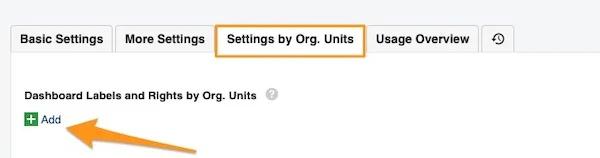
Go to the Settings by Org. Units tab and click the green plus button Add.
Add a dashboard label
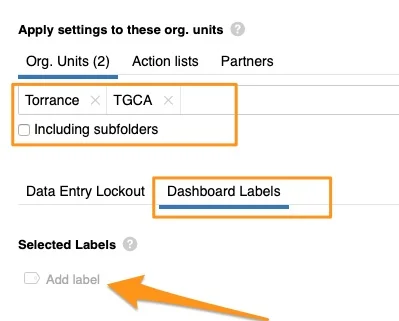
Define your org. units, including subfolders if applicable. Select the Dashboard Labels tab and click Add Label.
Create a new label
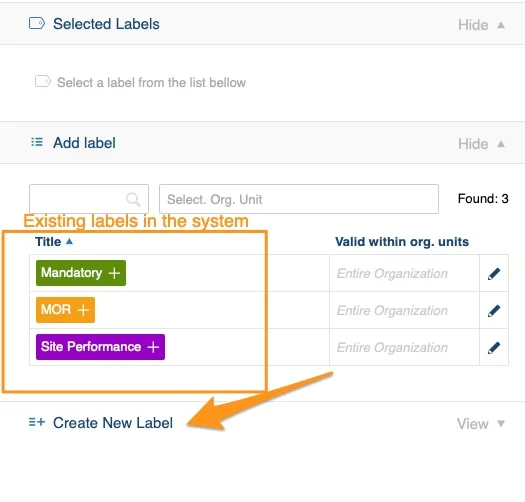
You see the existing labels available in the system. If you need to create a new label, click Create New Label.
Define the label scope
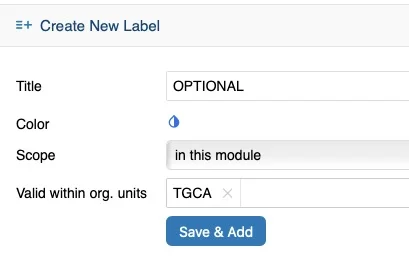
Define the label’s title, color, scope and Valid within org. units, then click Save & Add.
Scope:
- in this module: the label is used in metric dashboards only
- global: you can view the label in other TeamGuru modules too, e.g. action lists, safety alerts etc.
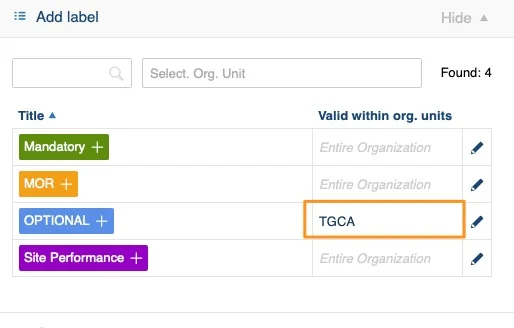
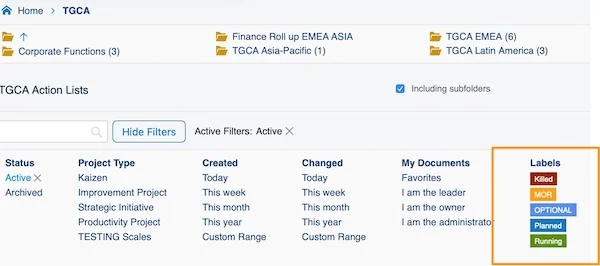
Valid within org. units: select the org. units in which this label is offered among the label options in the document list filter (e.g. TGCA).
See the combination label in the dashboard
Your labels are displayed in your dashboard the same way, as a colored underline.
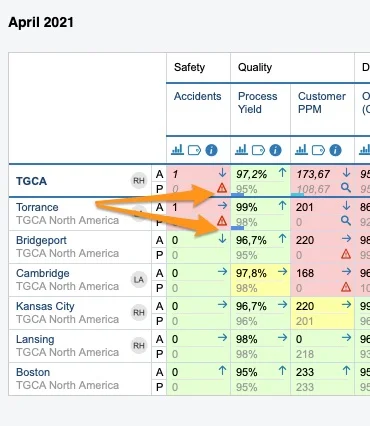
Tell the label types apart
Look for the asterisk
When you click your label, you see where it was created: a label with an asterisk (*) was created in the metric settings; a label without the asterisk was created directly in the dashboard.
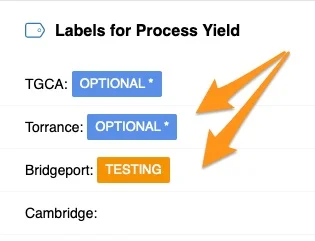
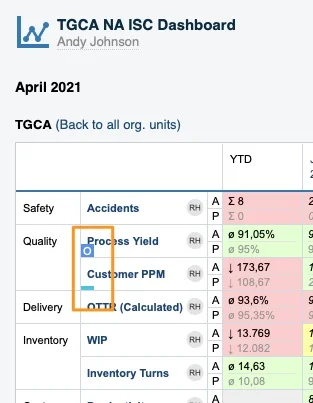
Check the one-unit view
In the dashboard view with one org. unit, a label created in the metric settings is displayed as a capital letter, while a label created directly in the dashboard is just an underline.
Related article: How to add labels to standard documents
Still need help?
Write to us. We usually reply within an hour on business days.