仪表板中的指标标签
本文由英文机器翻译。 当前显示英文原文。
You can set up a metric label directly in your dashboard if you want to use it only in that specific dashboard. You can also set up a metric label for specific org. units: it is then displayed in any dashboard where this metric and org. unit combination is used.
Add a label in a specific dashboard
Find the label icon
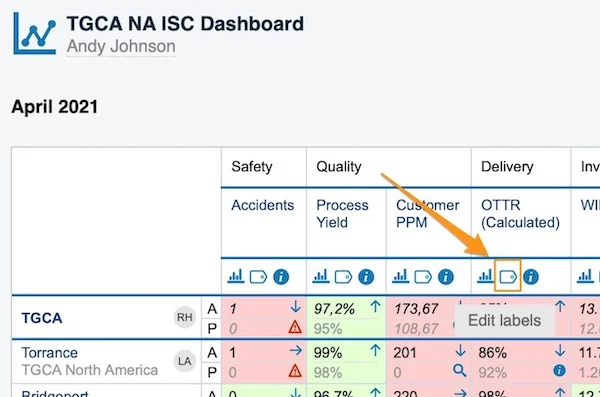
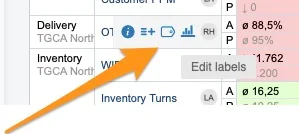
To set up a metric label only in a specific dashboard, click the metric’s label icon. There are two places to find the label icon.
In a dashboard with several org. units:
In a dashboard with one org. unit:
Add a label
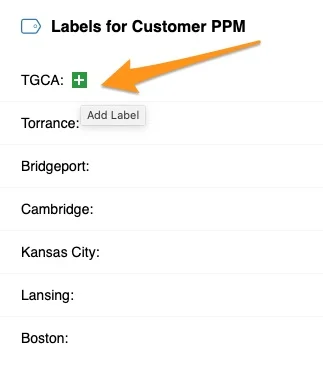
Once you click the label icon, click the green plus button to add a label.
Define the label
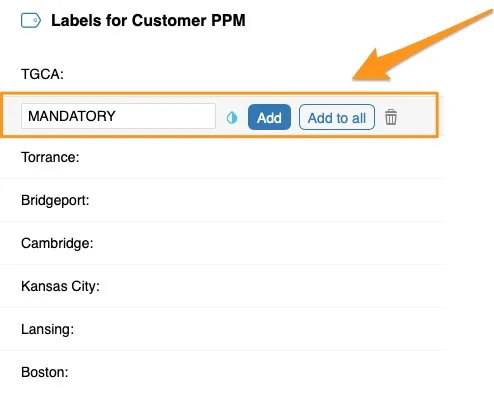
Define your label’s title and color, and whether to Add it only to a specific org. unit or Add to all units displayed in your dashboard.
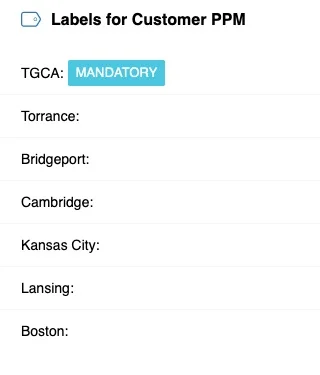
See the label in the dashboard
The label is displayed in your dashboard as a colored underline. When you hover over it, the label’s title is shown. The screenshots show two different dashboard views: with several org. units and with one org. unit.
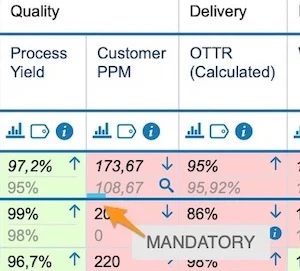
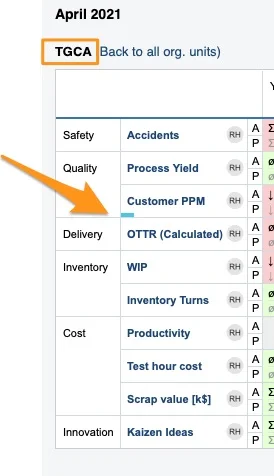
Add a label for a metric and org. unit combination
Open the metric settings
To set up a label for a metric and org. unit combination used in any dashboard, go to the metric’s settings.
You need a sufficient role to modify the metric’s settings. If you do not have it, please contact your system administrators or us at support@teamguru.com for assistance.
You can open the metric’s settings either through the Metric Dashboards module:
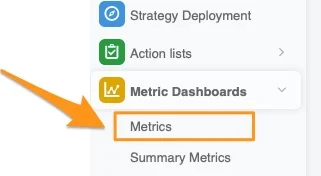
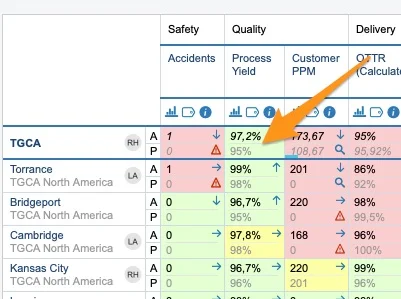
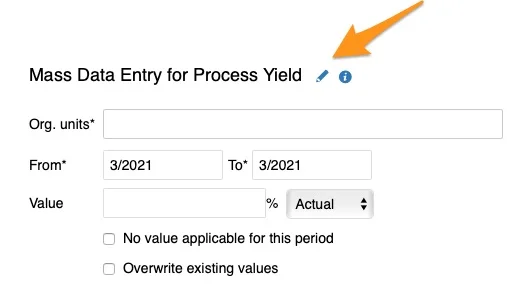
Or directly from your dashboard: click your metric and org. unit field, then the edit pencil in the upper right corner.
Add the org. units
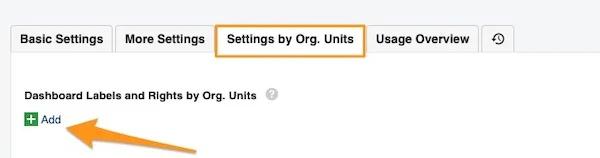
Go to the Settings by Org. Units tab and click the green plus button Add.
Add a dashboard label
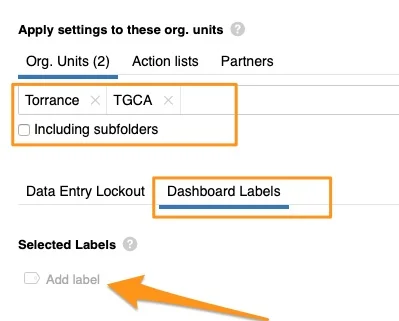
Define your org. units, including subfolders if applicable. Select the Dashboard Labels tab and click Add Label.
Create a new label
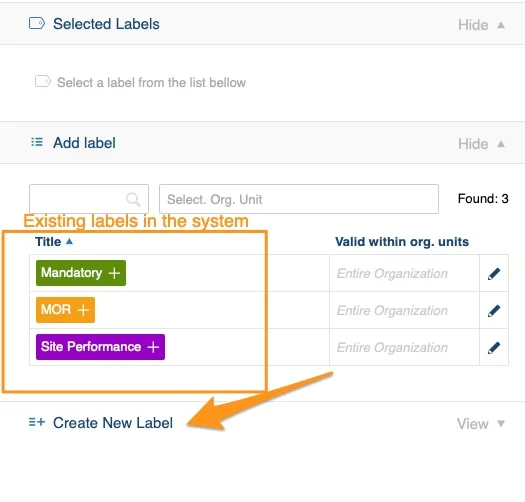
You see the existing labels available in the system. If you need to create a new label, click Create New Label.
Define the label scope
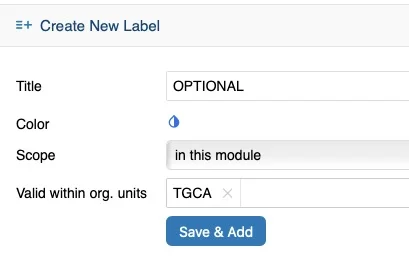
Define the label’s title, color, scope and Valid within org. units, then click Save & Add.
Scope:
- in this module: the label is used in metric dashboards only
- global: you can view the label in other TeamGuru modules too, e.g. action lists, safety alerts etc.
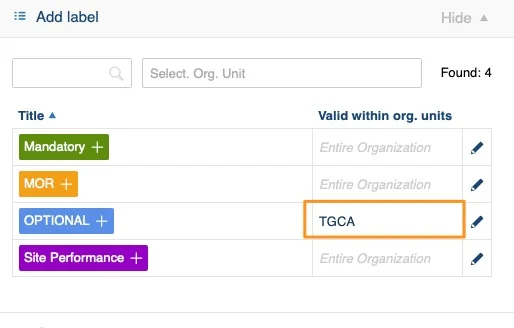
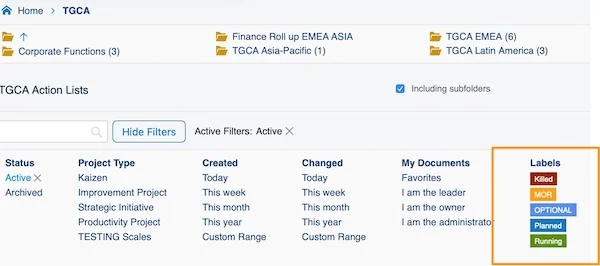
Valid within org. units: select the org. units in which this label is offered among the label options in the document list filter (e.g. TGCA).
See the combination label in the dashboard
Your labels are displayed in your dashboard the same way, as a colored underline.
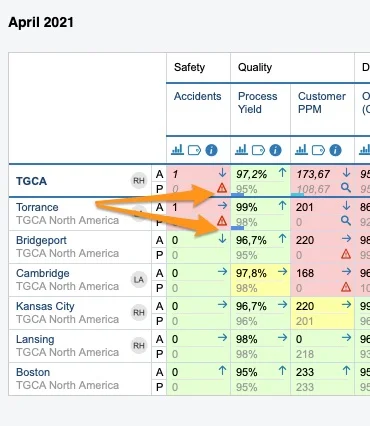
Tell the label types apart
Look for the asterisk
When you click your label, you see where it was created: a label with an asterisk (*) was created in the metric settings; a label without the asterisk was created directly in the dashboard.
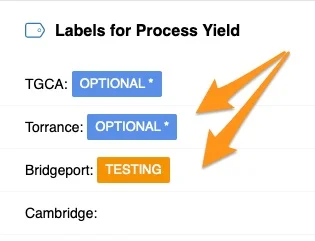
Check the one-unit view
In the dashboard view with one org. unit, a label created in the metric settings is displayed as a capital letter, while a label created directly in the dashboard is just an underline.
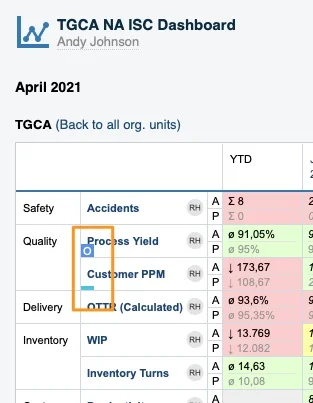
Related article: How to add labels to standard documents
如果指标标签只在某个仪表板中使用,可以直接在该仪表板中设置。您也可以为特定组织单元设置指标标签:这样,凡是使用该指标与组织单元组合的仪表板都会显示该标签。
在特定仪表板中添加标签
找到标签图标
要只在特定仪表板中设置指标标签,请点击该指标的标签图标。标签图标位于两个位置。
在包含多个组织单元的仪表板中:
在只有一个组织单元的仪表板中:
添加标签
点击标签图标后,点击绿色加号按钮添加标签。
定义标签
定义标签的标题和颜色,并选择是只添加到特定组织单元,还是全部添加到仪表板中显示的所有单元。
在仪表板中查看标签
标签在仪表板中显示为彩色下划线。将鼠标悬停在上面时,会显示标签标题。截图展示了两种不同的仪表板视图:包含多个组织单元和只有一个组织单元。
为指标与组织单元组合添加标签
打开指标设置
要为在任意仪表板中使用的指标与组织单元组合设置标签,请进入该指标的设置。
修改指标设置需要具备相应的角色。如果您没有该角色,请联系系统管理员,或发送电子邮件至support@teamguru.com向我们寻求帮助。
您可以通过指标仪表板模块打开指标设置:
也可以直接从仪表板打开:点击指标与组织单元所在的字段,然后点击右上角的编辑铅笔图标。
添加组织单元
进入按组织单元设置选项卡,点击绿色加号按钮添加。
添加仪表板标签
定义组织单元,如适用,包括子文件夹。选择仪表板标签选项卡,点击添加标签。
创建新标签
您会看到系统中已有的标签。如果需要创建新标签,请点击创建新标签。
定义标签范围
定义标签的标题、颜色、范围和适用的组织单元,然后点击保存并添加。
范围:
- 本模块:标签仅用于指标仪表板
- 全局:标签也可在TeamGuru的其他模块中查看,例如行动清单、安全警报等。
适用的组织单元:选择在文档列表筛选的标签选项中提供此标签的组织单元(例如TGCA)。
在仪表板中查看组合标签
这些标签在仪表板中同样显示为彩色下划线。
区分标签类型
查看星号
点击标签时,可以看到它是在哪里创建的:带星号(*)的标签是在指标设置中创建的;不带星号的标签是直接在仪表板中创建的。
查看单个组织单元视图
在只有一个组织单元的仪表板视图中,在指标设置中创建的标签显示为大写字母,而直接在仪表板中创建的标签仅显示为下划线。
相关文章:如何为标准文档添加标签
还需要帮助吗?
请给我们留言。工作日我们通常会在一小时内回复。