Štítky metrík v dashboardoch
Strojový preklad z angličtiny. Zobrazený je anglický originál.
You can set up a metric label directly in your dashboard if you want to use it only in that specific dashboard. You can also set up a metric label for specific org. units: it is then displayed in any dashboard where this metric and org. unit combination is used.
Add a label in a specific dashboard
Find the label icon
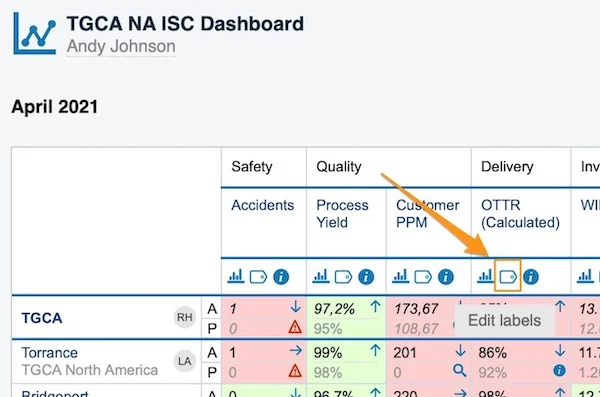
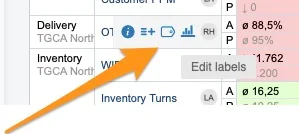
To set up a metric label only in a specific dashboard, click the metric’s label icon. There are two places to find the label icon.
In a dashboard with several org. units:
In a dashboard with one org. unit:
Add a label
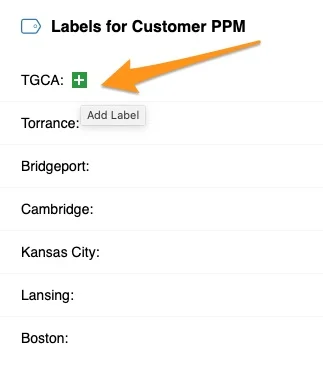
Once you click the label icon, click the green plus button to add a label.
Define the label
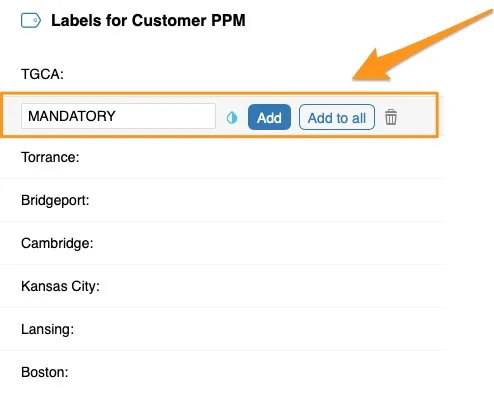
Define your label’s title and color, and whether to Add it only to a specific org. unit or Add to all units displayed in your dashboard.
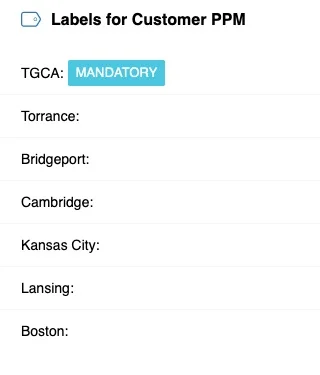
See the label in the dashboard
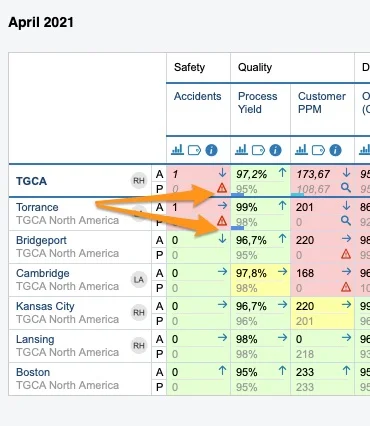
The label is displayed in your dashboard as a colored underline. When you hover over it, the label’s title is shown. The screenshots show two different dashboard views: with several org. units and with one org. unit.
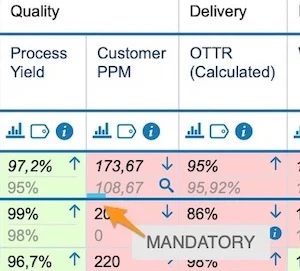
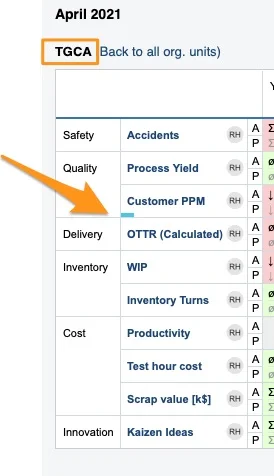
Add a label for a metric and org. unit combination
Open the metric settings
To set up a label for a metric and org. unit combination used in any dashboard, go to the metric’s settings.
You need a sufficient role to modify the metric’s settings. If you do not have it, please contact your system administrators or us at support@teamguru.com for assistance.
You can open the metric’s settings either through the Metric Dashboards module:
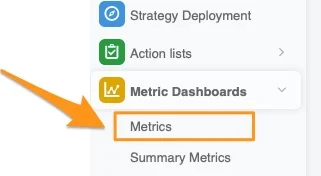
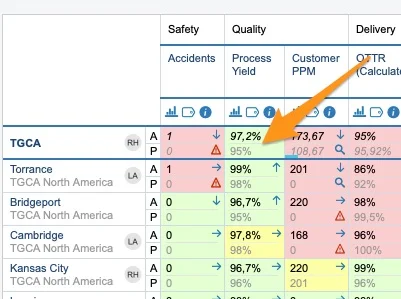
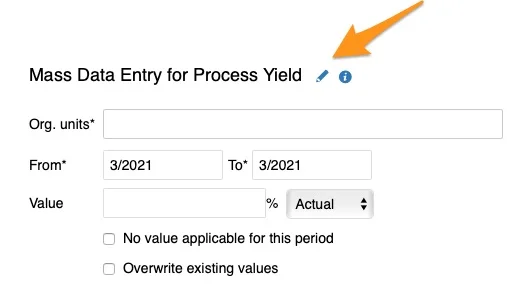
Or directly from your dashboard: click your metric and org. unit field, then the edit pencil in the upper right corner.
Add the org. units
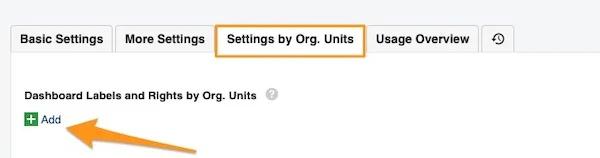
Go to the Settings by Org. Units tab and click the green plus button Add.
Add a dashboard label
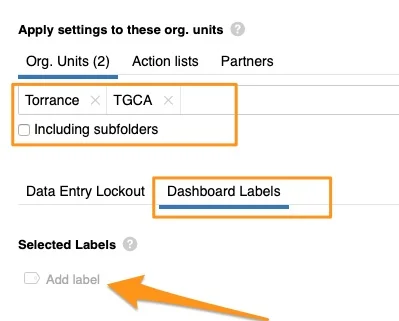
Define your org. units, including subfolders if applicable. Select the Dashboard Labels tab and click Add Label.
Create a new label
You see the existing labels available in the system. If you need to create a new label, click Create New Label.
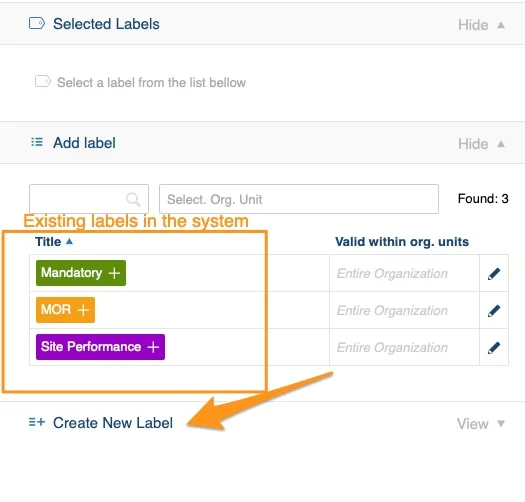
Define the label scope
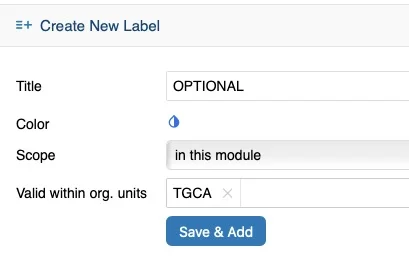
Define the label’s title, color, scope and Valid within org. units, then click Save & Add.
Scope:
- in this module: the label is used in metric dashboards only
- global: you can view the label in other TeamGuru modules too, e.g. action lists, safety alerts etc.
Valid within org. units: select the org. units in which this label is offered among the label options in the document list filter (e.g. TGCA).
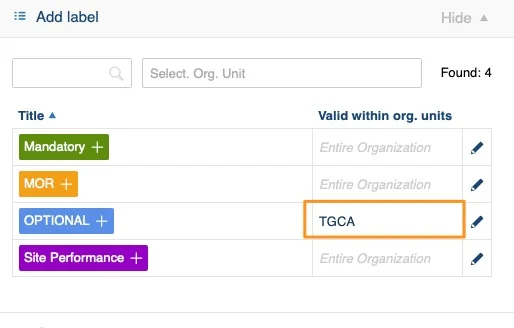
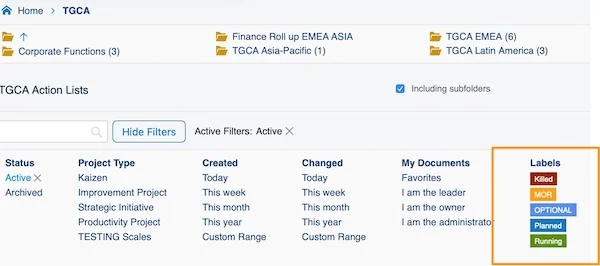
See the combination label in the dashboard
Your labels are displayed in your dashboard the same way, as a colored underline.
Tell the label types apart
Look for the asterisk
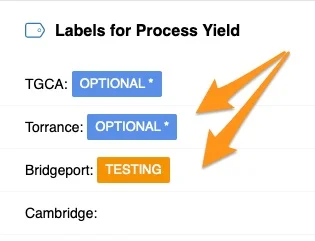
When you click your label, you see where it was created: a label with an asterisk (*) was created in the metric settings; a label without the asterisk was created directly in the dashboard.
Check the one-unit view
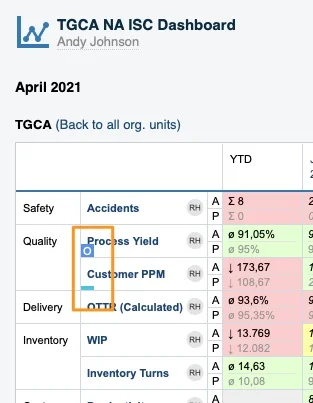
In the dashboard view with one org. unit, a label created in the metric settings is displayed as a capital letter, while a label created directly in the dashboard is just an underline.
Related article: How to add labels to standard documents
Štítok metriky môžete nastaviť priamo v dashboarde, ak ho chcete používať len v tomto konkrétnom dashboarde. Štítok metriky môžete nastaviť aj pre konkrétne org. jednotky: potom sa zobrazí v každom dashboarde, ktorý túto kombináciu metriky a org. jednotky používa.
Štítok v konkrétnom dashboarde
Nájdite ikonu štítka
Ak chcete štítok metriky nastaviť len v konkrétnom dashboarde, kliknite na ikonu štítka pri metrike. Ikonu nájdete na dvoch miestach.
V dashboarde s viacerými org. jednotkami:
V dashboarde s jednou org. jednotkou:
Pridajte štítok
Po kliknutí na ikonu štítka pridajte štítok zeleným tlačidlom plus.
Určte štítok
Zadajte názov a farbu štítka a zvoľte, či ho chcete Pridať len ku konkrétnej org. jednotke, alebo Pridať ku všetkým jednotkám zobrazeným v dashboarde.
Pozrite si štítok v dashboarde
Štítok sa v dashboarde zobrazí ako farebné podčiarknutie. Keď naň prejdete myšou, zobrazí sa jeho názov. Snímky obrazovky ukazujú dve rôzne zobrazenia dashboardu: s viacerými org. jednotkami a s jednou org. jednotkou.
Štítok pre kombináciu metriky a org. jednotky
Otvorte nastavenia metriky
Ak chcete nastaviť štítok pre kombináciu metriky a org. jednotky, ktorý sa použije v každom dashboarde, otvorte nastavenia metriky.
Na úpravu nastavení metriky potrebujete dostatočnú rolu. Ak ju nemáte, obráťte sa na správcov systému alebo na nás na adrese support@teamguru.com.
Nastavenia metriky otvoríte buď cez modul KPI dashboardy:
Alebo priamo z dashboardu: kliknite na pole metriky a org. jednotky a potom na ceruzku v pravom hornom rohu.
Pridajte org. jednotky
Prejdite na kartu Nastavenia podľa org. jednotiek a kliknite na zelené tlačidlo plus Pridať.
Pridajte štítok dashboardu
Určte org. jednotky, prípadne aj s podpriečinkami. Vyberte kartu Štítky dashboardu a kliknite na Pridať štítok.
Vytvorte nový štítok
Zobrazia sa štítky, ktoré už v systéme existujú. Ak potrebujete nový, kliknite na Vytvoriť nový štítok.
Určte rozsah štítka
Zadajte názov, farbu, rozsah štítka a pole Platí v org. jednotkách a kliknite na Uložiť a pridať.
Rozsah:
- v tomto module: štítok sa používa len v KPI dashboardoch
- globálny: štítok uvidíte aj v ďalších moduloch TeamGuru, napr. v akčných zoznamoch, alertoch BOZP atď.
Platí v org. jednotkách: vyberte org. jednotky, v ktorých sa štítok ponúkne medzi možnosťami štítkov vo filtri zoznamu dokumentov (napr. TGCA).
Pozrite si štítok kombinácie v dashboarde
Aj tieto štítky sa v dashboarde zobrazujú rovnako, ako farebné podčiarknutie.
Ako rozlíšiť typy štítkov
Hľadajte hviezdičku
Keď kliknete na štítok, uvidíte, kde vznikol: štítok s hviezdičkou (*) bol vytvorený v nastaveniach metriky, štítok bez hviezdičky priamo v dashboarde.
Skontrolujte zobrazenie s jednou jednotkou
V zobrazení dashboardu s jednou org. jednotkou sa štítok z nastavení metriky zobrazuje ako veľké písmeno, kým štítok vytvorený priamo v dashboarde je len podčiarknutie.
Súvisiaci článok: Ako pridať štítky k štandardným dokumentom
Potrebujete ďalšiu pomoc?
Napíšte nám. V pracovné dni zvyčajne odpovedáme do hodiny.