Etykiety wskaźników w dashboardach
Tłumaczenie maszynowe z angielskiego. Wyświetlany jest oryginał po angielsku.
You can set up a metric label directly in your dashboard if you want to use it only in that specific dashboard. You can also set up a metric label for specific org. units: it is then displayed in any dashboard where this metric and org. unit combination is used.
Add a label in a specific dashboard
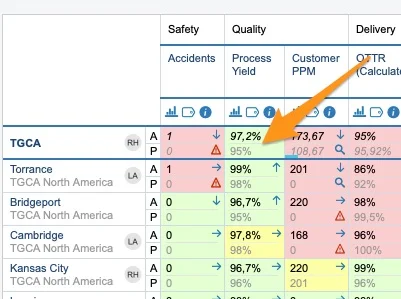
Find the label icon
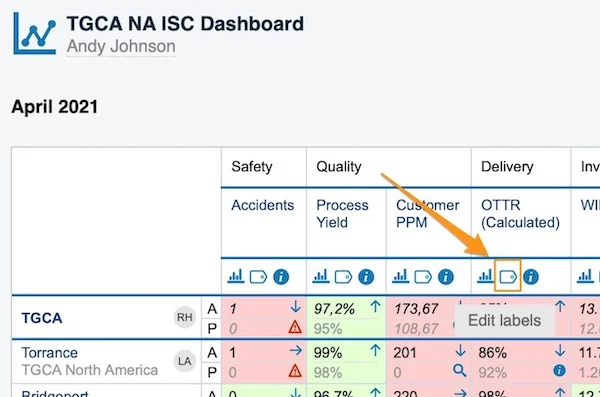
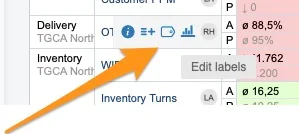
To set up a metric label only in a specific dashboard, click the metric’s label icon. There are two places to find the label icon.
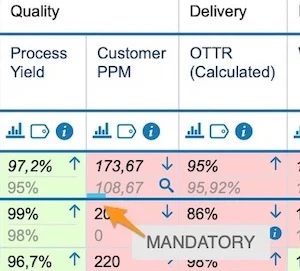
In a dashboard with several org. units:
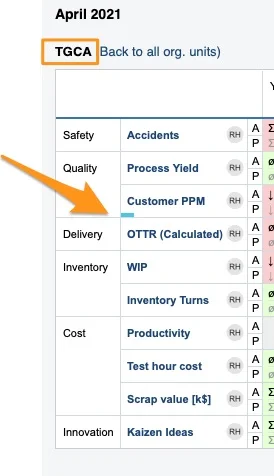
In a dashboard with one org. unit:
Add a label
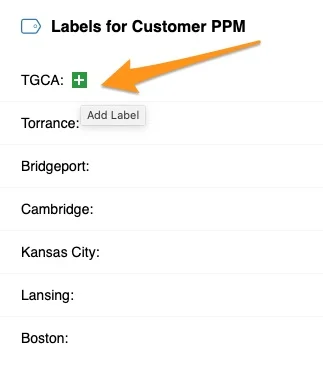
Once you click the label icon, click the green plus button to add a label.
Define the label
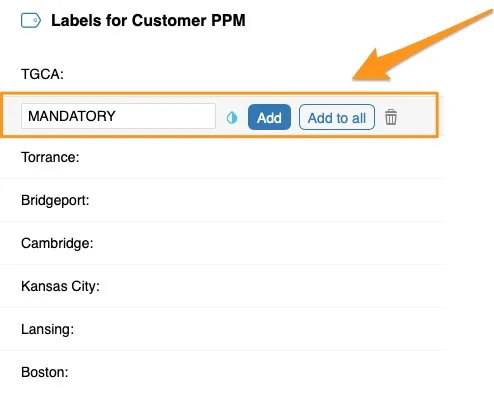
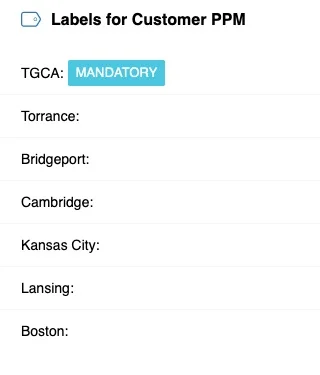
Define your label’s title and color, and whether to Add it only to a specific org. unit or Add to all units displayed in your dashboard.
See the label in the dashboard
The label is displayed in your dashboard as a colored underline. When you hover over it, the label’s title is shown. The screenshots show two different dashboard views: with several org. units and with one org. unit.
Add a label for a metric and org. unit combination
Open the metric settings
To set up a label for a metric and org. unit combination used in any dashboard, go to the metric’s settings.
You need a sufficient role to modify the metric’s settings. If you do not have it, please contact your system administrators or us at support@teamguru.com for assistance.
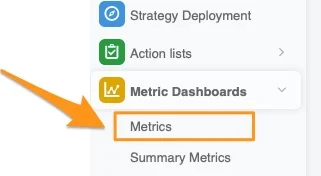
You can open the metric’s settings either through the Metric Dashboards module:
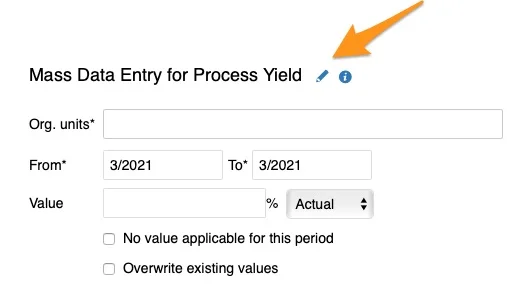
Or directly from your dashboard: click your metric and org. unit field, then the edit pencil in the upper right corner.
Add the org. units
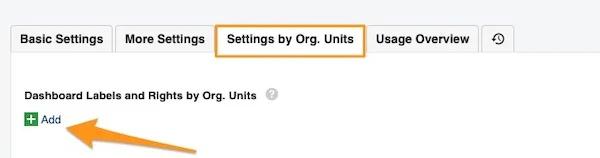
Go to the Settings by Org. Units tab and click the green plus button Add.
Add a dashboard label
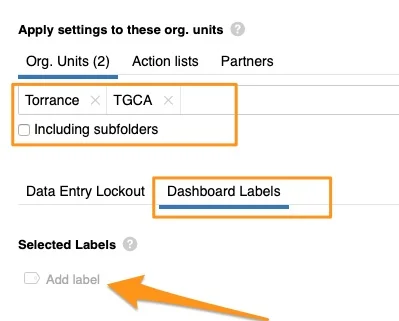
Define your org. units, including subfolders if applicable. Select the Dashboard Labels tab and click Add Label.
Create a new label
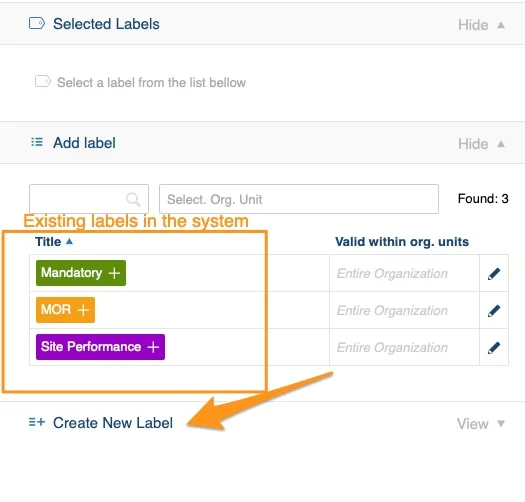
You see the existing labels available in the system. If you need to create a new label, click Create New Label.
Define the label scope
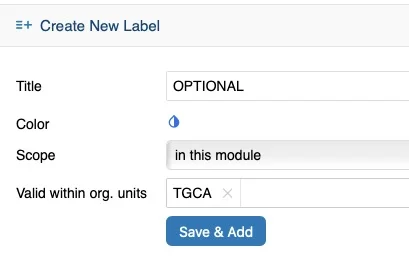
Define the label’s title, color, scope and Valid within org. units, then click Save & Add.
Scope:
- in this module: the label is used in metric dashboards only
- global: you can view the label in other TeamGuru modules too, e.g. action lists, safety alerts etc.
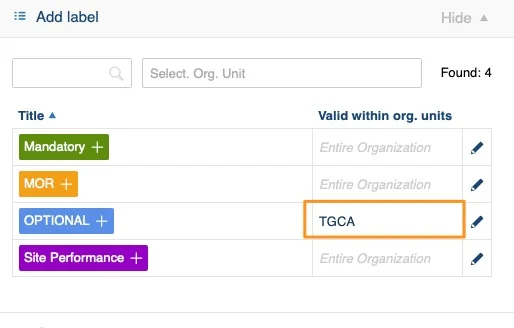
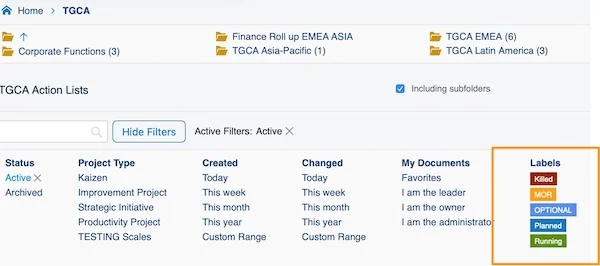
Valid within org. units: select the org. units in which this label is offered among the label options in the document list filter (e.g. TGCA).
See the combination label in the dashboard
Your labels are displayed in your dashboard the same way, as a colored underline.
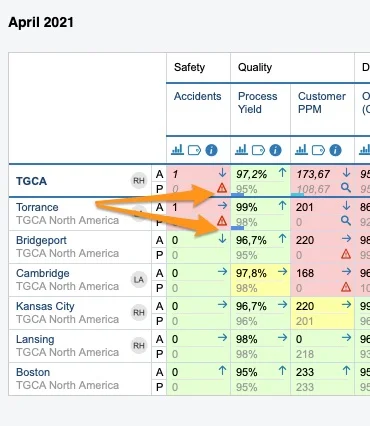
Tell the label types apart
Look for the asterisk
When you click your label, you see where it was created: a label with an asterisk (*) was created in the metric settings; a label without the asterisk was created directly in the dashboard.
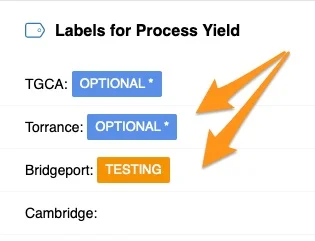
Check the one-unit view
In the dashboard view with one org. unit, a label created in the metric settings is displayed as a capital letter, while a label created directly in the dashboard is just an underline.
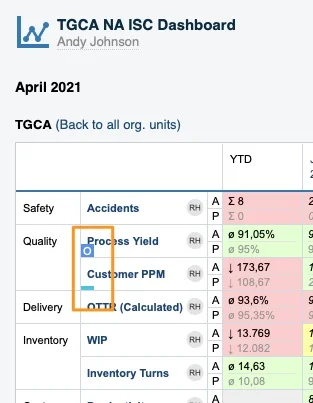
Related article: How to add labels to standard documents
Etykietę wskaźnika możesz ustawić bezpośrednio w dashboardzie, jeśli ma działać tylko w tym konkretnym dashboardzie. Możesz też ustawić etykietę wskaźnika dla konkretnych jednostek org.: pojawi się wtedy w każdym dashboardzie, w którym używana jest ta kombinacja wskaźnika i jednostki org.
Dodaj etykietę w konkretnym dashboardzie
Znajdź ikonę etykiety
Aby ustawić etykietę wskaźnika tylko w konkretnym dashboardzie, kliknij ikonę etykiety przy wskaźniku. Ikona etykiety jest w dwóch miejscach.
W dashboardzie z kilkoma jednostkami org.:
W dashboardzie z jedną jednostką org.:
Dodaj etykietę
Po kliknięciu ikony etykiety kliknij zielony przycisk z plusem, aby dodać etykietę.
Określ etykietę
Określ nazwę i kolor etykiety, a potem kliknij Dodaj, aby dodać ją tylko do konkretnej jednostki org., albo Dodaj do wszystkich, aby dodać ją do wszystkich jednostek wyświetlanych w dashboardzie.
Zobacz etykietę w dashboardzie
Etykieta pojawia się w dashboardzie jako kolorowe podkreślenie. Po najechaniu na nią kursorem widać nazwę etykiety. Zrzuty ekranu pokazują dwa różne widoki dashboardu: z kilkoma jednostkami org. i z jedną jednostką org.
Dodaj etykietę dla kombinacji wskaźnika i jednostki org.
Otwórz ustawienia wskaźnika
Aby ustawić etykietę dla kombinacji wskaźnika i jednostki org. używanej w dowolnym dashboardzie, przejdź do ustawień wskaźnika.
Do zmiany ustawień wskaźnika potrzebujesz odpowiedniej roli. Jeśli jej nie masz, skontaktuj się z administratorami systemu lub z nami pod adresem support@teamguru.com.
Ustawienia wskaźnika otworzysz w module Dashboardy KPI:
Albo bezpośrednio z dashboardu: kliknij pole wskaźnika i jednostki org., a potem ołówek edycji w prawym górnym rogu.
Dodaj jednostki org.
Przejdź na kartę Ustawienia według jednostek org. i kliknij zielony przycisk z plusem Dodaj.
Dodaj etykietę dashboardu
Określ jednostki org., w razie potrzeby razem z podfolderami. Wybierz kartę Etykiety dashboardu i kliknij Dodaj etykietę.
Utwórz nową etykietę
Widzisz etykiety, które już są w systemie. Jeśli potrzebujesz nowej etykiety, kliknij Utwórz nową etykietę.
Określ zakres etykiety
Określ nazwę, kolor i zakres etykiety oraz pole Obowiązuje w jednostkach org., a potem kliknij Zapisz i dodaj.
Zakres:
- w tym module: etykieta jest używana tylko w dashboardach KPI
- globalny: etykietę widać też w innych modułach TeamGuru, np. na listach działań, w alertach BHP itd.
Obowiązuje w jednostkach org.: wybierz jednostki org., w których ta etykieta będzie dostępna wśród opcji etykiet w filtrze listy dokumentów (np. TGCA).
Zobacz etykietę kombinacji w dashboardzie
Etykiety pojawiają się w dashboardzie tak samo, jako kolorowe podkreślenie.
Jak odróżnić typy etykiet
Szukaj gwiazdki
Po kliknięciu etykiety widzisz, gdzie została utworzona: etykieta z gwiazdką (*) powstała w ustawieniach wskaźnika, a etykieta bez gwiazdki bezpośrednio w dashboardzie.
Sprawdź widok jednej jednostki
W widoku dashboardu z jedną jednostką org. etykieta utworzona w ustawieniach wskaźnika wyświetla się jako wielka litera, a etykieta utworzona bezpośrednio w dashboardzie tylko jako podkreślenie.
Powiązany artykuł: Jak dodawać etykiety do standardowych dokumentów
Potrzebujesz dalszej pomocy?
Napisz do nas. W dni robocze zwykle odpowiadamy w ciągu godziny.