Jak zaktualizować nagłówki wielu projektów
Tłumaczenie maszynowe z angielskiego. Wyświetlany jest oryginał po angielsku.
You can update specific field information in multiple project headers at once.
Please note that this functionality lets you update information in your projects, but not remove it.
Prepare the mapping
Open the mass import
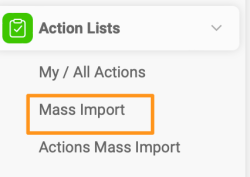
Go to the Action Lists module and select Mass Import from the submenu.
Create a mapping template
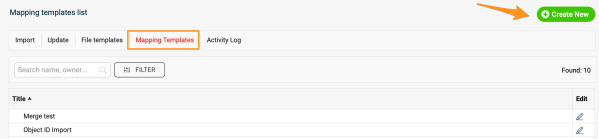
Before the upload, you need to map your project stages, project types and organizational units (to determine the Where to display locations), unless you already have a mapping template from previous mass imports. Go to Mapping Template, click Create New, define the title and click Save.
Map the values
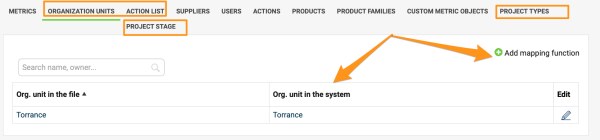
Map the organization units, project types and project stages: click the Add mapping function plus button and save the changes. Please note that if you upload by project title instead of project ID, you also need to map the action list titles.
Update the project headers
Select the mapping template
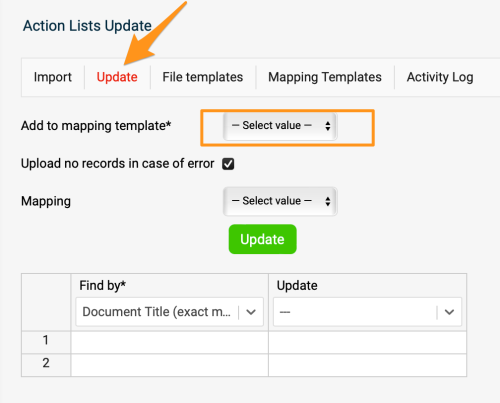
Once the mapping is done, go to the Update tab and select your mapping template from the submenu.
Choose how to find the projects
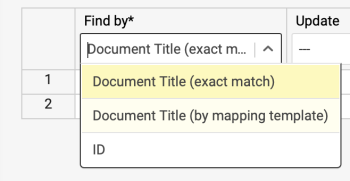
In the first column, select the Find by option: you can use either the document’s title or its ID. We highly recommend the ID option in case two projects in the system have the same name, or a project’s title changes before future updates.
Select the fields to update
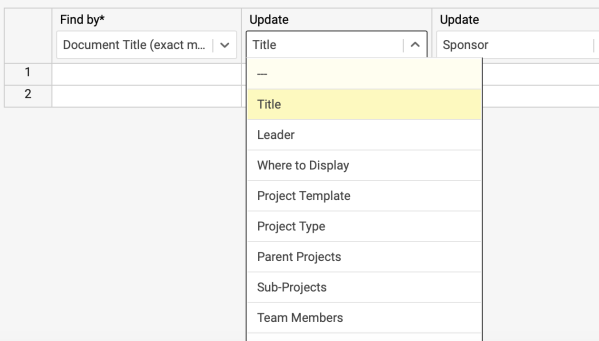
Select the information you want to update in the other columns.
Fill in the rows
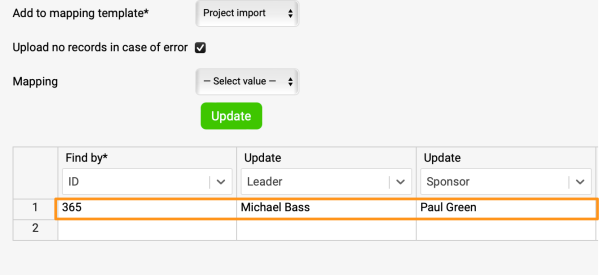
Complete the information in the rows.
Run the update
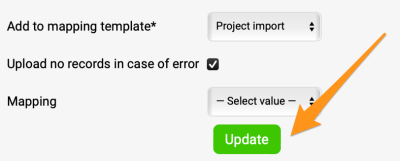
Click Update, and your project information is updated.
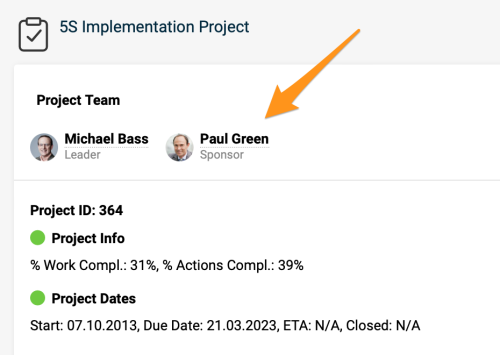
Możesz jednocześnie zaktualizować wybrane pola w nagłówkach wielu projektów.
Pamiętaj, że ta funkcja pozwala aktualizować informacje w projektach, ale nie pozwala ich usuwać.
Przygotuj mapowanie
Otwórz import masowy
Przejdź do modułu Listy działań i wybierz z podmenu Import masowy.
Utwórz szablon mapowania
Przed importem musisz zmapować etapy projektów, typy projektów i jednostki organizacyjne (aby określić lokalizacje w polu „Gdzie wyświetlać”), chyba że masz już szablon mapowania z wcześniejszych importów. Przejdź do Szablonu mapowania, kliknij Utwórz nowy, wpisz tytuł i kliknij Zapisz.
Zmapuj wartości
Zmapuj jednostki organizacyjne, typy projektów i etapy projektów: kliknij przycisk z plusem Dodaj funkcję mapowania i zapisz zmiany. Pamiętaj, że jeśli importujesz według tytułu projektu zamiast ID projektu, musisz też zmapować tytuły list działań.
Zaktualizuj nagłówki projektów
Wybierz szablon mapowania
Po zakończeniu mapowania przejdź na kartę Aktualizacja i wybierz z podmenu swój szablon mapowania.
Wybierz sposób wyszukiwania projektów
W pierwszej kolumnie wybierz opcję Znajdź według: możesz użyć tytułu dokumentu albo jego ID. Zdecydowanie zalecamy ID, na wypadek gdyby dwa projekty w systemie miały tę samą nazwę albo tytuł projektu zmienił się przed kolejnymi aktualizacjami.
Wybierz pola do aktualizacji
W pozostałych kolumnach wybierz informacje, które chcesz zaktualizować.
Uzupełnij wiersze
Uzupełnij informacje w wierszach.
Uruchom aktualizację
Kliknij Aktualizuj, a informacje o projektach zostaną zaktualizowane.
Potrzebujesz dalszej pomocy?
Napisz do nas. W dni robocze zwykle odpowiadamy w ciągu godziny.