如何批量更新项目表头
本文由英文机器翻译。 当前显示英文原文。
You can update specific field information in multiple project headers at once.
Please note that this functionality lets you update information in your projects, but not remove it.
Prepare the mapping
Open the mass import
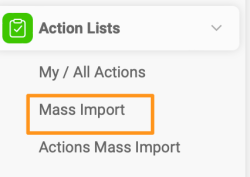
Go to the Action Lists module and select Mass Import from the submenu.
Create a mapping template
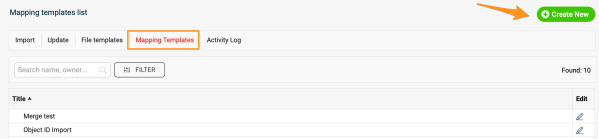
Before the upload, you need to map your project stages, project types and organizational units (to determine the Where to display locations), unless you already have a mapping template from previous mass imports. Go to Mapping Template, click Create New, define the title and click Save.
Map the values
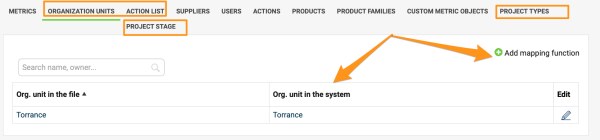
Map the organization units, project types and project stages: click the Add mapping function plus button and save the changes. Please note that if you upload by project title instead of project ID, you also need to map the action list titles.
Update the project headers
Select the mapping template
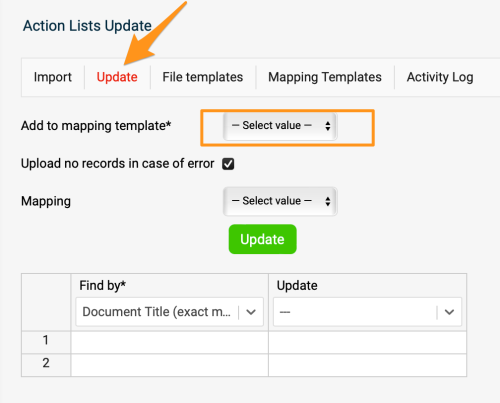
Once the mapping is done, go to the Update tab and select your mapping template from the submenu.
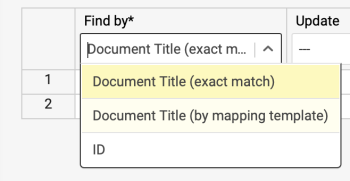
Choose how to find the projects
In the first column, select the Find by option: you can use either the document’s title or its ID. We highly recommend the ID option in case two projects in the system have the same name, or a project’s title changes before future updates.
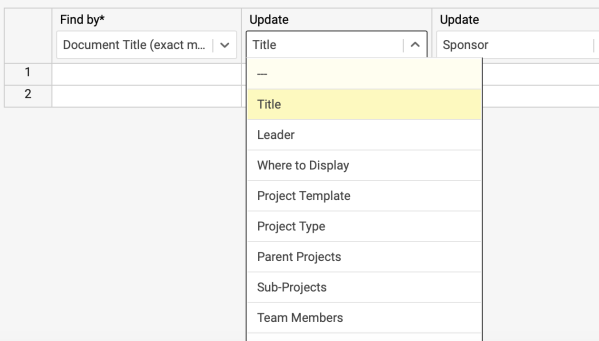
Select the fields to update
Select the information you want to update in the other columns.
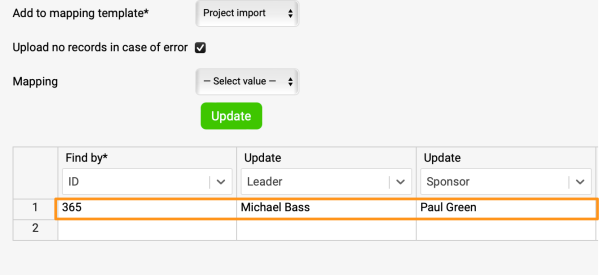
Fill in the rows
Complete the information in the rows.
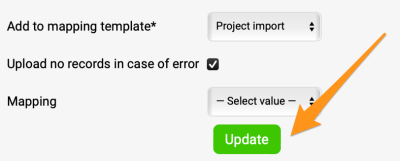
Run the update
Click Update, and your project information is updated.
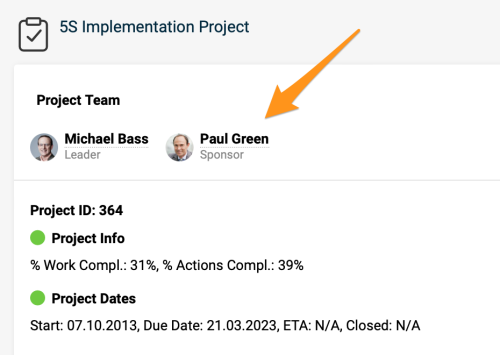
您可以一次性更新多个项目表头中的特定字段信息。
请注意,此功能只能更新项目中的信息,不能删除信息。
准备映射
打开批量导入
进入行动清单模块,在子菜单中选择批量导入。
创建映射模板
上传前,需要先映射项目阶段、项目类型和组织单元(用于确定“显示位置”),除非您已有以往批量导入时创建的映射模板。进入映射模板,点击新建,填写标题后点击保存。
映射数值
映射组织单元、项目类型和项目阶段:点击添加映射函数加号按钮,然后保存更改。请注意,如果按项目标题而非项目ID上传,还需要映射行动清单的标题。
更新项目表头
选择映射模板
映射完成后,进入更新选项卡,在子菜单中选择您的映射模板。
选择查找项目的方式
在第一列中选择查找依据选项:可以使用文档标题或文档ID。我们强烈建议使用ID,以防系统中有两个同名项目,或项目标题在今后更新前发生变化。
选择要更新的字段
在其他列中选择要更新的信息。
填写各行
在各行中填写完整信息。
执行更新
点击更新,项目信息即会更新。
还需要帮助吗?
请给我们留言。工作日我们通常会在一小时内回复。