Szare pola w TeamGuru
Tłumaczenie maszynowe z angielskiego. Wyświetlany jest oryginał po angielsku.
A grey field means one of the following:
- No value applicable for the combination of metric, org. unit and time period.
- Data is not being collected for the combination of metric and org. unit.
- The combination of org. unit and metric is deactivated in the dashboard.
No value applicable for this period
Mark a cell as not applicable
If no value applies to an org. unit/metric combination in a specific time period (e.g. a holiday period), tick the appropriate box instead of entering values. The cell is then greyed out.
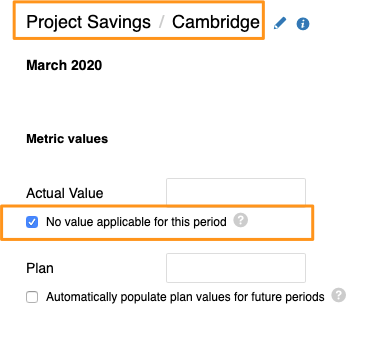
If you need to set No value applicable for several metrics, org. units or time periods in your dashboard, you can use the following two functions.
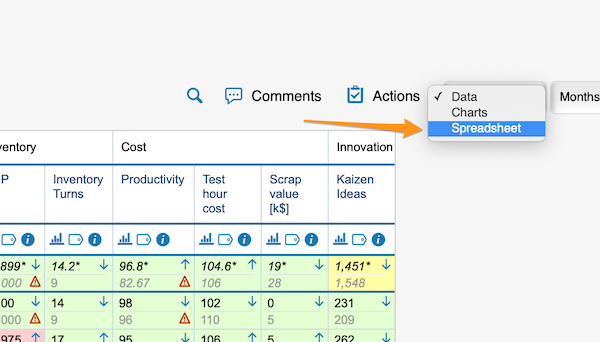
Use the spreadsheet view
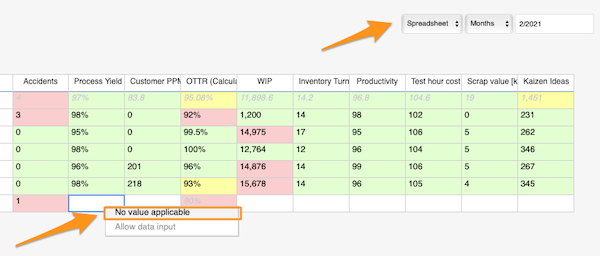
Change the Data view above your dashboard to the Spreadsheet view. In the spreadsheet view, right-click the cell, select No value applicable and copy it as needed.
Use mass data entry
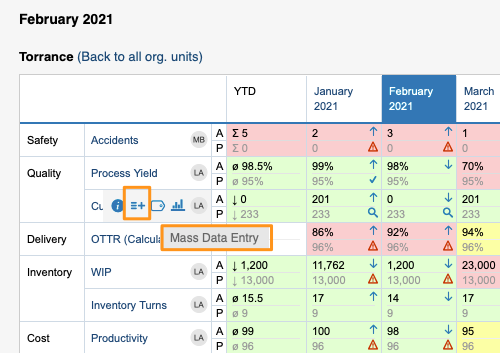
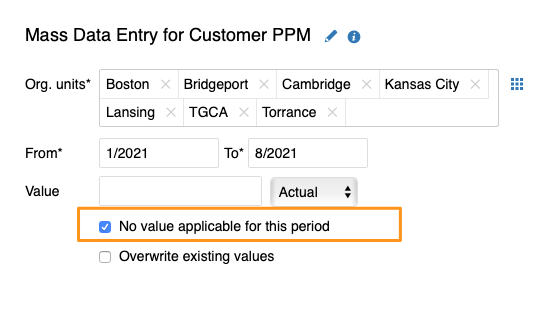
Hover over your metric and click the Mass Data Entry icon (=+). Then select your org. units and time period, tick the No value applicable for this period box and save.
Org. units for which data is not collected
Exclude org. units in the metric settings
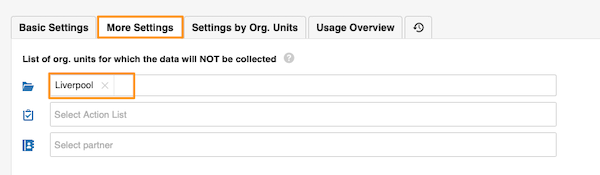
In the metric settings, on the More Settings tab, you can select the org. units which, in combination with this metric, will not appear in the dashboards.
Org. unit/metric combination deactivated in the dashboard
Uncheck the combination in the dashboard setup
You can grey out the fields of an org. unit/metric combination in your dashboard. They are greyed out only in this dashboard and nowhere else.
To set it up, go to your dashboard’s settings and, on the Dashboard Setup tab, uncheck the box for the metric/org. unit combination.
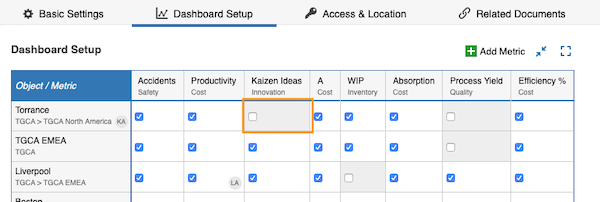
A grey field is not a locked field. Users can still enter values, but the values will not be displayed.
Szare pole oznacza jedną z tych sytuacji:
- Wartość nie dotyczy danej kombinacji wskaźnika, jednostki org. i okresu.
- Dane nie są zbierane dla danej kombinacji wskaźnika i jednostki org.
- Kombinacja jednostki org. i wskaźnika jest wyłączona w dashboardzie.
Wartość nie dotyczy tego okresu
Oznacz komórkę jako „nie dotyczy”
Jeśli dla kombinacji jednostki org. i wskaźnika w danym okresie nie ma wartości (np. w okresie świątecznym), zamiast wpisywać wartość zaznacz odpowiednie pole. Komórka zmieni kolor na szary.
Jeśli chcesz ustawić Nie dotyczy dla wielu wskaźników, jednostek org. lub okresów w dashboardzie, możesz użyć jednej z dwóch funkcji.
Użyj widoku arkusza
Nad dashboardem zmień widok Dane na widok Arkusz. W widoku arkusza kliknij komórkę prawym przyciskiem myszy, wybierz Nie dotyczy i skopiuj ją tam, gdzie potrzebujesz.
Użyj masowego wprowadzania danych
Najedź kursorem na wskaźnik i kliknij ikonę Masowe wprowadzanie danych (=+). Wybierz jednostki org. i okres, zaznacz pole Nie dotyczy w tym okresie i zapisz.
Jednostki org., dla których dane nie są zbierane
Wyklucz jednostki org. w ustawieniach wskaźnika
W ustawieniach wskaźnika na karcie Więcej ustawień możesz wybrać jednostki org., które w połączeniu z tym wskaźnikiem nie pojawią się w dashboardach.
Kombinacja jednostki org. i wskaźnika wyłączona w dashboardzie
Odznacz kombinację w konfiguracji dashboardu
Pola danej kombinacji jednostki org. i wskaźnika możesz wyszarzyć w dashboardzie. Będą szare tylko w tym dashboardzie i nigdzie indziej.
Aby to ustawić, otwórz ustawienia dashboardu i na karcie Konfiguracja dashboardu odznacz pole przy kombinacji wskaźnika i jednostki org.
Szare pole nie jest polem zablokowanym. Użytkownicy nadal mogą wpisywać wartości, ale nie będą one wyświetlane.
Potrzebujesz dalszej pomocy?
Napisz do nas. W dni robocze zwykle odpowiadamy w ciągu godziny.