Šedá pole v TeamGuru
Strojový překlad z angličtiny. Zobrazen anglický originál.
A grey field means one of the following:
- No value applicable for the combination of metric, org. unit and time period.
- Data is not being collected for the combination of metric and org. unit.
- The combination of org. unit and metric is deactivated in the dashboard.
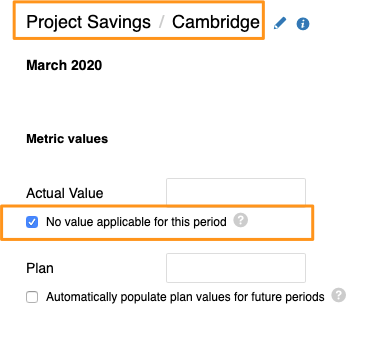
No value applicable for this period
Mark a cell as not applicable
If no value applies to an org. unit/metric combination in a specific time period (e.g. a holiday period), tick the appropriate box instead of entering values. The cell is then greyed out.
If you need to set No value applicable for several metrics, org. units or time periods in your dashboard, you can use the following two functions.
Use the spreadsheet view
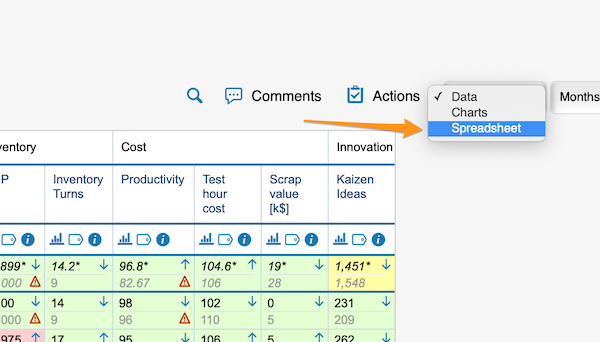
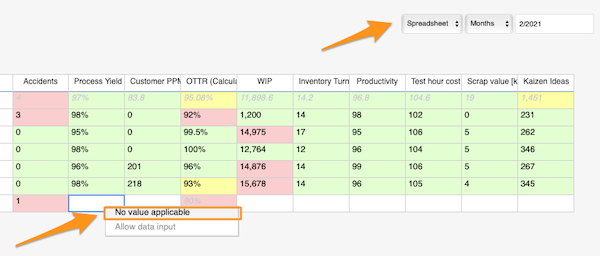
Change the Data view above your dashboard to the Spreadsheet view. In the spreadsheet view, right-click the cell, select No value applicable and copy it as needed.
Use mass data entry
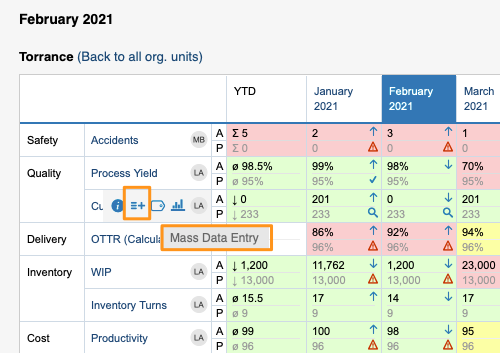
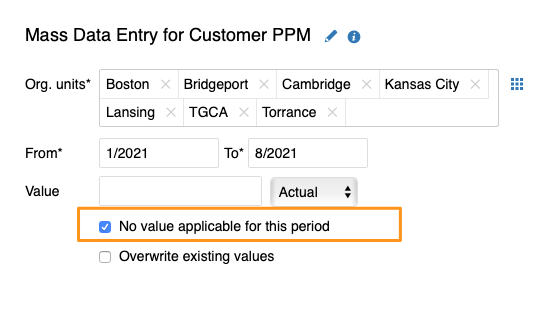
Hover over your metric and click the Mass Data Entry icon (=+). Then select your org. units and time period, tick the No value applicable for this period box and save.
Org. units for which data is not collected
Exclude org. units in the metric settings
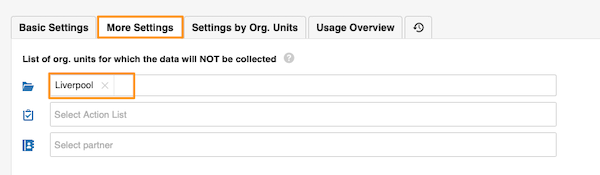
In the metric settings, on the More Settings tab, you can select the org. units which, in combination with this metric, will not appear in the dashboards.
Org. unit/metric combination deactivated in the dashboard
Uncheck the combination in the dashboard setup
You can grey out the fields of an org. unit/metric combination in your dashboard. They are greyed out only in this dashboard and nowhere else.
To set it up, go to your dashboard’s settings and, on the Dashboard Setup tab, uncheck the box for the metric/org. unit combination.
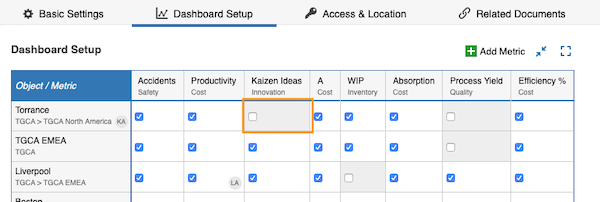
A grey field is not a locked field. Users can still enter values, but the values will not be displayed.
Šedé pole znamená jednu z těchto situací:
- Hodnota není relevantní pro kombinaci metriky, org. jednotky a období.
- Data se nesbírají pro kombinaci metriky a org. jednotky.
- Kombinace org. jednotky a metriky je v dashboardu vypnutá.
Pro toto období není hodnota relevantní
Označení buňky jako nerelevantní
Pokud pro kombinaci org. jednotky a metriky v určitém období žádná hodnota nedává smysl (např. v době dovolených), zaškrtněte místo zadání hodnoty příslušné políčko. Buňka pak zešedne.
Pokud potřebujete nastavit Hodnota není relevantní pro více metrik, org. jednotek nebo období v dashboardu, můžete použít jednu z následujících dvou funkcí.
Tabulkové zobrazení
Nad dashboardem přepněte zobrazení Data na Tabulka. V tabulkovém zobrazení klikněte na buňku pravým tlačítkem, vyberte Hodnota není relevantní a zkopírujte ji, kam potřebujete.
Hromadné zadání dat
Najeďte myší na metriku a klikněte na ikonu Hromadné zadání dat (=+). Pak vyberte org. jednotky a období, zaškrtněte políčko Pro toto období není hodnota relevantní a uložte.
Org. jednotky, pro které se data nesbírají
Vyřazení org. jednotek v nastavení metriky
V nastavení metriky na kartě Další nastavení můžete vybrat org. jednotky, které se v kombinaci s touto metrikou v dashboardech nezobrazí.
Kombinace org. jednotky a metriky vypnutá v dashboardu
Odškrtnutí kombinace v nastavení dashboardu
Pole určité kombinace org. jednotky a metriky můžete v dashboardu zašednout. Šedá budou jen v tomto dashboardu a nikde jinde.
V nastavení dashboardu na kartě Nastavení dashboardu zrušte zaškrtnutí políčka u dané kombinace metriky a org. jednotky.
Šedé pole není zamčené. Uživatelé do něj mohou hodnoty dál zadávat, ale ty se nezobrazí.
Potřebujete další pomoc?
Napište nám. V pracovní dny obvykle odpovídáme do hodiny.