Jak utworzyć nową X-Matrix i skonfigurować ją z przewodnikiem
Tłumaczenie maszynowe z angielskiego. Wyświetlany jest oryginał po angielsku.
A new plan is created with a short form and then filled in with the help of a built-in guide. If you want to see where you are heading first, open the sample plan.
Create the plan
- Open Strategy Deployment and click the create icon (or go to Create new).
- Enter the name of the plan.
- Pick a template. It decides how many levels the plan has and how the four lists are named. Each template shows its matrix and its list names right in the picker.
- Choose the Default View – the tab the plan opens in (X-matrix unless you choose otherwise).
- In Where to Display choose the folder of your organization structure, then click Create.
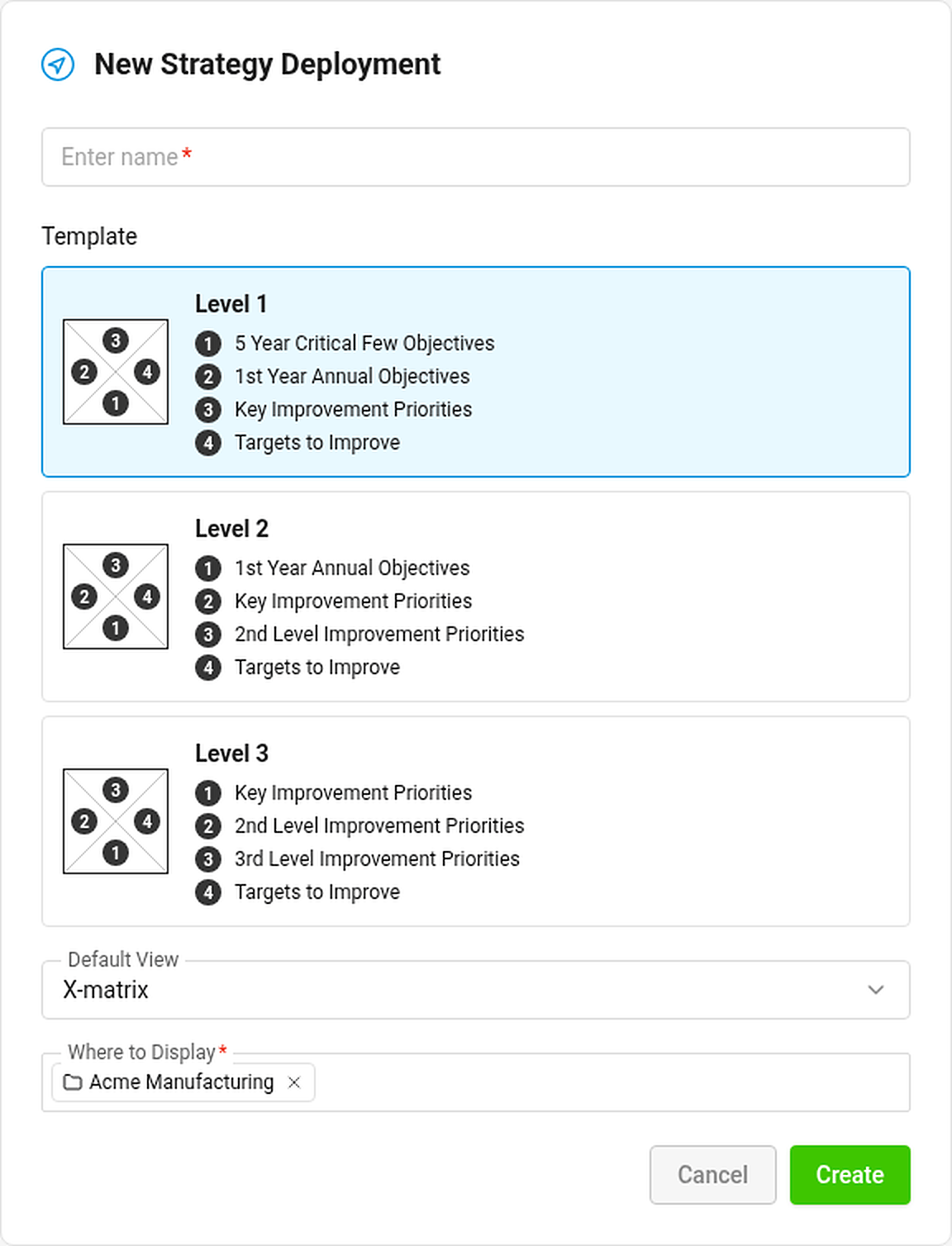
The new plan is public, owned by you, and gets a main metric dashboard for its KPIs if you may create metric dashboards in its folder. You can change the owner, visibility and everything else later in the plan settings (see How to change the settings of an X-matrix).
Fill it in with the setup guide
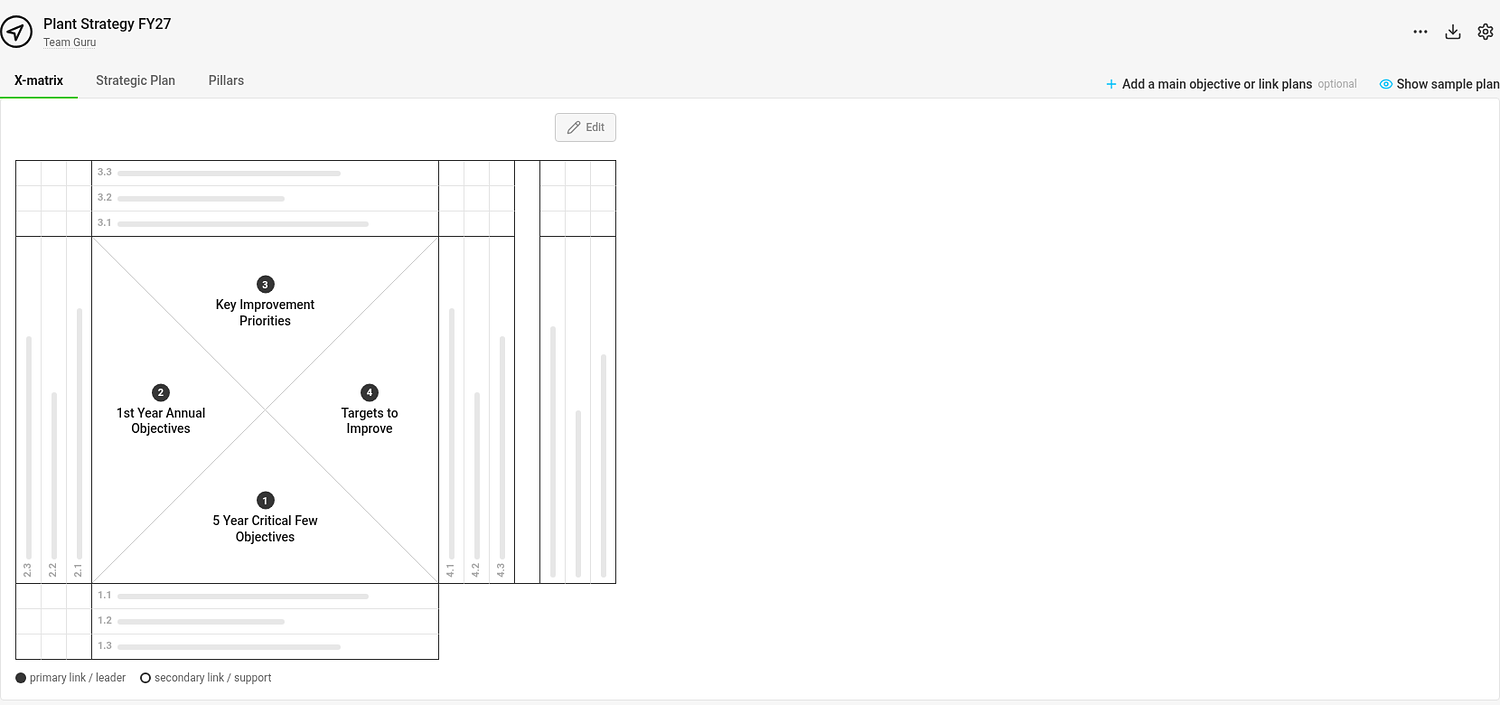
An empty plan shows a matrix with placeholder bars where your items will go, and below it the guide Set up your plan in 5 steps.
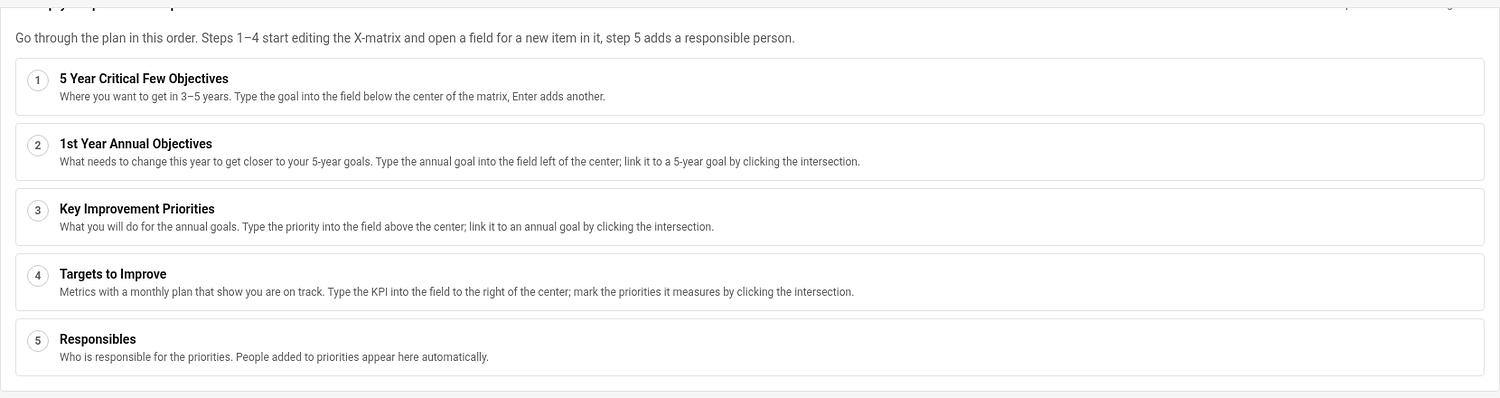
Go through the steps in order. Each step starts editing the right part of the page and puts the cursor into the field for a new item:
- 5-year goals – where you want to be in 3–5 years.
- Annual goals – what has to change this year. Link each one to a 5-year goal.
- Priorities – what you will do for the annual goals. Link each one to an annual goal.
- KPIs (Targets to Improve) – the metrics that show you are on track. Mark the priorities each one measures.
- Responsibles – assign a person to each priority and KPI.
The guide shows your progress (0 of 5 steps done). Click Hide guide when you do not need it; Show guide in the … menu brings it back.
Sections that have no data yet show a short explanation of when they fill in – for example Overall Status appears once the matrix has annual goals with linked priorities and KPIs.
Add a main objective and connect plans
Click Add a main objective or link plans above the matrix to write the objective of the plan and link it to a parent or child plan. See How to link X-matrices into a plan hierarchy.
Not sure what a good plan looks like?
Click Show sample plan (the eye icon above the matrix). The sample is a filled-in model manufacturing plant with all three views. It is read-only and has nothing to do with your data. Back to my plan returns you to the tab you came from.
Nowy plan tworzysz za pomocą krótkiego formularza, a potem wypełniasz go z pomocą wbudowanego przewodnika. Jeśli najpierw chcesz zobaczyć, do czego zmierzasz, otwórz przykładowy plan.
Utwórz plan
- Otwórz moduł Cele strategiczne i kliknij ikonę tworzenia (lub przejdź do Utwórz nowy).
- Wpisz nazwę planu.
- Wybierz szablon. Określa on, ile poziomów ma plan i jak nazywają się cztery listy. Każdy szablon pokazuje swoją matrycę i nazwy list bezpośrednio w oknie wyboru.
- Wybierz Widok domyślny, czyli kartę, na której otwiera się plan (X-Matrix, chyba że wybierzesz inaczej).
- W polu Gdzie wyświetlać wybierz folder struktury organizacyjnej, a potem kliknij Utwórz.
Nowy plan jest publiczny, osobą odpowiedzialną jesteś ty, a jeśli możesz tworzyć dashboardy KPI w jego folderze, plan dostaje główny dashboard KPI dla swoich KPI. Osobę odpowiedzialną, widoczność i wszystkie inne ustawienia możesz później zmienić w ustawieniach planu (zobacz Jak zmienić ustawienia X-Matrix).
Wypełnij plan z przewodnikiem
Pusty plan pokazuje matrycę z paskami zastępczymi w miejscach przyszłych elementów, a pod nią przewodnik Skonfiguruj plan w 5 krokach.
Przejdź przez kroki po kolei. Każdy krok uruchamia edycję właściwej części strony i ustawia kursor w polu nowego elementu:
- Cele 5-letnie: gdzie chcesz być za 3–5 lat.
- Cele roczne: co musi się zmienić w tym roku. Powiąż każdy z celem 5-letnim.
- Priorytety: co zrobisz dla celów rocznych. Powiąż każdy z celem rocznym.
- KPI (wartości docelowe): wskaźniki, które pokazują, że idziesz zgodnie z planem. Zaznacz priorytety, które mierzy każdy z nich.
- Osoby odpowiedzialne: przypisz osobę do każdego priorytetu i KPI.
Przewodnik pokazuje postęp (Ukończono 0 z 5 kroków). Kliknij Ukryj przewodnik, gdy go nie potrzebujesz; Pokaż przewodnik w menu … przywraca go.
Sekcje, które nie mają jeszcze danych, krótko wyjaśniają, kiedy się wypełnią. Na przykład Status ogólny pojawia się, gdy matryca ma cele roczne z powiązanymi priorytetami i KPI.
Dodaj cel główny i połącz plany
Kliknij Dodaj cel główny lub połącz plany nad matrycą, aby wpisać cel planu i połączyć go z planem nadrzędnym lub podrzędnym. Zobacz Jak połączyć X-Matrix w hierarchię planów.
Nie wiesz, jak wygląda dobry plan?
Kliknij Pokaż przykładowy plan (ikona oka nad matrycą). Przykład to wypełniony plan wzorcowego zakładu produkcyjnego ze wszystkimi trzema widokami. Jest tylko do odczytu i nie ma nic wspólnego z twoimi danymi. Wróć do mojego planu przenosi cię z powrotem na poprzednią kartę.
Potrzebujesz dalszej pomocy?
Napisz do nas. W dni robocze zwykle odpowiadamy w ciągu godziny.