Como criar uma X-matrix e configurá-la com o guia
Tradução automática do inglês. Exibindo o original em inglês.
A new plan is created with a short form and then filled in with the help of a built-in guide. If you want to see where you are heading first, open the sample plan.
Create the plan
- Open Strategy Deployment and click the create icon (or go to Create new).
- Enter the name of the plan.
- Pick a template. It decides how many levels the plan has and how the four lists are named. Each template shows its matrix and its list names right in the picker.
- Choose the Default View – the tab the plan opens in (X-matrix unless you choose otherwise).
- In Where to Display choose the folder of your organization structure, then click Create.
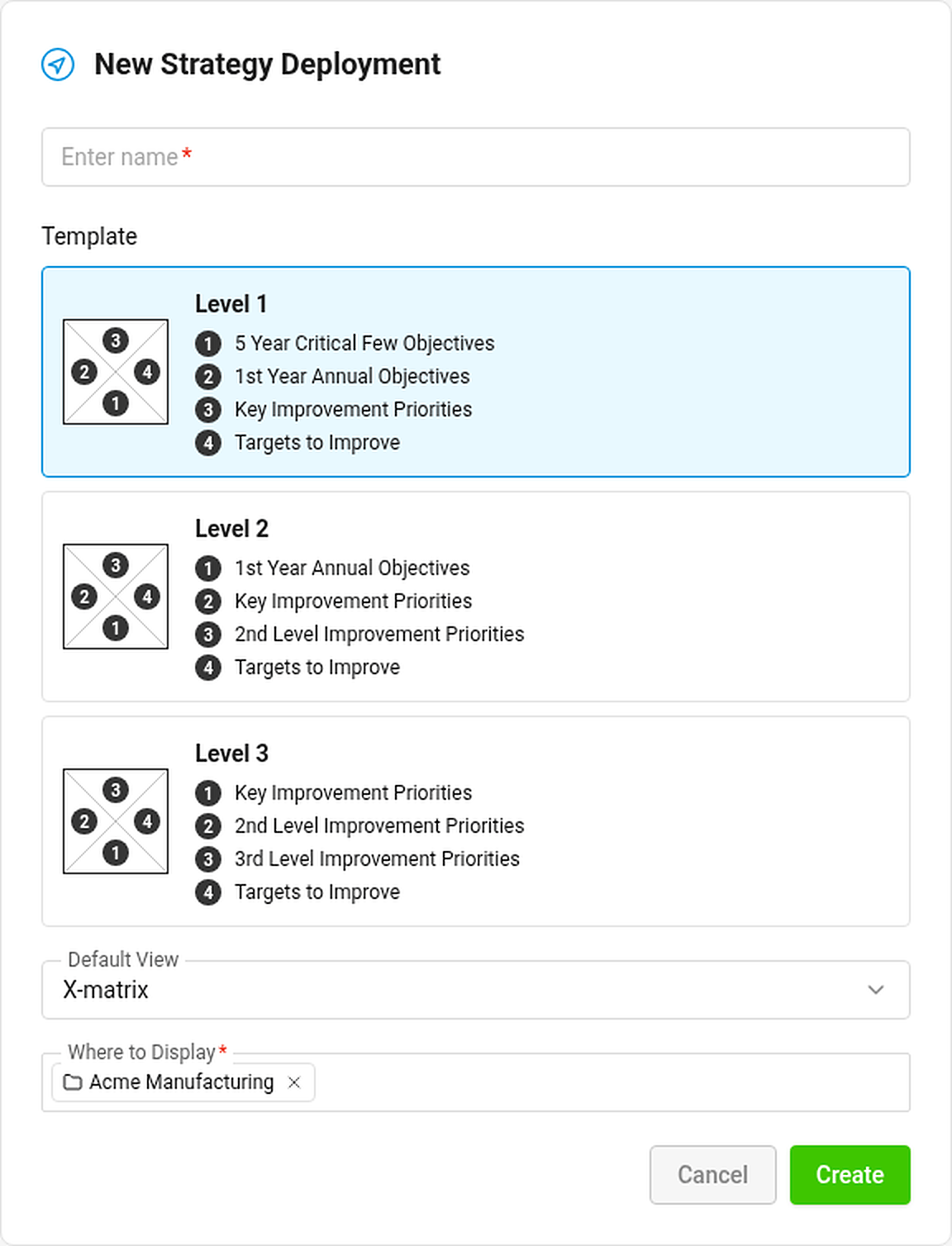
The new plan is public, owned by you, and gets a main metric dashboard for its KPIs if you may create metric dashboards in its folder. You can change the owner, visibility and everything else later in the plan settings (see How to change the settings of an X-matrix).
Fill it in with the setup guide
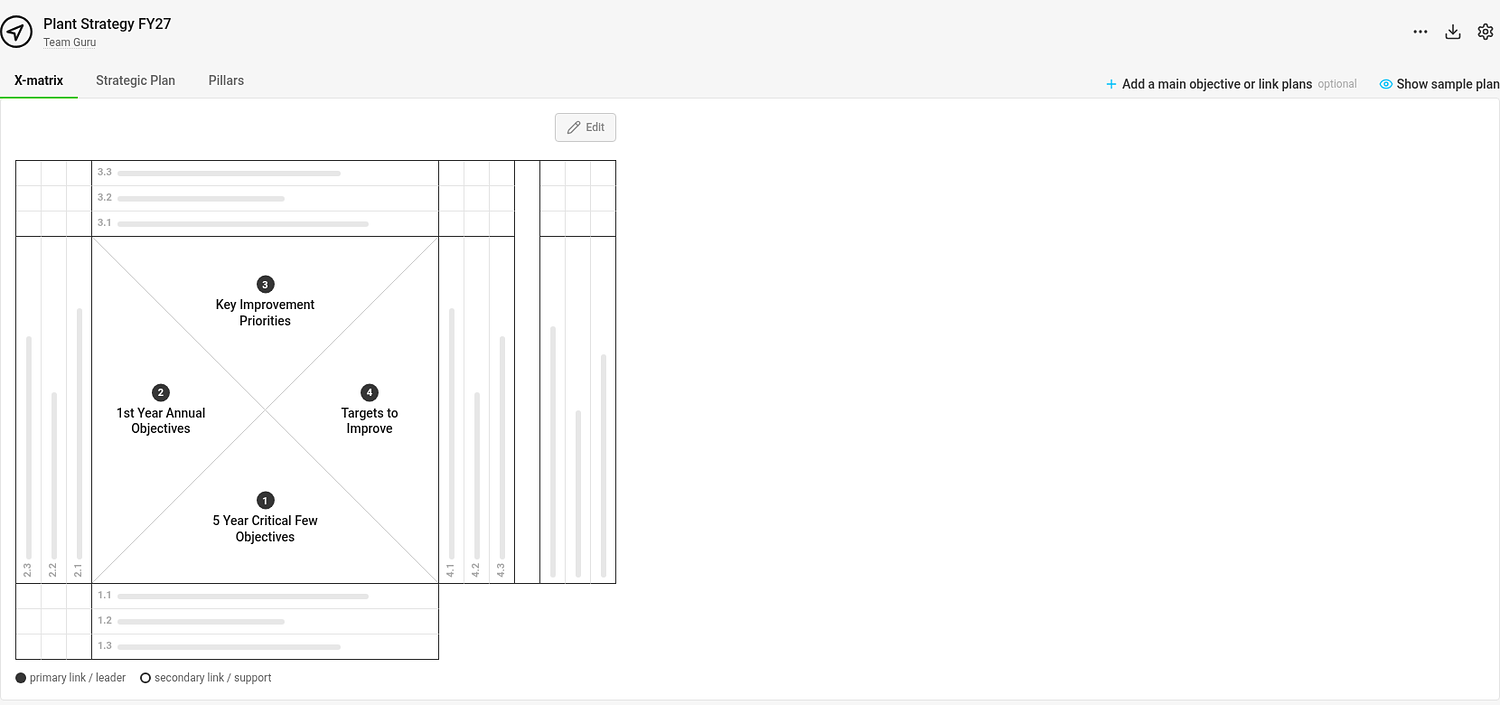
An empty plan shows a matrix with placeholder bars where your items will go, and below it the guide Set up your plan in 5 steps.
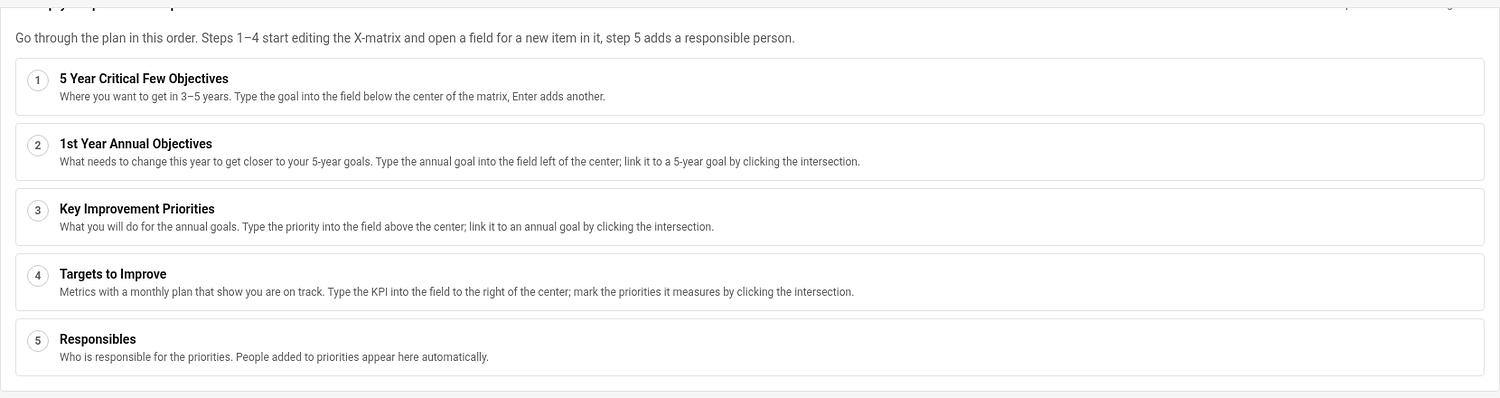
Go through the steps in order. Each step starts editing the right part of the page and puts the cursor into the field for a new item:
- 5-year goals – where you want to be in 3–5 years.
- Annual goals – what has to change this year. Link each one to a 5-year goal.
- Priorities – what you will do for the annual goals. Link each one to an annual goal.
- KPIs (Targets to Improve) – the metrics that show you are on track. Mark the priorities each one measures.
- Responsibles – assign a person to each priority and KPI.
The guide shows your progress (0 of 5 steps done). Click Hide guide when you do not need it; Show guide in the … menu brings it back.
Sections that have no data yet show a short explanation of when they fill in – for example Overall Status appears once the matrix has annual goals with linked priorities and KPIs.
Add a main objective and connect plans
Click Add a main objective or link plans above the matrix to write the objective of the plan and link it to a parent or child plan. See How to link X-matrices into a plan hierarchy.
Not sure what a good plan looks like?
Click Show sample plan (the eye icon above the matrix). The sample is a filled-in model manufacturing plant with all three views. It is read-only and has nothing to do with your data. Back to my plan returns you to the tab you came from.
Um novo plano é criado com um formulário curto e depois preenchido com a ajuda de um guia integrado. Se quiser ver primeiro aonde quer chegar, abra o plano de exemplo.
Crie o plano
- Abra Objetivos estratégicos e clique no ícone de criar (ou acesse Criar novo).
- Digite o nome do plano.
- Escolha um modelo. Ele define quantos níveis o plano tem e como as quatro listas se chamam. Cada modelo mostra a matriz e os nomes das listas diretamente no seletor.
- Escolha a Visão padrão – a guia em que o plano abre (X-matrix, a menos que você escolha outra).
- Em Onde exibir, escolha a pasta da estrutura organizacional e clique em Criar.
O novo plano é público, você é o responsável, e ele ganha um dashboard de KPI principal para os KPIs, se você puder criar dashboards de KPI na pasta dele. Você pode alterar depois o responsável, a visibilidade e todo o resto nas configurações do plano (veja Como alterar as configurações de uma X-matrix).
Preencha com o guia de configuração
Um plano vazio mostra uma matriz com barras de espaço reservado onde ficarão os itens e, abaixo dela, o guia Configure seu plano em 5 passos.
Siga os passos na ordem. Cada passo abre a edição da parte certa da página e coloca o cursor no campo de um novo item:
- Objetivos de 5 anos – onde você quer estar em 3 a 5 anos.
- Objetivos anuais – o que precisa mudar este ano. Vincule cada um a um objetivo de 5 anos.
- Prioridades – o que você vai fazer pelos objetivos anuais. Vincule cada uma a um objetivo anual.
- KPIs (Indicadores e metas) – as métricas que mostram que você está dentro do plano. Marque as prioridades que cada um mede.
- Responsáveis – atribua uma pessoa a cada prioridade e KPI.
O guia mostra o seu progresso (0 de 5 passos concluídos). Clique em Ocultar guia quando não precisar dele; Mostrar guia, no menu …, traz o guia de volta.
As seções que ainda não têm dados mostram uma breve explicação de quando serão preenchidas – por exemplo, Status geral aparece quando a matriz tem objetivos anuais com prioridades e KPIs vinculados.
Adicione um objetivo principal e vincule planos
Clique em Adicionar objetivo principal ou vincular planos acima da matriz para escrever o objetivo do plano e vinculá-lo a um plano superior ou subordinado. Veja Como vincular X-matrices em uma hierarquia de planos.
Não sabe como é um bom plano?
Clique em Mostrar plano de exemplo (o ícone de olho acima da matriz). O exemplo é o plano completo de uma fábrica fictícia, com as três visões. Ele é somente leitura e não tem nenhuma relação com os seus dados. Voltar ao meu plano leva você de volta à guia de onde veio.
Precisa de mais ajuda?
Escreva para nós. Em dias úteis, costumamos responder em até uma hora.