Ako vytvoriť novú X-matrix a nastaviť ju pomocou sprievodcu
Strojový preklad z angličtiny. Zobrazený je anglický originál.
A new plan is created with a short form and then filled in with the help of a built-in guide. If you want to see where you are heading first, open the sample plan.
Create the plan
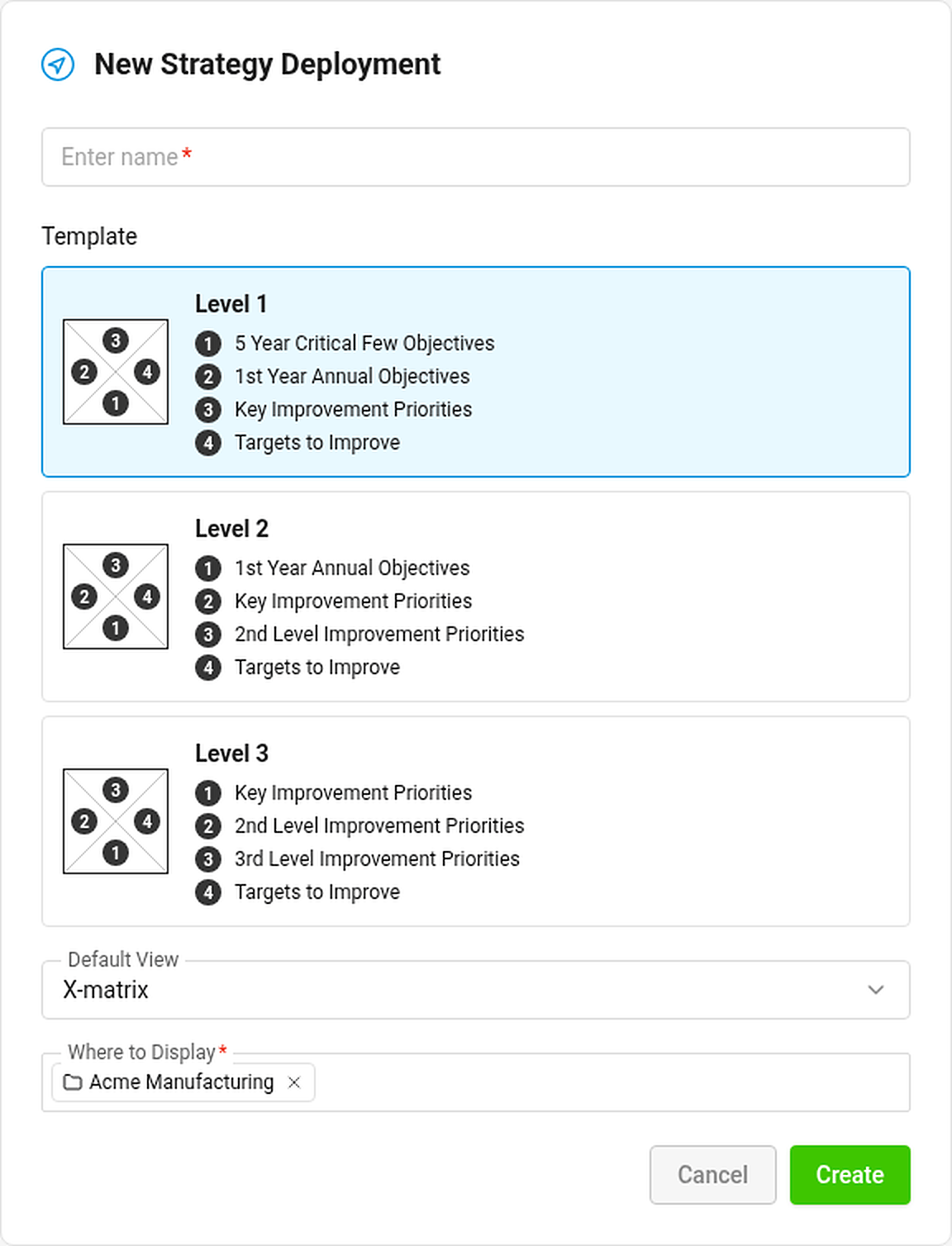
- Open Strategy Deployment and click the create icon (or go to Create new).
- Enter the name of the plan.
- Pick a template. It decides how many levels the plan has and how the four lists are named. Each template shows its matrix and its list names right in the picker.
- Choose the Default View – the tab the plan opens in (X-matrix unless you choose otherwise).
- In Where to Display choose the folder of your organization structure, then click Create.
The new plan is public, owned by you, and gets a main metric dashboard for its KPIs if you may create metric dashboards in its folder. You can change the owner, visibility and everything else later in the plan settings (see How to change the settings of an X-matrix).
Fill it in with the setup guide
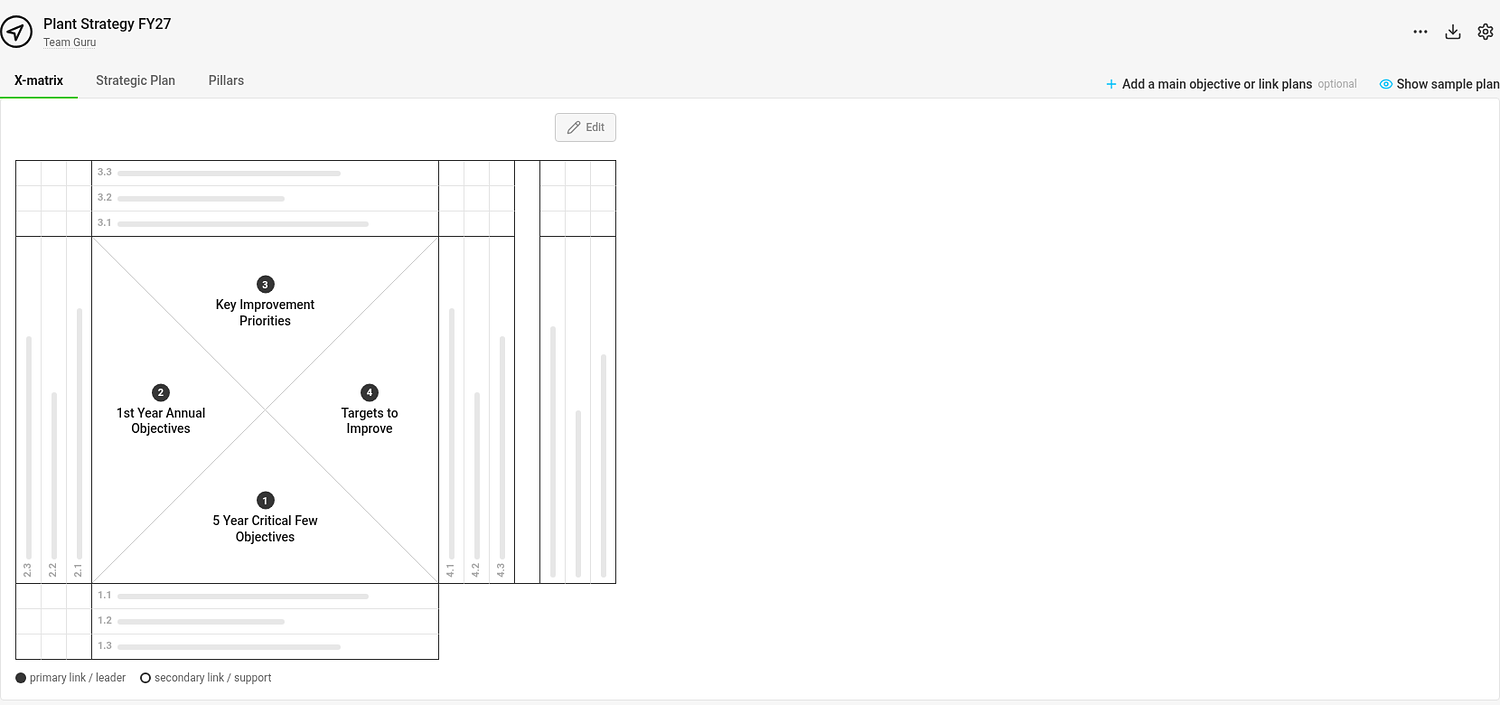
An empty plan shows a matrix with placeholder bars where your items will go, and below it the guide Set up your plan in 5 steps.
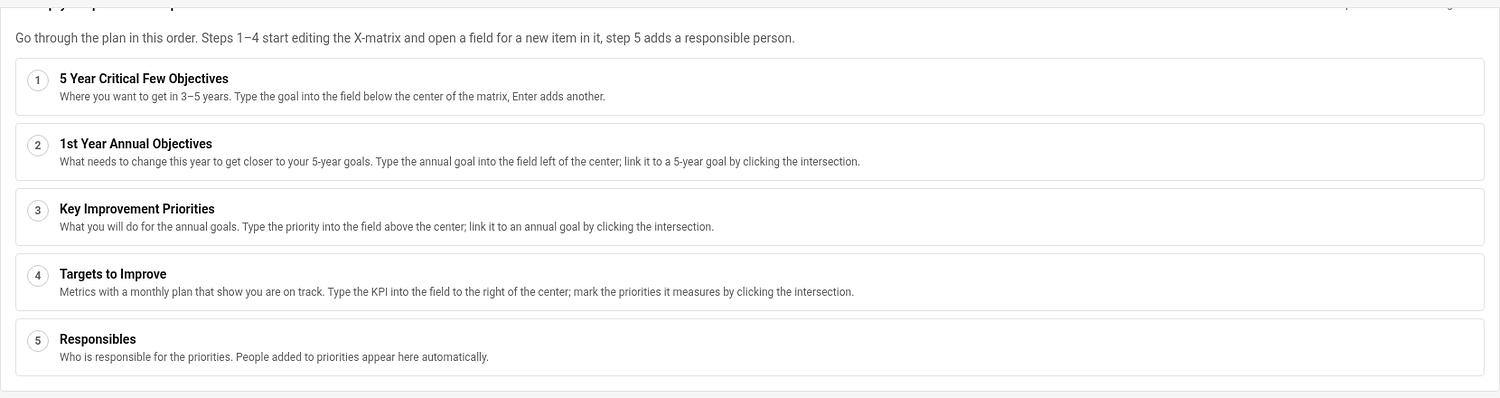
Go through the steps in order. Each step starts editing the right part of the page and puts the cursor into the field for a new item:
- 5-year goals – where you want to be in 3–5 years.
- Annual goals – what has to change this year. Link each one to a 5-year goal.
- Priorities – what you will do for the annual goals. Link each one to an annual goal.
- KPIs (Targets to Improve) – the metrics that show you are on track. Mark the priorities each one measures.
- Responsibles – assign a person to each priority and KPI.
The guide shows your progress (0 of 5 steps done). Click Hide guide when you do not need it; Show guide in the … menu brings it back.
Sections that have no data yet show a short explanation of when they fill in – for example Overall Status appears once the matrix has annual goals with linked priorities and KPIs.
Add a main objective and connect plans
Click Add a main objective or link plans above the matrix to write the objective of the plan and link it to a parent or child plan. See How to link X-matrices into a plan hierarchy.
Not sure what a good plan looks like?
Click Show sample plan (the eye icon above the matrix). The sample is a filled-in model manufacturing plant with all three views. It is read-only and has nothing to do with your data. Back to my plan returns you to the tab you came from.
Nový plán vytvoríte krátkym formulárom a potom ho vyplníte pomocou vstavaného sprievodcu. Ak chcete najprv vidieť, kam smerujete, otvorte vzorový plán.
Vytvorte plán
- Otvorte Strategické ciele a kliknite na ikonu vytvorenia (alebo prejdite na Vytvoriť nový).
- Zadajte názov plánu.
- Vyberte šablónu. Určuje, koľko úrovní plán má a ako sa volajú štyri zoznamy. Každá šablóna zobrazuje svoju maticu a názvy zoznamov priamo vo výbere.
- Zvoľte Predvolené zobrazenie – kartu, na ktorej sa plán otvorí (X-matrix, ak nezvolíte inak).
- V poli Kde zobraziť zvoľte priečinok organizačnej štruktúry a kliknite na Vytvoriť.
Nový plán je verejný, jeho vlastníkom ste vy a dostane hlavný KPI dashboard pre svoje KPI, ak môžete v jeho priečinku vytvárať KPI dashboardy. Vlastníka, viditeľnosť a všetko ostatné môžete neskôr zmeniť v nastaveniach plánu (pozrite Ako zmeniť nastavenia X-matrix).
Vyplňte ho pomocou sprievodcu nastavením
Prázdny plán zobrazuje maticu so zástupnými pruhmi tam, kde budú vaše položky, a pod ňou sprievodcu Nastavte svoj plán v 5 krokoch.
Prejdite krokmi v uvedenom poradí. Každý krok spustí úpravu príslušnej časti stránky a umiestni kurzor do poľa pre novú položku:
- 5-ročné ciele – kde chcete byť o 3–5 rokov.
- Ročné ciele – čo sa musí tento rok zmeniť. Každý prepojte s 5-ročným cieľom.
- Priority – čo urobíte pre splnenie ročných cieľov. Každú prepojte s ročným cieľom.
- KPI (Cieľové hodnoty) – metriky, ktoré ukazujú, že ste na dobrej ceste. Pri každom označte priority, ktoré meria.
- Zodpovední – ku každej priorite a KPI priraďte osobu.
Sprievodca ukazuje váš postup (0 z 5 krokov hotových). Keď ho nepotrebujete, kliknite na Skryť sprievodcu; položkou Zobraziť sprievodcu v ponuke … ho vrátite späť.
Časti, ktoré ešte nemajú údaje, zobrazujú krátke vysvetlenie, kedy sa naplnia – napríklad Celkový stav sa zobrazí, keď matica obsahuje ročné ciele s prepojenými prioritami a KPI.
Pridajte hlavný cieľ a prepojte plány
Kliknite nad maticou na Pridať hlavný cieľ alebo prepojiť plány, napíšte cieľ plánu a prepojte ho s nadradeným alebo podriadeným plánom. Pozrite Ako prepojiť X-matrix do hierarchie plánov.
Neviete, ako vyzerá dobrý plán?
Kliknite na Zobraziť vzorový plán (ikona oka nad maticou). Vzor je vyplnený plán modelového výrobného závodu so všetkými tromi zobrazeniami. Je len na čítanie a s vašimi údajmi nijako nesúvisí. Tlačidlom Späť na môj plán sa vrátite na kartu, z ktorej ste prišli.
Potrebujete ďalšiu pomoc?
Napíšte nám. V pracovné dni zvyčajne odpovedáme do hodiny.