Cómo crear una nueva X-matrix y configurarla con la guía
Traducción automática del inglés. Se muestra el original en inglés.
A new plan is created with a short form and then filled in with the help of a built-in guide. If you want to see where you are heading first, open the sample plan.
Create the plan
- Open Strategy Deployment and click the create icon (or go to Create new).
- Enter the name of the plan.
- Pick a template. It decides how many levels the plan has and how the four lists are named. Each template shows its matrix and its list names right in the picker.
- Choose the Default View – the tab the plan opens in (X-matrix unless you choose otherwise).
- In Where to Display choose the folder of your organization structure, then click Create.
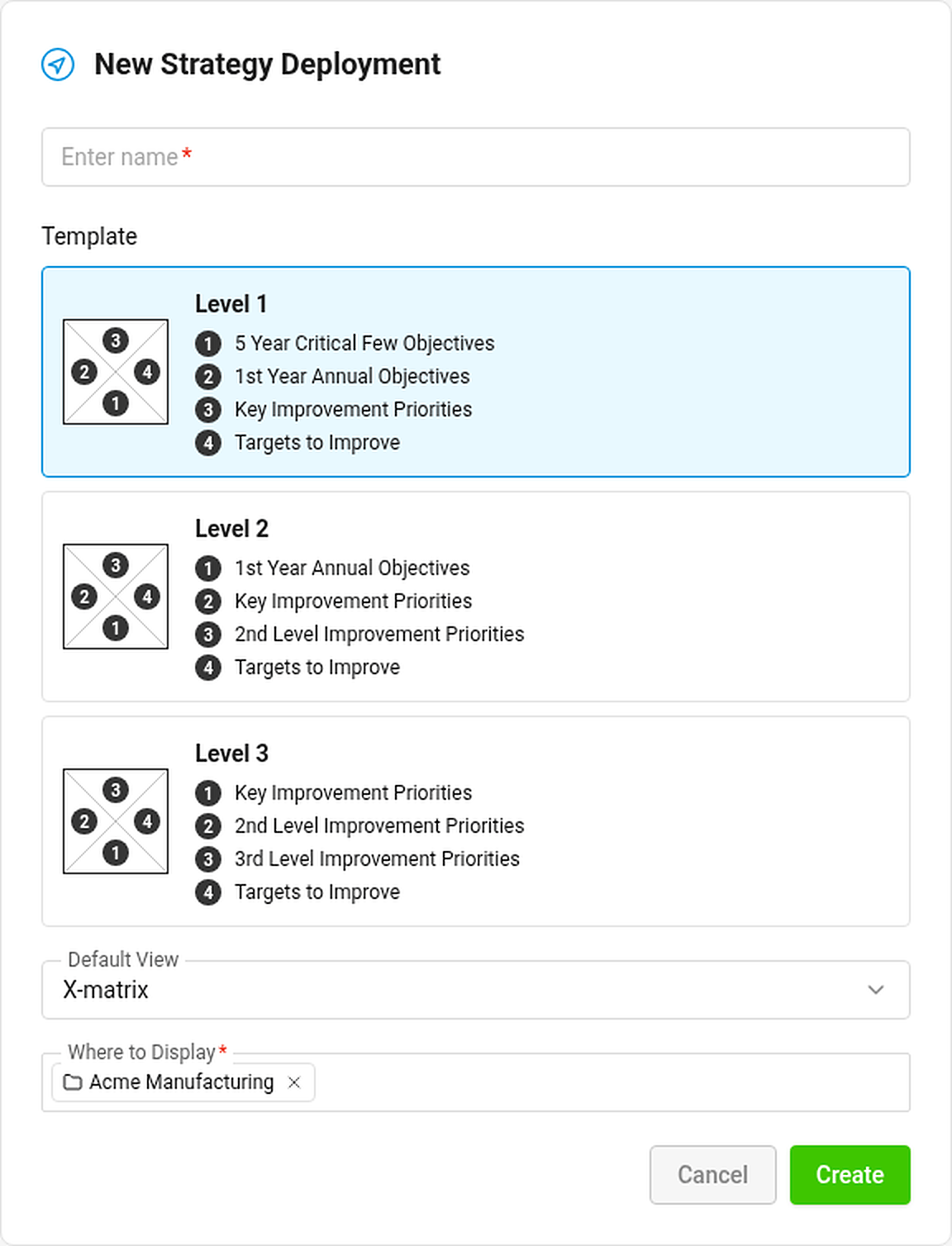
The new plan is public, owned by you, and gets a main metric dashboard for its KPIs if you may create metric dashboards in its folder. You can change the owner, visibility and everything else later in the plan settings (see How to change the settings of an X-matrix).
Fill it in with the setup guide
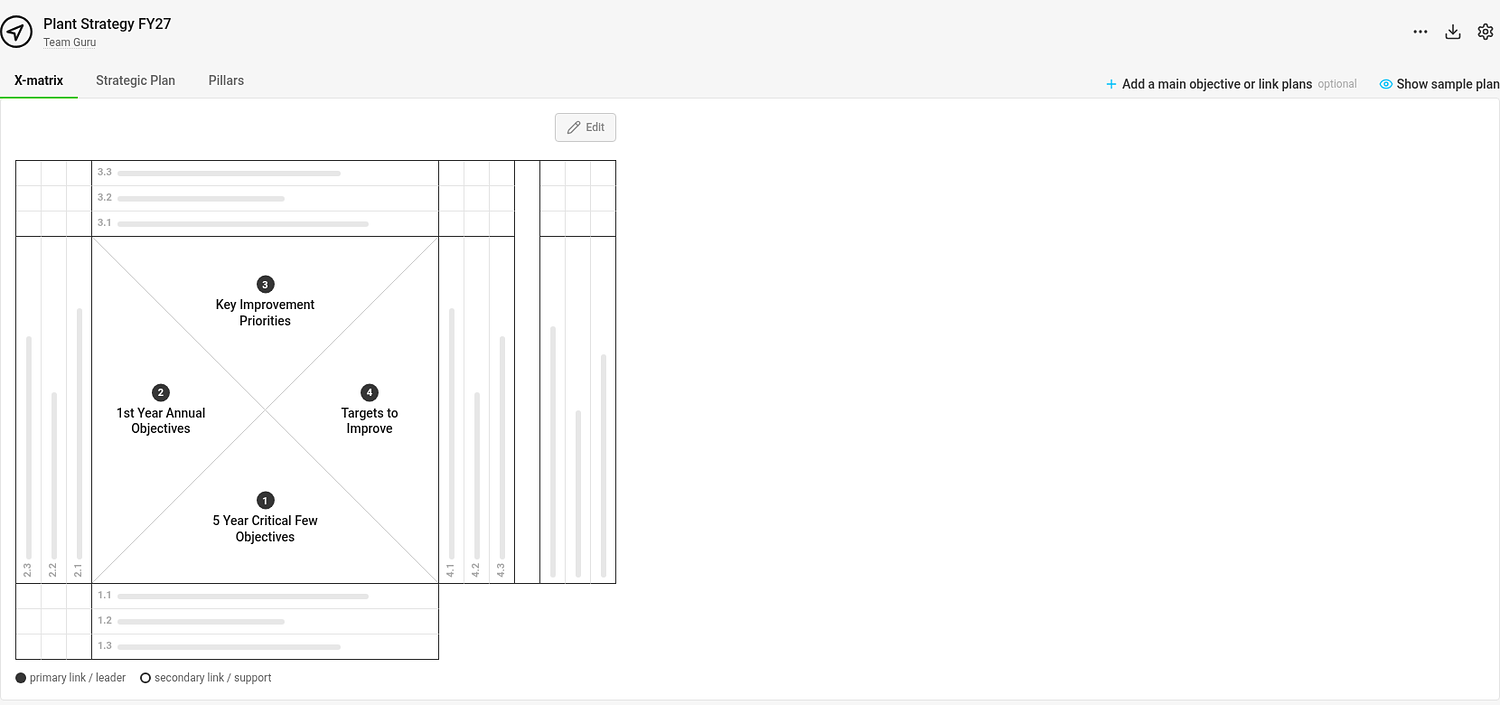
An empty plan shows a matrix with placeholder bars where your items will go, and below it the guide Set up your plan in 5 steps.
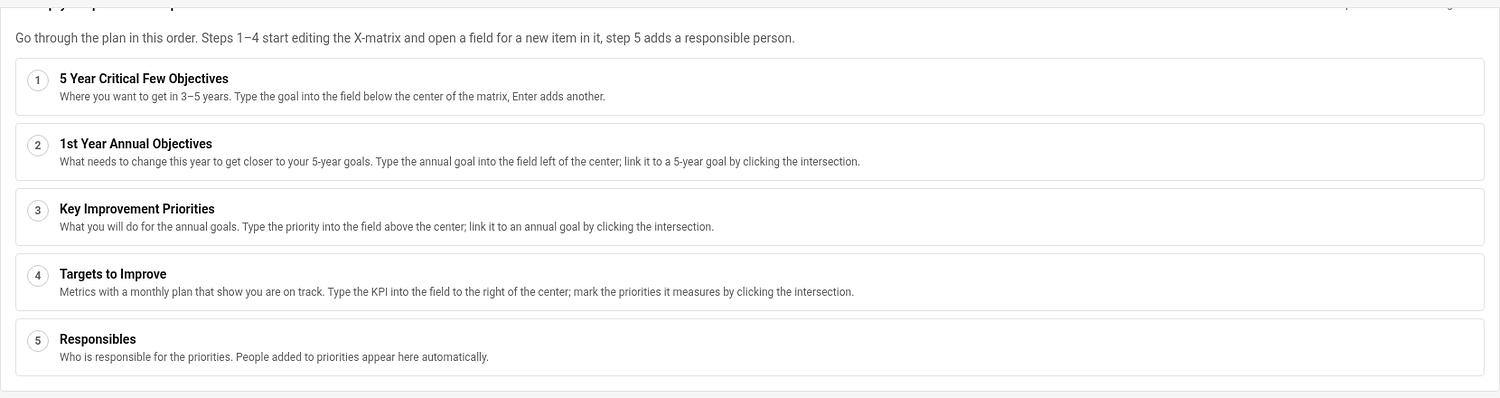
Go through the steps in order. Each step starts editing the right part of the page and puts the cursor into the field for a new item:
- 5-year goals – where you want to be in 3–5 years.
- Annual goals – what has to change this year. Link each one to a 5-year goal.
- Priorities – what you will do for the annual goals. Link each one to an annual goal.
- KPIs (Targets to Improve) – the metrics that show you are on track. Mark the priorities each one measures.
- Responsibles – assign a person to each priority and KPI.
The guide shows your progress (0 of 5 steps done). Click Hide guide when you do not need it; Show guide in the … menu brings it back.
Sections that have no data yet show a short explanation of when they fill in – for example Overall Status appears once the matrix has annual goals with linked priorities and KPIs.
Add a main objective and connect plans
Click Add a main objective or link plans above the matrix to write the objective of the plan and link it to a parent or child plan. See How to link X-matrices into a plan hierarchy.
Not sure what a good plan looks like?
Click Show sample plan (the eye icon above the matrix). The sample is a filled-in model manufacturing plant with all three views. It is read-only and has nothing to do with your data. Back to my plan returns you to the tab you came from.
Un plan nuevo se crea con un formulario breve y después se completa con ayuda de una guía integrada. Si primero quiere ver adónde se dirige, abra el plan de ejemplo.
Crear el plan
- Abra Objetivos estratégicos y haga clic en el icono de crear (o vaya a Crear nuevo).
- Escriba el nombre del plan.
- Elija una plantilla. Determina cuántos niveles tiene el plan y cómo se llaman las cuatro listas. Cada plantilla muestra su matriz y los nombres de sus listas directamente en el selector.
- Elija la Vista predeterminada: la pestaña con la que se abre el plan (X-matrix, salvo que elija otra).
- En Dónde mostrar, elija la carpeta de su estructura organizativa y haga clic en Crear.
El plan nuevo es público, usted es su responsable y recibe un dashboard de KPI principal para sus KPI si usted puede crear dashboards de KPI en su carpeta. Más adelante puede cambiar el responsable, la visibilidad y todo lo demás en la configuración del plan (consulte Cómo cambiar la configuración de una X-matrix).
Completarlo con la guía de configuración
Un plan vacío muestra una matriz con barras de marcador donde irán sus elementos y, debajo, la guía Configure su plan en 5 pasos.
Siga los pasos en orden. Cada paso abre la edición de la parte correcta de la página y coloca el cursor en el campo de un elemento nuevo:
- Objetivos a 5 años: dónde quiere estar dentro de 3 a 5 años.
- Objetivos anuales: qué tiene que cambiar este año. Vincule cada uno con un objetivo a 5 años.
- Prioridades: qué hará para lograr los objetivos anuales. Vincule cada una con un objetivo anual.
- KPI (Metas de mejora): las métricas que muestran que va por buen camino. Marque las prioridades que mide cada uno.
- Responsables: asigne una persona a cada prioridad y a cada KPI.
La guía muestra su avance (0 de 5 pasos completados). Haga clic en Ocultar guía cuando no la necesite; Mostrar guía, en el menú …, la vuelve a mostrar.
Las secciones que aún no tienen datos muestran una breve explicación de cuándo se completan; por ejemplo, Estado general aparece cuando la matriz tiene objetivos anuales con prioridades y KPI vinculados.
Agregar un objetivo principal y conectar planes
Haga clic en Agregar un objetivo principal o vincular planes encima de la matriz para escribir el objetivo del plan y vincularlo con un plan superior o inferior. Consulte Cómo vincular X-matrices en una jerarquía de planes.
¿No sabe cómo es un buen plan?
Haga clic en Mostrar plan de ejemplo (el icono del ojo encima de la matriz). El ejemplo es una planta de manufactura modelo ya completada, con las tres vistas. Es de solo lectura y no tiene relación con sus datos. Volver a mi plan le devuelve a la pestaña de la que venía.
¿Necesita más ayuda?
Escríbanos. En días laborables solemos responder en menos de una hora.