New Report Update
When you need to update your report slide, follow the steps below.
Create the update
-
Open the report. Go to the report document.
-
Select the period. Select the period for the update.
-
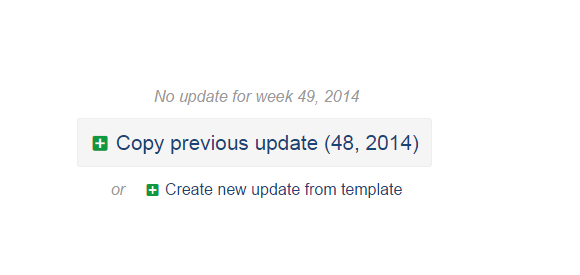
Choose how to create the update. You have two options for updating your slide for a new period:
- Copy previous update – if the slide for the new period will be similar and you only need to change some data.
- Create new update from template – if the new slide update will be completely different from the previous version.
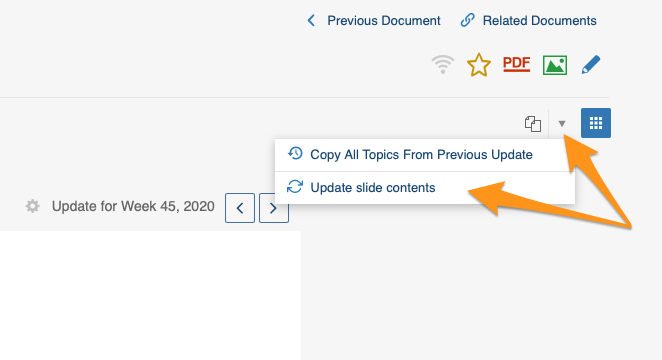
You can also use the Copy All Topics From Previous Update option if you’ve made changes to the previous update (added or deleted slides) and want these changes applied to your report going forward.
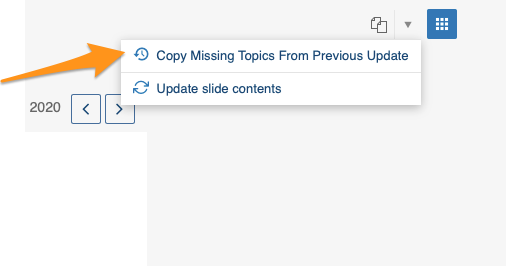
Or use the Copy Missing Topics from Previous Update option if you’ve created a new update but then went back and changed a previous update (added or deleted a slide). Just click this button in your new update and the change is applied.
Please note: Actions widgets and project overview widgets are not updated automatically with live data like the other widgets in the report, but you can update them all at once with Update slide contents.
Edit the slide
-
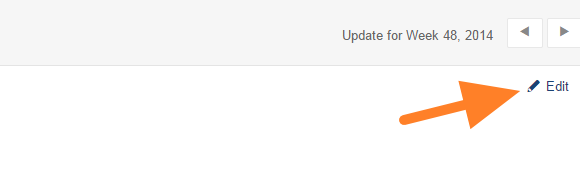
Open the slide in edit mode. Click the Edit icon to update the slide.
-
Update the slide. Update your slide (tips: add a metric chart, add 8D Reports statistics, add a picture).
-
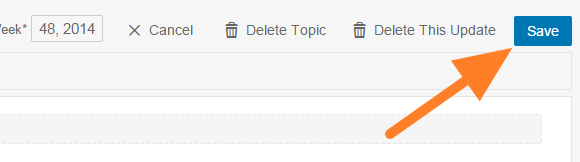
Save the changes. Click the Save button to save your changes.
-
Or discard the changes. Click the Cancel button to discard the changes.
-
Delete the update if needed. Click the Delete This Update button to delete the slide content for the particular period.
-
Delete the topic if needed. Click the Delete this topic button to delete the whole slide from the report (including all the data entered).
Still need help?
Write to us. We usually reply within an hour on business days.