问题升级分步指南
本文由英文机器翻译。 当前显示英文原文。
The Problem Escalation (PE) module enables a rapid response to a production stoppage through immediate notifications and an escalation system.
Overview of the steps
-
Create a list of problem / reject types. Before you start to create PE documents, prepare the types of problems you want to escalate.
-
Create escalation templates. Also prepare the escalation templates before you create PE documents.
-
Create a new problem escalation. Once the problem / reject types and the escalation templates are ready, you can create a new PE document.
The first two steps are done only at the beginning, when you start using Problem Escalation. System admins usually create the templates and the problem types.
Create problem / reject types
Create a list of problem / reject types, such as an equipment problem, a material shortage, a quality issue, etc.
-
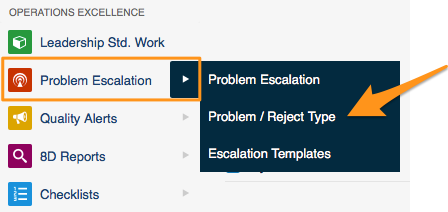
Open the problem types. Go to the Problem Escalation menu and the Problem / Reject Type submenu.
-
Add a new type. Click the Add icon to create a new type.

Create escalation templates
-
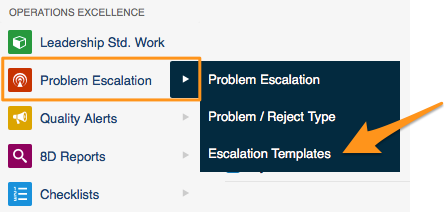
Open the escalation templates. Go to the Problem Escalation menu and the Escalation Templates submenu.
-
Add a new template. Click the Add icon to create a new template.
-
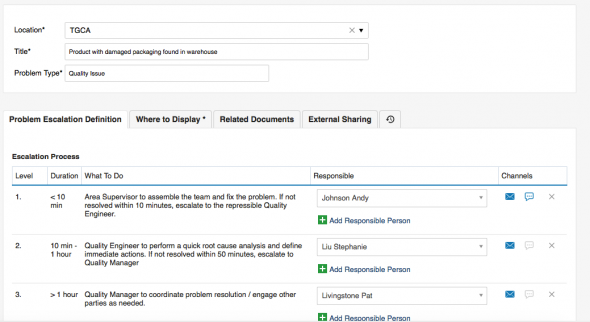
Select the location. In Location, select the org. unit of your structure that this template should be used for (each site or org. unit may have a different process).
-
Enter a title. Fill in the Title of the template.
-
Select the problem type. Select the Problem Type that this template should be used for (a material shortage may have a different process than a quality issue).
-
Set up the escalation levels. Set up the individual levels of the Escalation Process: who is responsible for solving the PE at each level, and after what time the system should escalate the issue if it is not solved.
-
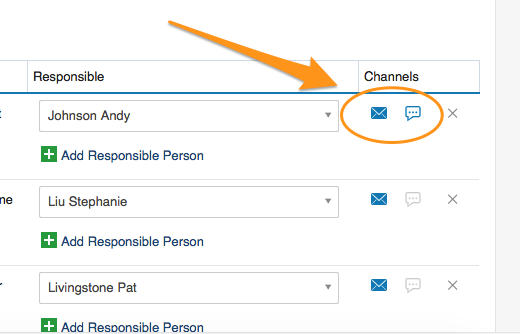
Select the channels. Select the information channels (email, SMS).
Create a new problem escalation
-
Open the org. unit. Click the Problem Escalation menu and go to the relevant organization unit of your structure.
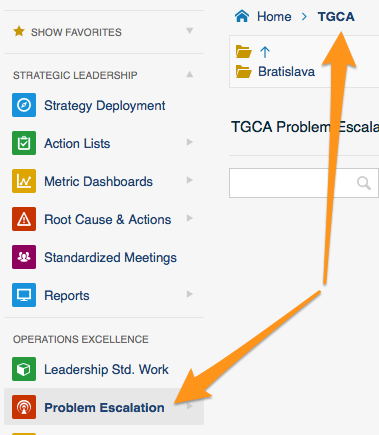
-
Add a new PE. Click the Add icon to create a new PE.
-
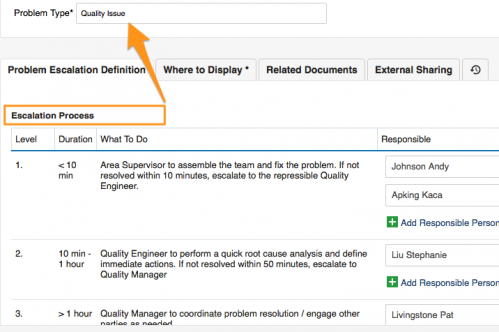
Check the location and the problem type. Check the Location and select the correct Problem Type. The Title and the Escalation Process are predefined according to your escalation template.
-
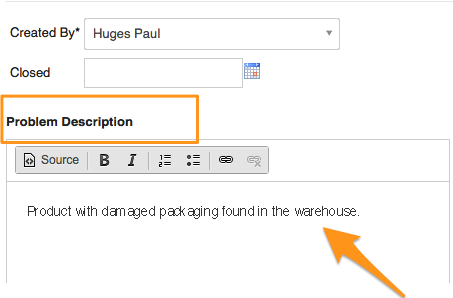
Describe the problem. Fill in the problem description.
-
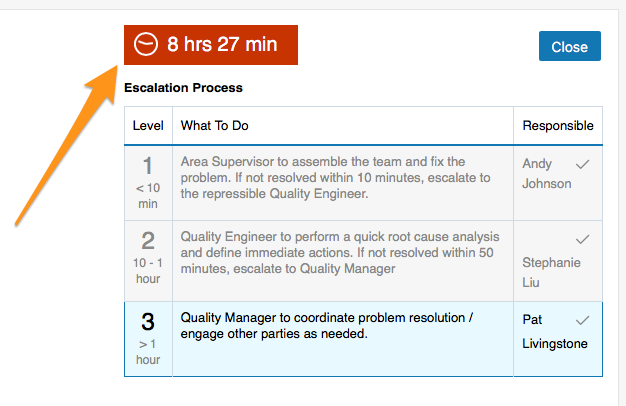
Save the PE. Click Save + Close. The time countdown begins.
-
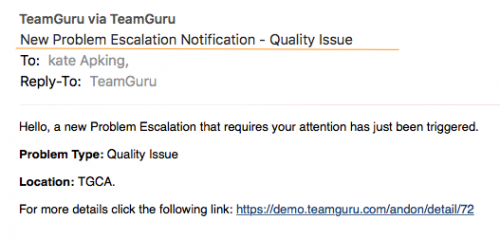
First-level contacts are notified. Once a new PE has been saved, an email notification (SMS) is sent to the first-level contacts of your escalation process.
-
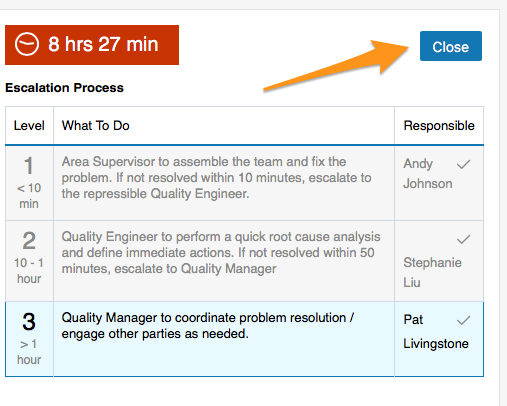
The issue is escalated if not solved. If the PE is not closed within the time specified for the first-level contacts, an escalation email is automatically sent to the second-level contacts.
-
Close the PE. Click the Close button once the issue has been solved.
Share your progress
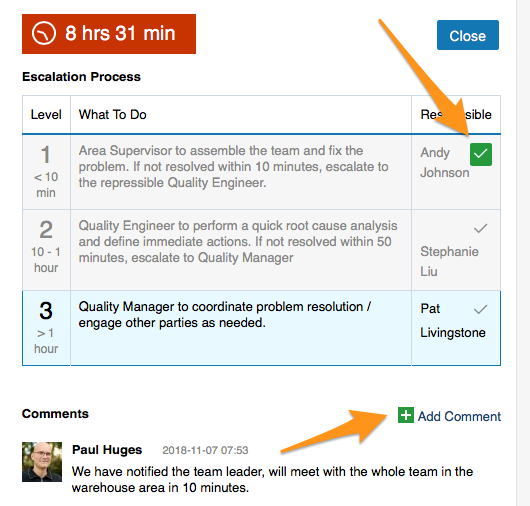
- Click the tick icon next to your name to make it green. Your colleagues can see that you are working on solving the issue.
- Use the Comments field to keep your colleagues informed about the progress.
Video guide
借助 问题升级(PE)模块的即时通知和升级机制,您可以快速应对生产停机。
步骤概览
-
创建问题/不合格类型列表。 在开始创建PE文档之前,先准备好需要升级的问题类型。
-
创建升级模板。 同样,在创建PE文档之前准备好升级模板。
-
创建新的问题升级。 问题/不合格类型和升级模板准备就绪后,即可创建新的PE文档。
前两步只需在开始使用问题升级时完成一次。模板和问题类型通常由系统管理员创建。
创建问题/不合格类型
创建问题/不合格类型列表,例如设备问题、缺料、质量问题等。
-
打开问题类型。 进入 问题升级 菜单下的 问题/不合格类型 子菜单。
-
添加新类型。 点击 添加 图标创建新类型。
创建升级模板
-
打开升级模板。 进入 问题升级 菜单下的 升级模板 子菜单。
-
添加新模板。 点击 添加 图标创建新模板。
-
选择位置。 在 位置 中选择此模板适用的组织单元(每个工厂或组织单元的流程可能不同)。
-
输入标题。 填写模板的 标题。
-
选择问题类型。 选择此模板适用的 问题类型(缺料和质量问题的处理流程可能不同)。
-
设置升级级别。 设置 升级流程 的各个级别:每一级由谁负责解决PE,以及问题未解决时系统在多长时间后升级。
-
选择渠道。 选择通知渠道(电子邮件、短信)。
创建新的问题升级
-
打开组织单元。 点击 问题升级 菜单,进入组织结构中相应的组织单元。
-
添加新PE。 点击 添加 图标创建新PE。
-
检查位置和问题类型。 检查 位置 并选择正确的 问题类型。标题 和 升级流程 已根据升级模板预先设定。
-
描述问题。 填写问题描述。
-
保存PE。 点击 保存并关闭,倒计时随即开始。
-
通知第一级联系人。 新PE保存后,系统会向升级流程的第一级联系人发送电子邮件通知(短信)。
-
未解决的问题会被升级。 如果PE未在第一级联系人的规定时间内关闭,系统会自动向第二级联系人发送升级邮件。
-
关闭PE。 问题解决后,点击 关闭 按钮。
告知进展
- 点击您姓名旁的勾选图标,使其变为绿色。同事就能看到您正在处理该问题。
- 使用 评论 字段向同事通报进展。
视频指南
还需要帮助吗?
请给我们留言。工作日我们通常会在一小时内回复。