Eskalácia problémov krok za krokom
Strojový preklad z angličtiny. Zobrazený je anglický originál.
The Problem Escalation (PE) module enables a rapid response to a production stoppage through immediate notifications and an escalation system.
Overview of the steps
-
Create a list of problem / reject types. Before you start to create PE documents, prepare the types of problems you want to escalate.
-
Create escalation templates. Also prepare the escalation templates before you create PE documents.
-
Create a new problem escalation. Once the problem / reject types and the escalation templates are ready, you can create a new PE document.
The first two steps are done only at the beginning, when you start using Problem Escalation. System admins usually create the templates and the problem types.
Create problem / reject types
Create a list of problem / reject types, such as an equipment problem, a material shortage, a quality issue, etc.
-
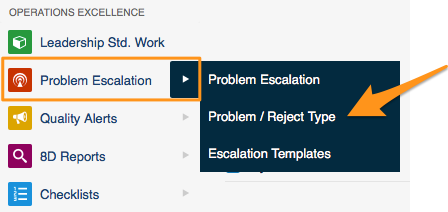
Open the problem types. Go to the Problem Escalation menu and the Problem / Reject Type submenu.
-
Add a new type. Click the Add icon to create a new type.

Create escalation templates
-
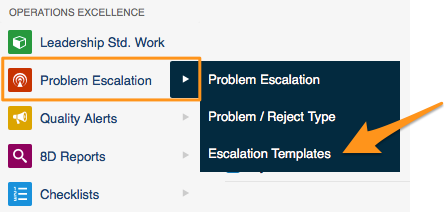
Open the escalation templates. Go to the Problem Escalation menu and the Escalation Templates submenu.
-
Add a new template. Click the Add icon to create a new template.
-
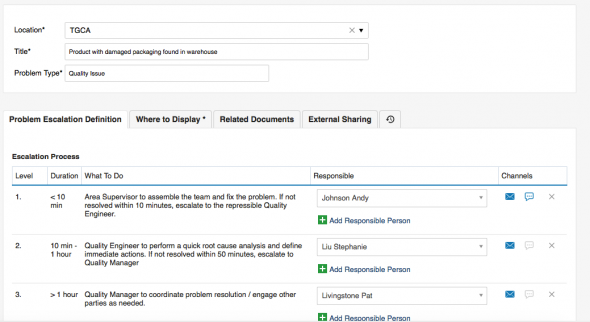
Select the location. In Location, select the org. unit of your structure that this template should be used for (each site or org. unit may have a different process).
-
Enter a title. Fill in the Title of the template.
-
Select the problem type. Select the Problem Type that this template should be used for (a material shortage may have a different process than a quality issue).
-
Set up the escalation levels. Set up the individual levels of the Escalation Process: who is responsible for solving the PE at each level, and after what time the system should escalate the issue if it is not solved.
-
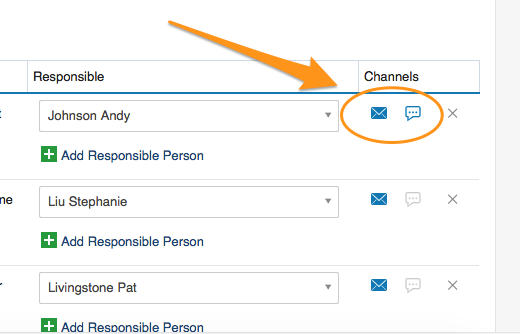
Select the channels. Select the information channels (email, SMS).
Create a new problem escalation
-
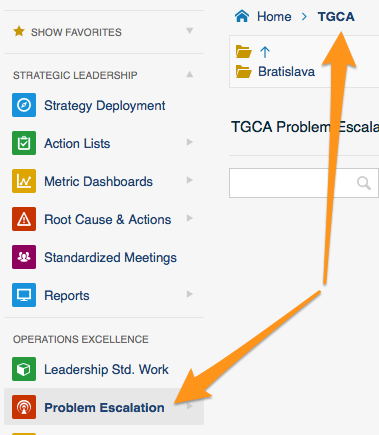
Open the org. unit. Click the Problem Escalation menu and go to the relevant organization unit of your structure.
-
Add a new PE. Click the Add icon to create a new PE.
-
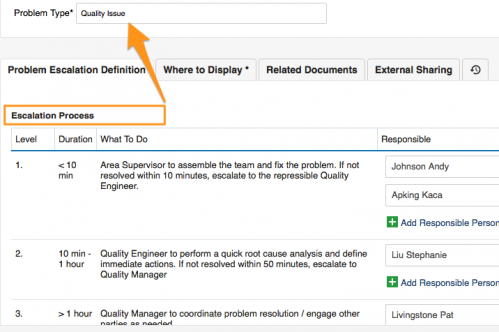
Check the location and the problem type. Check the Location and select the correct Problem Type. The Title and the Escalation Process are predefined according to your escalation template.
-
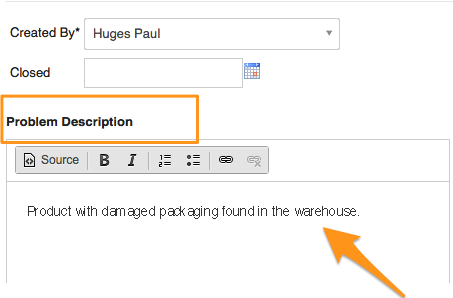
Describe the problem. Fill in the problem description.
-
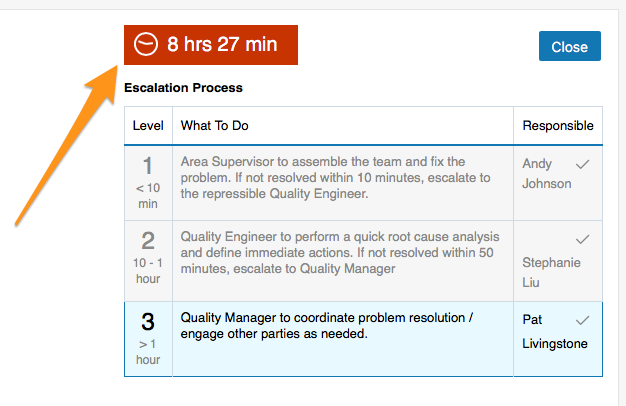
Save the PE. Click Save + Close. The time countdown begins.
-
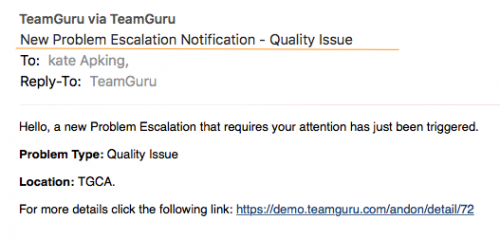
First-level contacts are notified. Once a new PE has been saved, an email notification (SMS) is sent to the first-level contacts of your escalation process.
-
The issue is escalated if not solved. If the PE is not closed within the time specified for the first-level contacts, an escalation email is automatically sent to the second-level contacts.
-
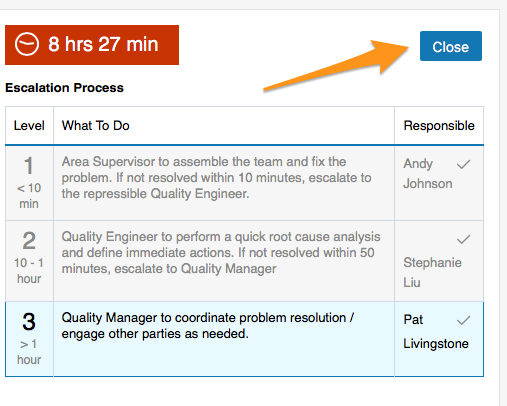
Close the PE. Click the Close button once the issue has been solved.
Share your progress
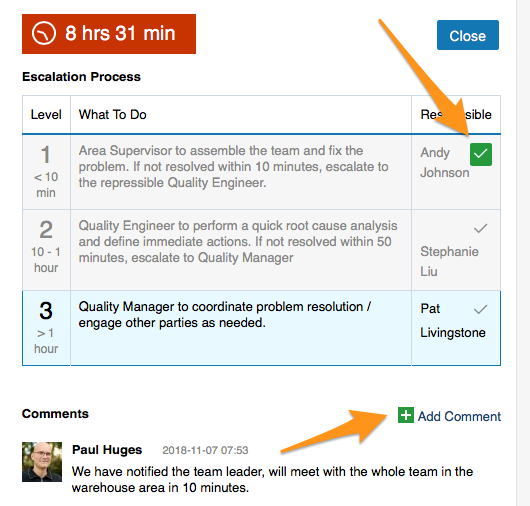
- Click the tick icon next to your name to make it green. Your colleagues can see that you are working on solving the issue.
- Use the Comments field to keep your colleagues informed about the progress.
Video guide
Modul Eskalácia problémov (PE) umožňuje rýchlo reagovať na zastavenie výroby vďaka okamžitým notifikáciám a systému eskalácie.
Prehľad krokov
-
Vytvorte zoznam typov problémov / nezhôd. Skôr než začnete vytvárať dokumenty PE, pripravte si typy problémov, ktoré chcete eskalovať.
-
Vytvorte šablóny eskalácie. Aj šablóny eskalácie pripravte ešte pred vytvorením dokumentov PE.
-
Vytvorte novú eskaláciu problému. Keď máte typy problémov / nezhôd a šablóny eskalácie pripravené, môžete vytvoriť nový dokument PE.
Prvé dva kroky robíte iba raz, keď s Eskaláciou problémov začínate. Šablóny a typy problémov zvyčajne vytvárajú administrátori systému.
Vytvorenie typov problémov / nezhôd
Vytvorte zoznam typov problémov / nezhôd, napríklad porucha zariadenia, nedostatok materiálu, problém s kvalitou a pod.
-
Otvorte typy problémov. Prejdite do menu Eskalácia problémov a podmenu Typ problému / nezhody.
-
Pridajte nový typ. Nový typ vytvoríte kliknutím na ikonu Pridať.
Vytvorenie šablón eskalácie
-
Otvorte šablóny eskalácie. Prejdite do menu Eskalácia problémov a podmenu Šablóny eskalácie.
-
Pridajte novú šablónu. Novú šablónu vytvoríte kliknutím na ikonu Pridať.
-
Zvoľte umiestnenie. V poli Umiestnenie vyberte organizačnú jednotku vašej štruktúry, pre ktorú sa má šablóna používať (každý závod alebo org. jednotka môže mať iný postup).
-
Zadajte názov. Vyplňte Názov šablóny.
-
Zvoľte typ problému. Vyberte Typ problému, pre ktorý sa má šablóna používať (nedostatok materiálu môže mať iný postup ako problém s kvalitou).
-
Nastavte úrovne eskalácie. Nastavte jednotlivé úrovne v časti Proces eskalácie: kto na danej úrovni zodpovedá za vyriešenie PE a po akom čase má systém problém eskalovať, ak nie je vyriešený.
-
Zvoľte kanály. Vyberte informačné kanály (e-mail, SMS).
Vytvorenie novej eskalácie problému
-
Otvorte org. jednotku. Kliknite na menu Eskalácia problémov a prejdite do príslušnej organizačnej jednotky vašej štruktúry.
-
Pridajte novú PE. Novú PE vytvoríte kliknutím na ikonu Pridať.
-
Skontrolujte umiestnenie a typ problému. Skontrolujte Umiestnenie a vyberte správny Typ problému. Názov a Proces eskalácie sa predvyplnia podľa šablóny eskalácie.
-
Popíšte problém. Vyplňte popis problému.
-
Uložte PE. Kliknite na Uložiť + Zavrieť. Spustí sa odpočítavanie času.
-
Kontakty prvej úrovne dostanú upozornenie. Po uložení novej PE sa kontaktom prvej úrovne procesu eskalácie odošle e-mailová notifikácia (SMS).
-
Nevyriešený problém sa eskaluje. Ak sa PE neuzavrie v čase stanovenom pre kontakty prvej úrovne, kontaktom druhej úrovne sa automaticky odošle eskalačný e-mail.
-
Uzavrite PE. Keď je problém vyriešený, kliknite na tlačidlo Uzavrieť.
Informujte o postupe
- Kliknite na ikonu fajky vedľa svojho mena, aby zozelenala. Kolegovia tak uvidia, že na riešení problému pracujete.
- V poli Komentáre priebežne informujte kolegov o postupe.
Video návod
Potrebujete ďalšiu pomoc?
Napíšte nám. V pracovné dni zvyčajne odpovedáme do hodiny.