How to set up a main project that includes all subprojects automatically
You can add subprojects to your main project automatically, based on the project type and location. This gives you a simple overview of your subprojects: you can see their completion status and their open and total actions, and navigate from one place to all subproject documents via live links.
Video guide (text instructions below):
Set up the subprojects
Assign a project type to each subproject
Set up your A3 projects (action lists) with a project type; do this for your subprojects. Open the action list settings, scroll down to the Settings tab and choose a Project Type from the submenu. You can select from the project types already created in the system.

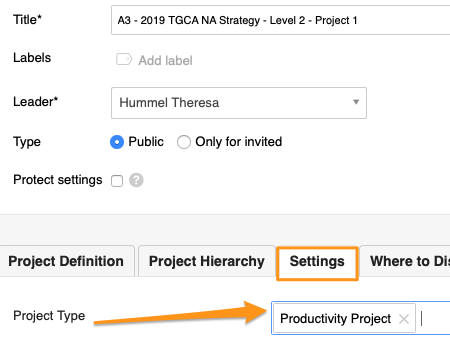
Please note: If you need to create a new project type and don’t have a sufficient role to do so, please contact us or your system administrator for assistance.
Set up the main action list
Add subprojects automatically
Open the settings of your main action list (parent project), scroll down to the Project Hierarchy tab and tick Add subprojects automatically.
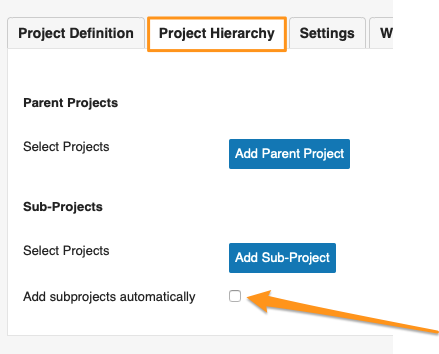
Select the subproject criteria
Select the Project Type, Project Location and Project Status. Then scroll up and click Save & View.
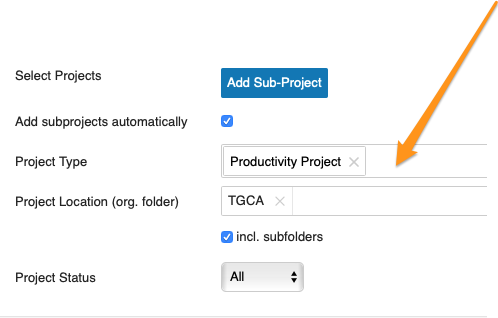
Please note: If you don’t specify a location, your action list includes all subprojects set up with that project type across your whole company.
Review the subprojects
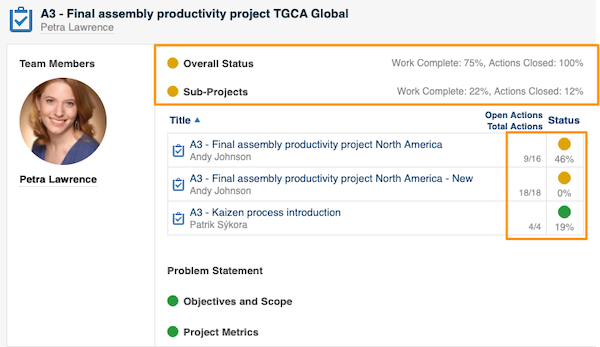
Your main action list now includes all subprojects based on your selection. You can use the live links and view the open/total actions and the completion status of each subproject.
Related articles
Still need help?
Write to us. We usually reply within an hour on business days.