Linked Sub-projects
You can link your sub-project(s) to your parent project and vice versa, and you can set up a main project that includes all sub-projects automatically based on your project type(s). Now you can also attach related projects to any of your action items (linked sub-project).
How the project dates are set
An action list is a project, for example:
- Action 1
- Sub-task A
- Sub-task B
- Sub-task C (linked with a different action list, i.e. a sub-project)
- Action 2
- Action 3
The dates of your main project (start date, due date and ETA) automatically reflect the dates of all its actions. The start date is the earliest date of any sub-task or sub-project; the due date and ETA are the latest dates.
- Action 1
Create an action with a linked sub-project
-
Add an action or sub-task. Go to your action list and add either an action or a sub-task. To add an action, click the green plus button in the upper right corner above your actions.

To add a sub-task, click the green plus button at the level of your action.

-
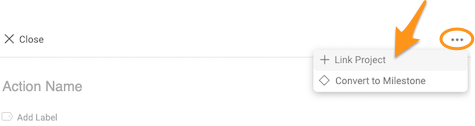
Link the project. Open the three-dot menu, click Link Project and select a project from the submenu.
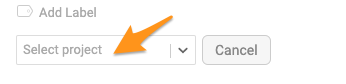
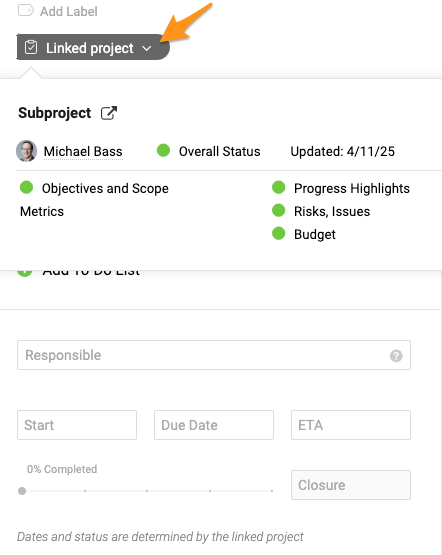
You then see the status summary of your sub-project. You can edit the action (title, label, flag, attachment, etc.) except for its dates and status. To change those, go directly to your sub-project.
-
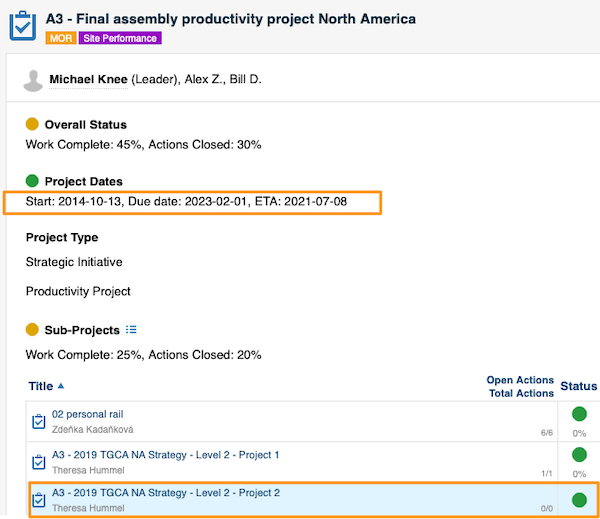
Save the action. Once you Save the action, a live link to the sub-project is automatically displayed in the header of your main project, and the dates under Project Dates are adjusted automatically.
Recognize linked actions
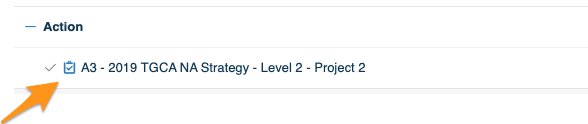
An action linked with a sub-project is distinguished from other tasks by this icon.
View all actions of linked sub-projects
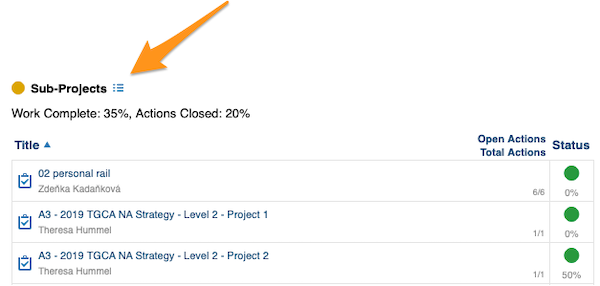
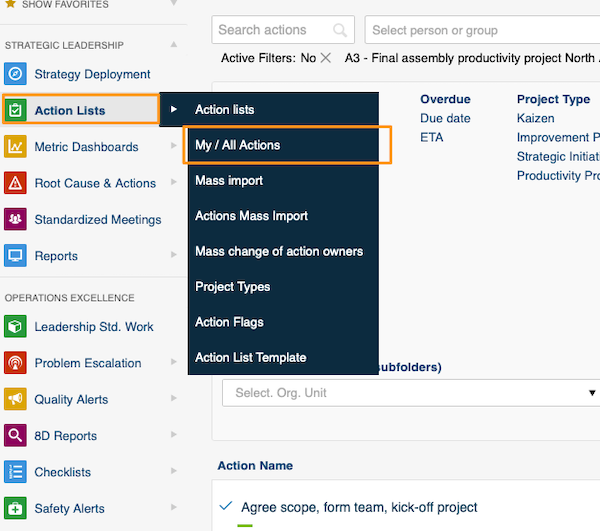
Click the icon next to Sub-Projects. It takes you to the My/All Actions screen with a predefined filter.
Edit the sub-project actions
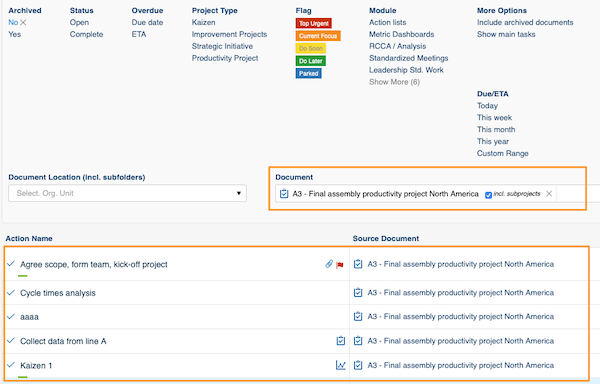
Here you can view all actions of your sub-projects and modify your sub-projects directly.
Still need help?
Write to us. We usually reply within an hour on business days.