关联子项目
本文由英文机器翻译。 当前显示英文原文。
You can link your sub-project(s) to your parent project and vice versa, and you can set up a main project that includes all sub-projects automatically based on your project type(s). Now you can also attach related projects to any of your action items (linked sub-project).
How the project dates are set
An action list is a project, for example:
- Action 1
- Sub-task A
- Sub-task B
- Sub-task C (linked with a different action list, i.e. a sub-project)
- Action 2
- Action 3
The dates of your main project (start date, due date and ETA) automatically reflect the dates of all its actions. The start date is the earliest date of any sub-task or sub-project; the due date and ETA are the latest dates.
- Action 1
Create an action with a linked sub-project
-
Add an action or sub-task. Go to your action list and add either an action or a sub-task. To add an action, click the green plus button in the upper right corner above your actions.

To add a sub-task, click the green plus button at the level of your action.

-
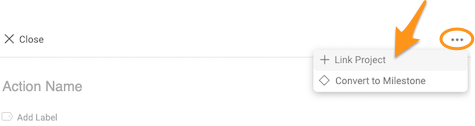
Link the project. Open the three-dot menu, click Link Project and select a project from the submenu.
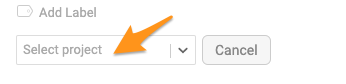
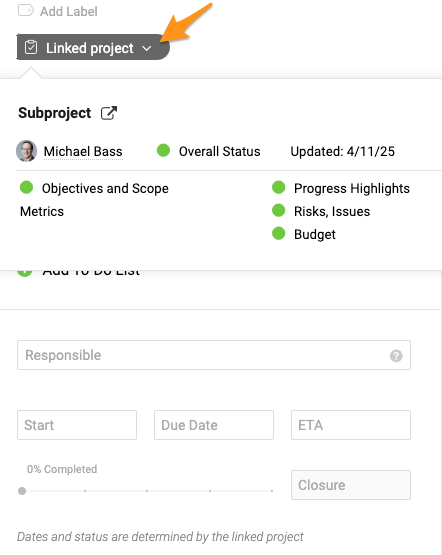
You then see the status summary of your sub-project. You can edit the action (title, label, flag, attachment, etc.) except for its dates and status. To change those, go directly to your sub-project.
-
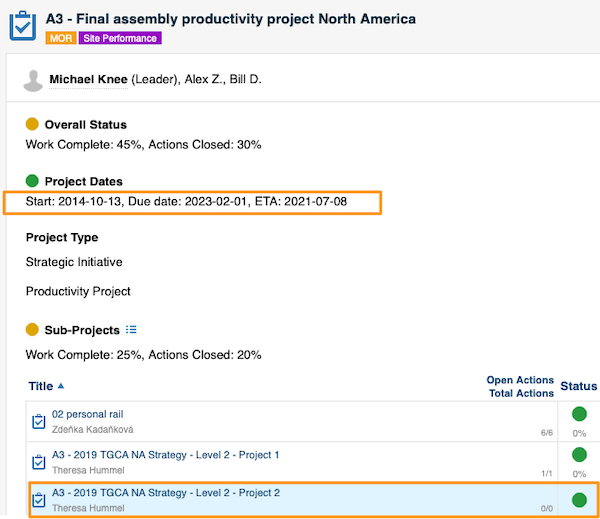
Save the action. Once you Save the action, a live link to the sub-project is automatically displayed in the header of your main project, and the dates under Project Dates are adjusted automatically.
Recognize linked actions
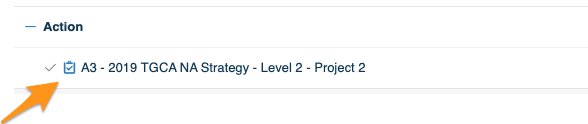
An action linked with a sub-project is distinguished from other tasks by this icon.
View all actions of linked sub-projects
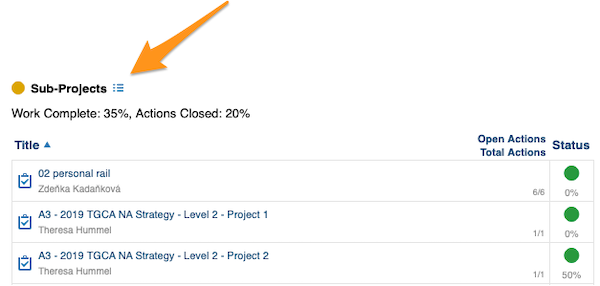
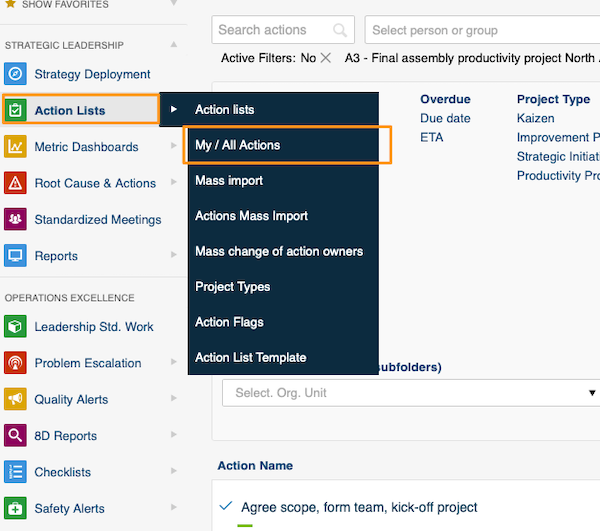
Click the icon next to Sub-Projects. It takes you to the My/All Actions screen with a predefined filter.
Edit the sub-project actions
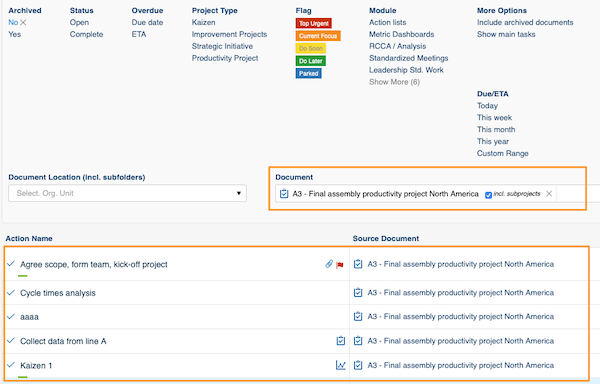
Here you can view all actions of your sub-projects and modify your sub-projects directly.
您可以将子项目关联到父项目,反之亦然;还可以根据项目类型设置一个自动包含所有子项目的主项目。现在,您还可以为任意行动项附加相关项目(关联子项目)。
项目日期的确定方式
一个行动清单就是一个项目,例如:
- 行动1
- 子任务A
- 子任务B
- 子任务C(与另一个行动清单关联,即子项目)
- 行动2
- 行动3
主项目的日期(开始日期、截止日期和预计完成日期)会自动反映其所有行动的日期。开始日期为所有子任务或子项目中最早的日期;截止日期和预计完成日期为最晚的日期。
- 行动1
创建带关联子项目的行动
-
添加行动或子任务。 进入行动清单,添加行动或子任务。要添加行动,请点击行动上方右上角的绿色加号按钮。
要添加子任务,请点击该行动所在行的绿色加号按钮。
-
关联项目。 打开三点菜单,点击关联项目,然后从子菜单中选择项目。
随后会显示子项目的状态摘要。您可以编辑该行动(标题、标签、标记、附件等),但不能编辑其日期和状态。如需更改,请直接进入子项目。
-
保存行动。 保存行动后,主项目的标题栏中会自动显示指向子项目的实时链接,项目日期下的日期也会自动调整。
识别关联的行动
与子项目关联的行动会以此图标与其他任务区分开。
查看关联子项目的所有行动
点击子项目旁的图标,即可进入带有预设筛选条件的我的/所有行动页面。
编辑子项目的行动
在这里,您可以查看子项目的所有行动,并直接修改子项目。
还需要帮助吗?
请给我们留言。工作日我们通常会在一小时内回复。