Verknüpfte Teilprojekte
Maschinelle Übersetzung aus dem Englischen. Englisches Original wird angezeigt.
You can link your sub-project(s) to your parent project and vice versa, and you can set up a main project that includes all sub-projects automatically based on your project type(s). Now you can also attach related projects to any of your action items (linked sub-project).
How the project dates are set
An action list is a project, for example:
- Action 1
- Sub-task A
- Sub-task B
- Sub-task C (linked with a different action list, i.e. a sub-project)
- Action 2
- Action 3
The dates of your main project (start date, due date and ETA) automatically reflect the dates of all its actions. The start date is the earliest date of any sub-task or sub-project; the due date and ETA are the latest dates.
- Action 1
Create an action with a linked sub-project
-
Add an action or sub-task. Go to your action list and add either an action or a sub-task. To add an action, click the green plus button in the upper right corner above your actions.

To add a sub-task, click the green plus button at the level of your action.

-
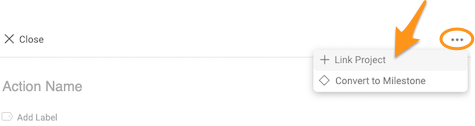
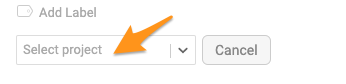
Link the project. Open the three-dot menu, click Link Project and select a project from the submenu.
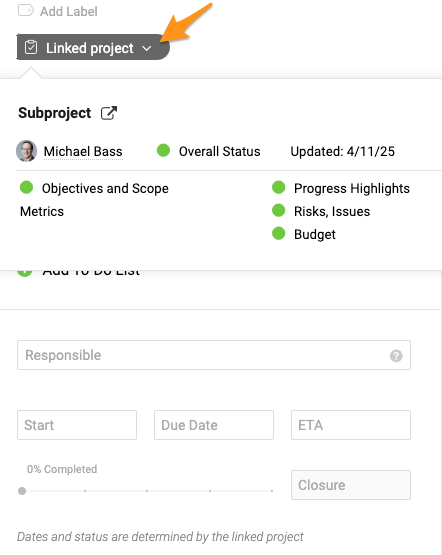
You then see the status summary of your sub-project. You can edit the action (title, label, flag, attachment, etc.) except for its dates and status. To change those, go directly to your sub-project.
-
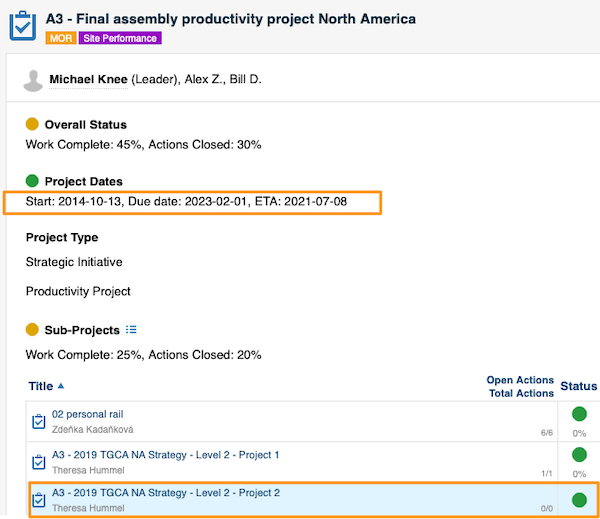
Save the action. Once you Save the action, a live link to the sub-project is automatically displayed in the header of your main project, and the dates under Project Dates are adjusted automatically.
Recognize linked actions
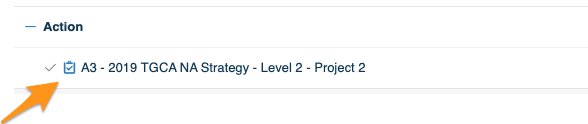
An action linked with a sub-project is distinguished from other tasks by this icon.
View all actions of linked sub-projects
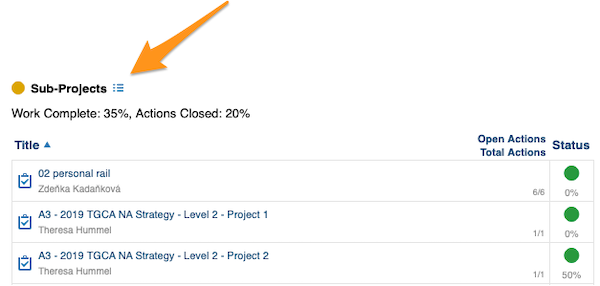
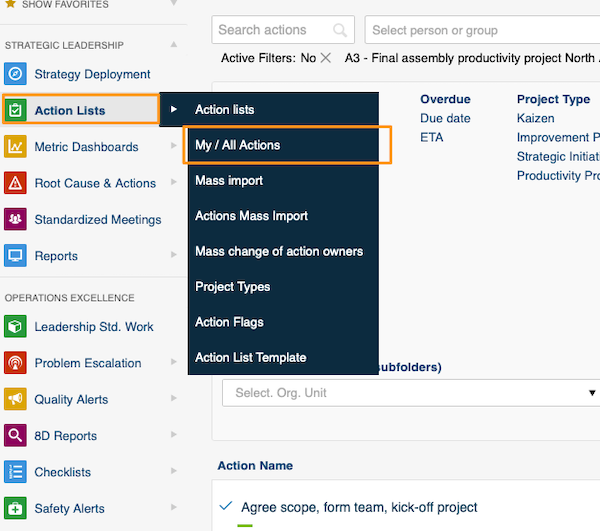
Click the icon next to Sub-Projects. It takes you to the My/All Actions screen with a predefined filter.
Edit the sub-project actions
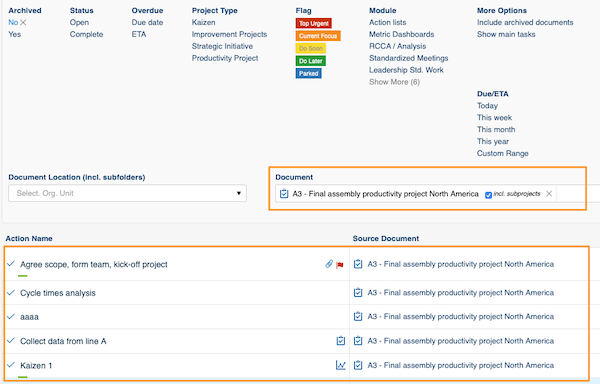
Here you can view all actions of your sub-projects and modify your sub-projects directly.
Sie können Teilprojekte mit Ihrem übergeordneten Projekt verknüpfen und umgekehrt, und Sie können ein Hauptprojekt einrichten, das anhand Ihrer Projekttypen automatisch alle Teilprojekte enthält. Jetzt können Sie zugehörige Projekte auch an jede beliebige Maßnahme anhängen (verknüpftes Teilprojekt).
So werden die Projekttermine festgelegt
Eine Maßnahmenliste ist ein Projekt, zum Beispiel:
- Maßnahme 1
- Unteraufgabe A
- Unteraufgabe B
- Unteraufgabe C (mit einer anderen Maßnahmenliste verknüpft, also ein Teilprojekt)
- Maßnahme 2
- Maßnahme 3
Die Termine Ihres Hauptprojekts (Startdatum, Fälligkeitsdatum und ETA) spiegeln automatisch die Termine aller seiner Maßnahmen wider. Startdatum ist das früheste Datum aller Unteraufgaben und Teilprojekte, Fälligkeitsdatum und ETA sind die spätesten Daten.
- Maßnahme 1
Maßnahme mit verknüpftem Teilprojekt erstellen
-
Fügen Sie eine Maßnahme oder Unteraufgabe hinzu. Öffnen Sie Ihre Maßnahmenliste und fügen Sie eine Maßnahme oder eine Unteraufgabe hinzu. Eine Maßnahme fügen Sie mit der grünen Plus-Schaltfläche oben rechts über Ihren Maßnahmen hinzu.
Eine Unteraufgabe fügen Sie mit der grünen Plus-Schaltfläche auf der Ebene Ihrer Maßnahme hinzu.
-
Verknüpfen Sie das Projekt. Öffnen Sie das Drei-Punkte-Menü, klicken Sie auf Projekt verknüpfen und wählen Sie im Untermenü ein Projekt aus.
Sie sehen dann eine Statusübersicht Ihres Teilprojekts. Sie können die Maßnahme bearbeiten (Titel, Label, Flag, Anhang usw.), nicht aber ihre Termine und ihren Status. Diese ändern Sie direkt im Teilprojekt.
-
Speichern Sie die Maßnahme. Sobald Sie die Maßnahme Speichern, erscheint im Kopfbereich Ihres Hauptprojekts automatisch ein Live-Link zum Teilprojekt, und die Termine unter Projekttermine werden automatisch angepasst.
Verknüpfte Maßnahmen erkennen
Eine mit einem Teilprojekt verknüpfte Maßnahme erkennen Sie an diesem Symbol.
Alle Maßnahmen verknüpfter Teilprojekte anzeigen
Klicken Sie auf das Symbol neben Teilprojekte. Sie gelangen zur Ansicht Meine/Alle Maßnahmen mit einem voreingestellten Filter.
Maßnahmen der Teilprojekte bearbeiten
Hier sehen Sie alle Maßnahmen Ihrer Teilprojekte und können Ihre Teilprojekte direkt bearbeiten.
Brauchen Sie weitere Hilfe?
Schreiben Sie uns. An Werktagen antworten wir meist innerhalb einer Stunde.