So verknüpfen Sie Prioritäten mit Projekten und verfolgen deren Fortschritt
Maschinelle Übersetzung aus dem Englischen. Englisches Original wird angezeigt.
Priorities (list 3 of the matrix) are the work that brings the change. Link every priority to a project in Action Lists and the review dashboard shows its progress for you.
Link a project, a metric dashboard or a child X-matrix
- Click Edit above the matrix.
- Click the pencil under Key Improvement Priorities (the list names come from the template of your plan).
- In the row of the priority, click + in the Documents column.
- Search for the document and pick it – an action list (project), a metric dashboard or another X-matrix. You can also create a new one straight from the picker.
- Click Done.
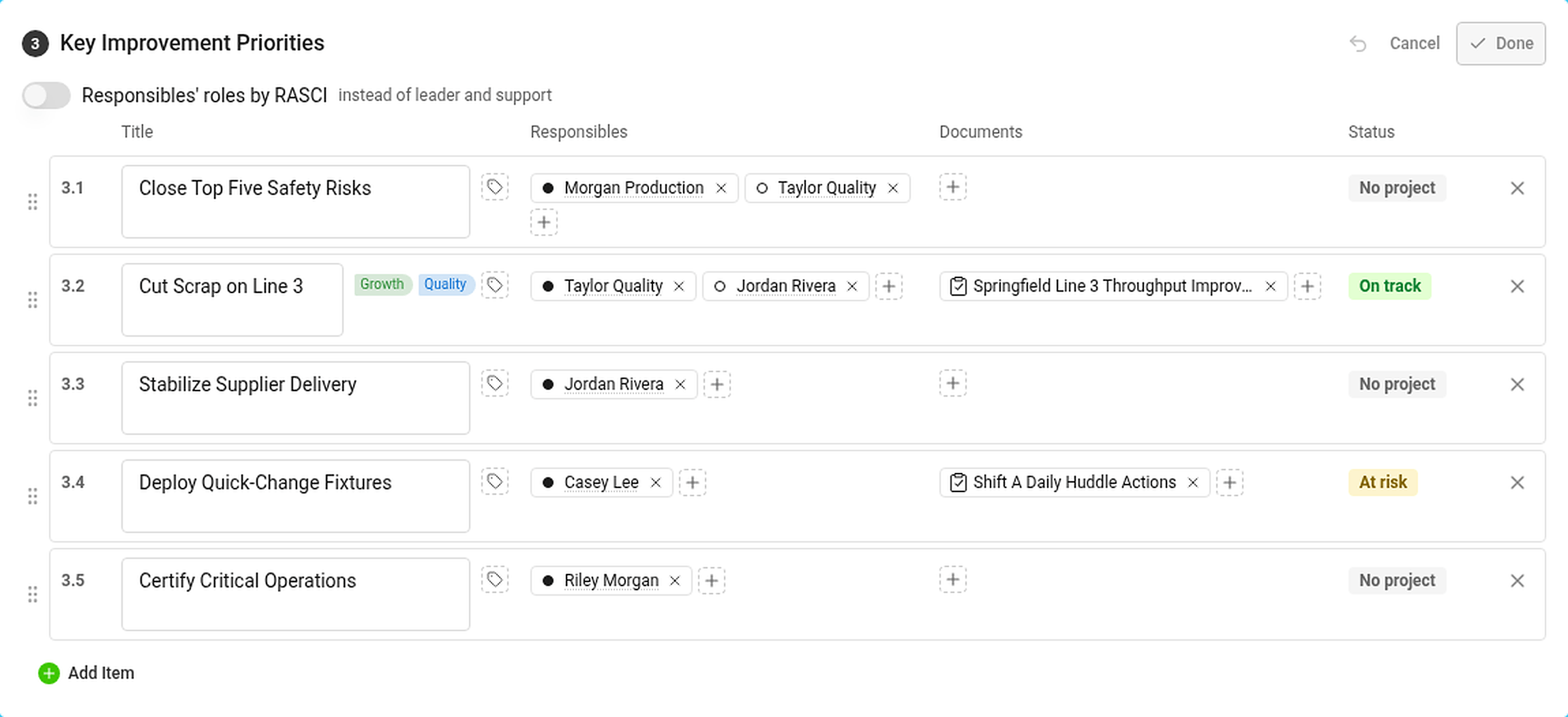
In the Responsibles column, click + to add the person who answers for the priority. The dot in front of the name is the role: filled for leader, hollow for support (or RASCI letters, if you turned RASCI on).
The Status column shows the status of the priority – see How statuses are calculated.
Where you see the progress

The Projects section lists every project linked to a priority:
- the status of the project and its progress bar – the black tick is where the project should be today according to its plan,
- the days left (or overdue) and the percentage done,
- the codes of the priorities and the pillars it belongs to.
Hover over a project for its leader, milestones and the number of tasks – total, closed and overdue. In the Strategic Plan view the projects are in the column Projects and documents.
If you are not allowed to open a project, its status still counts but its dates and progress are hidden.
A priority with its own X-matrix
Link another X-matrix to a priority and its overall status counts towards the status of the priority. Use this to connect the plan of a plant to the plan of a department. See How to link X-matrices into a plan hierarchy.
Prioritäten (Liste 3 der Matrix) sind die Arbeit, die die Veränderung bringt. Verknüpfen Sie jede Priorität mit einem Projekt im Modul Maßnahmenlisten, dann zeigt das Review-Dashboard den Fortschritt für Sie an.
Projekt, KPI-Dashboard oder untergeordnete X-Matrix verknüpfen
- Klicken Sie über der Matrix auf Bearbeiten.
- Klicken Sie auf den Stift unter Hauptprioritäten (die Listennamen stammen aus der Vorlage Ihres Plans).
- Klicken Sie in der Zeile der Priorität in der Spalte Dokumente auf +.
- Suchen Sie das Dokument und wählen Sie es aus – eine Maßnahmenliste (Projekt), ein KPI-Dashboard oder eine andere X-Matrix. Sie können auch direkt in der Auswahl ein neues anlegen.
- Klicken Sie auf Fertig.
Klicken Sie in der Spalte Verantwortliche auf +, um die Person hinzuzufügen, die für die Priorität verantwortlich ist. Der Punkt vor dem Namen zeigt die Rolle: gefüllt für führend, leer für unterstützend (oder RASCI-Buchstaben, wenn Sie RASCI aktiviert haben).
Die Spalte Status zeigt den Status der Priorität – siehe So werden Status berechnet.
Wo Sie den Fortschritt sehen
Der Abschnitt Projekte listet alle mit einer Priorität verknüpften Projekte auf:
- den Status des Projekts und seinen Fortschrittsbalken – die schwarze Markierung zeigt, wo das Projekt laut Plan heute stehen sollte,
- die verbleibenden (oder überfälligen) Tage und den Fertigstellungsgrad in Prozent,
- die Codes der Prioritäten und die Säulen, zu denen es gehört.
Fahren Sie mit der Maus über ein Projekt, um Projektleiter, Meilensteine und die Anzahl der Aufgaben zu sehen – gesamt, abgeschlossen und überfällig. In der Ansicht Strategieplan stehen die Projekte in der Spalte Projekte und Dokumente.
Dürfen Sie ein Projekt nicht öffnen, zählt sein Status trotzdem, Termine und Fortschritt sind aber verborgen.
Eine Priorität mit eigener X-Matrix
Verknüpfen Sie eine andere X-Matrix mit einer Priorität, dann fließt deren Gesamtstatus in den Status der Priorität ein. So verbinden Sie den Plan eines Werks mit dem Plan einer Abteilung. Siehe So verknüpfen Sie X-Matrizen zu einer Planhierarchie.
Brauchen Sie weitere Hilfe?
Schreiben Sie uns. An Werktagen antworten wir meist innerhalb einer Stunde.